Electron 与 OpenHarmony 的实战入门:系统信息查看器

Electron 与 OpenHarmony 的实战入门:系统信息查看器

@VON
发布于 2025-12-21 12:34:29
发布于 2025-12-21 12:34:29
- 个人首页: VON
- 鸿蒙系列专栏: 鸿蒙开发小型案例总结
- 综合案例 :鸿蒙综合案例开发
- 鸿蒙6.0:从0开始的开源鸿蒙6.0.0
- 鸿蒙5.0:鸿蒙5.0零基础入门到项目实战
- 本文章所属专栏:Electron for OpenHarmony
Electron 与 OpenHarmony 的实战入门:系统信息查看器
作者:VON HarmonyOS 初级开发者|CSDN 新星创作者(Java/Web 领域) 专栏链接:Electron for OpenHarmony
在桌面应用开发中,获取系统信息是许多工具类软件的基础能力——从硬件检测到环境诊断,都离不开对操作系统、内存、CPU 等数据的读取。本文将带你构建一个安全、规范的 系统信息查看器,并重点讲解如何在 Electron 中安全调用 Node.js 能力,同时为未来向 OpenHarmony 迁移预留接口。
本项目虽小,却完整覆盖了:
- 主进程与渲染进程的安全通信(IPC)
- Node.js 原生模块(
os)的封装使用 - 上下文隔离(Context Isolation)下的 API 暴露
- 鸿蒙平台的能力映射思路
一、为什么选择“系统信息查看器”?
特性 | 说明 |
|---|---|
✅ 典型 IPC 场景 | 渲染进程需请求主进程提供系统数据 |
✅ Node.js 能力调用 | 使用 os 模块获取平台、内存、用户等信息 |
✅ 安全架构实践 | 不直接开启 nodeIntegration,而是通过 preload.js 桥接 |
✅ 可迁移性强 | OpenHarmony 提供 @ohos.systemParameter 等等效 API |
💡 此项目是学习 Electron 安全模型的理想中间案例——比“时间显示器”复杂,又比“文件编辑器”轻量。
二、项目结构
system-info-viewer/
├── main.js          # 主进程:调用 os 模块 + 处理 IPC
├── preload.js       # 预加载脚本:安全暴露 getInfo 接口
├── index.html       # 渲染界面:展示系统信息
└── package.json     # 依赖配置
三、完整代码实现
1. 初始化项目
mkdir system-info-viewer && cd system-info-viewer
npm init -y
npm install electron --save-dev
2. package.json
{
  "name": "system-info-viewer",
  "version": "1.0.0",
  "main": "main.js",
  "scripts": {
    "start": "electron ."
  },
  "devDependencies": {
    "electron": "^33.0.0"
  }
}
3. main.js —— 主进程:安全封装系统信息
const { app, BrowserWindow, ipcMain } = require('electron');
const os = require('os'); // Node.js 内置模块

function createWindow() {
  const win = new BrowserWindow({
    width: 600,
    height: 500,
    webPreferences: {
      preload: __dirname + '/preload.js',
      contextIsolation: true,
      nodeIntegration: false // 严格禁止
    }
  });
  win.loadFile('index.html');
}

// 监听渲染进程请求
ipcMain.handle('get-system-info', () => {
  return {
    platform: os.platform(),
    arch: os.arch(),
    release: os.release(),
    hostname: os.hostname(),
    totalmem: (os.totalmem() / 1024 / 1024 / 1024).toFixed(2) + ' GB',
    freemem: (os.freemem() / 1024 / 1024 / 1024).toFixed(2) + ' GB',
    uptime: Math.floor(os.uptime() / 60) + ' 分钟',
    username: os.userInfo().username || 'unknown'
  };
});

app.whenReady().then(createWindow);
app.on('window-all-closed', () => {
  if (process.platform !== 'darwin') app.quit();
});
🔒 所有敏感数据由主进程提供,渲染进程无法直接访问
os模块。
4. preload.js —— 安全桥接层
const { contextBridge, ipcRenderer } = require('electron');

contextBridge.exposeInMainWorld('sysAPI', {
  getSystemInfo: () => ipcRenderer.invoke('get-system-info')
});
✅ 渲染进程通过
window.sysAPI.getSystemInfo()获取数据,接口清晰、权限可控。
5. index.html —— 用户界面
<!DOCTYPE html>
<html lang="zh-CN">
<head>
  <meta charset="UTF-8" />
  <title>系统信息查看器</title>
  <style>
    body {
      font-family: -apple-system, BlinkMacSystemFont, sans-serif;
      padding: 20px;
      background: #f8f9fa;
      color: #333;
    }
    h1 {
      text-align: center;
      margin-bottom: 20px;
      color: #0d6efd;
    }
    .info-grid {
      display: grid;
      grid-template-columns: repeat(2, 1fr);
      gap: 12px;
    }
    .info-item {
      background: white;
      padding: 12px;
      border-radius: 6px;
      box-shadow: 0 1px 3px rgba(0,0,0,0.1);
    }
    .label {
      font-weight: bold;
      color: #555;
      font-size: 14px;
    }
    .value {
      font-size: 16px;
      margin-top: 4px;
    }
    button {
      display: block;
      margin: 20px auto;
      padding: 8px 20px;
      font-size: 16px;
      background: #0d6efd;
      color: white;
      border: none;
      border-radius: 4px;
      cursor: pointer;
    }
    button:hover {
      background: #0b5ed7;
    }
  </style>
</head>
<body>
  <h1>🖥️ 系统信息</h1>
  <div class="info-grid" id="info-container">
    <!-- 动态填充 -->
  </div>
  <button onclick="loadInfo()">刷新信息</button>

  <script>
    async function loadInfo() {
      try {
        const info = await window.sysAPI.getSystemInfo();
        const container = document.getElementById('info-container');
        container.innerHTML = '';

        const fields = [
          { label: '操作系统', key: 'platform' },
          { label: '架构', key: 'arch' },
          { label: '内核版本', key: 'release' },
          { label: '主机名', key: 'hostname' },
          { label: '总内存', key: 'totalmem' },
          { label: '可用内存', key: 'freemem' },
          { label: '运行时间', key: 'uptime' },
          { label: '当前用户', key: 'username' }
        ];

        fields.forEach(item => {
          const div = document.createElement('div');
          div.className = 'info-item';
          div.innerHTML = `
            <div class="label">${item.label}</div>
            <div class="value">${info[item.key]}</div>
          `;
          container.appendChild(div);
        });
      } catch (err) {
        alert('❌ 获取系统信息失败:' + err.message);
      }
    }

    // 页面加载时自动获取
    window.addEventListener('DOMContentLoaded', loadInfo);
  </script>
</body>
</html>
🌈 效果:两列卡片式布局,清晰展示系统关键参数。
四、运行效果
npm start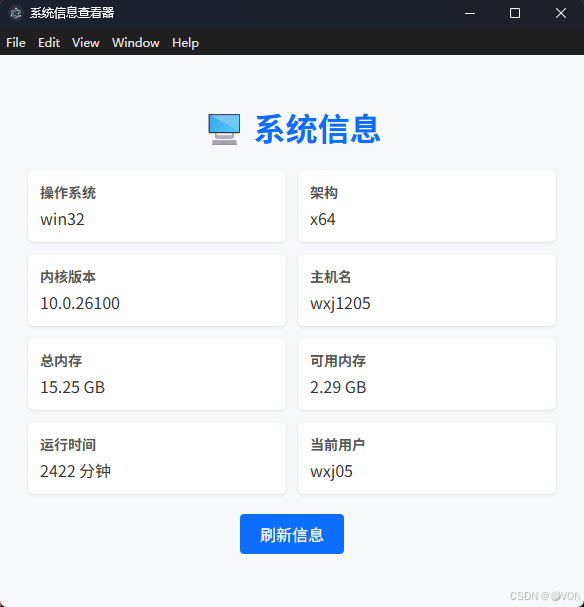
请添加图片描述
你将看到类似以下信息(以 Windows 为例):
操作系统 | win32 |
|---|---|
架构 | x64 |
总内存 | 15.25 GB |
当前用户 | wxj05 |
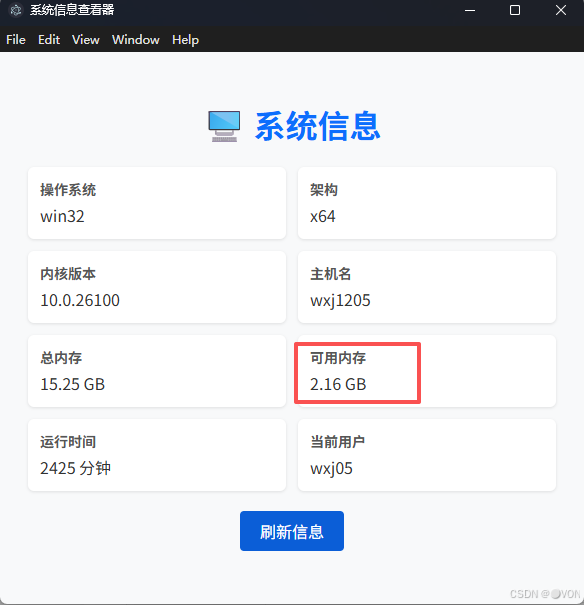
点击【刷新信息】可重新获取最新状态(如内存变化)。
在这里插入图片描述
五、向 OpenHarmony 迁移路径
虽然 OpenHarmony 无法直接使用 Node.js 的 os 模块,但提供了等效能力:
Electron (Node.js) | OpenHarmony 替代方案 |
|---|---|
os.platform() | @ohos.os 或 @ohos.systemParameter.getSync("const.product.model") |
os.totalmem() | 暂不开放(受限于安全策略) |
os.userInfo() | 需用户授权,通过 @ohos.account.appAccount 获取 |
🌉 迁移策略:
- 保留
index.html中的 UI 和数据展示逻辑; - 将
sysAPI.getSystemInfo()替换为鸿蒙原生 API 调用; - 在
Web组件中通过callMethod注入数据。
例如,在 ArkTS 中:
// MainUI.ets
Web({ src: 'system.html' })
  .onMessage((event) => {
    if (event.data === 'requestSysInfo') {
      // 调用鸿蒙 API 获取信息
      const info = getHarmonySystemInfo();
      webController.callMethod('updateInfo', JSON.stringify(info));
    }
  })
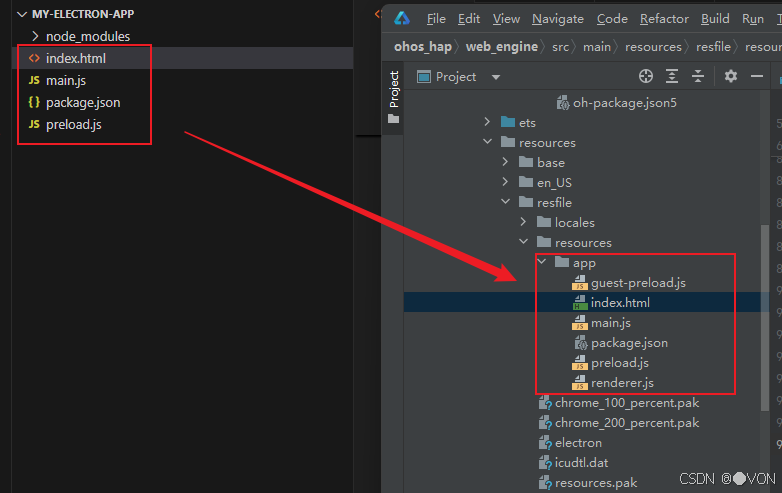
0成本迁移
在这里插入图片描述
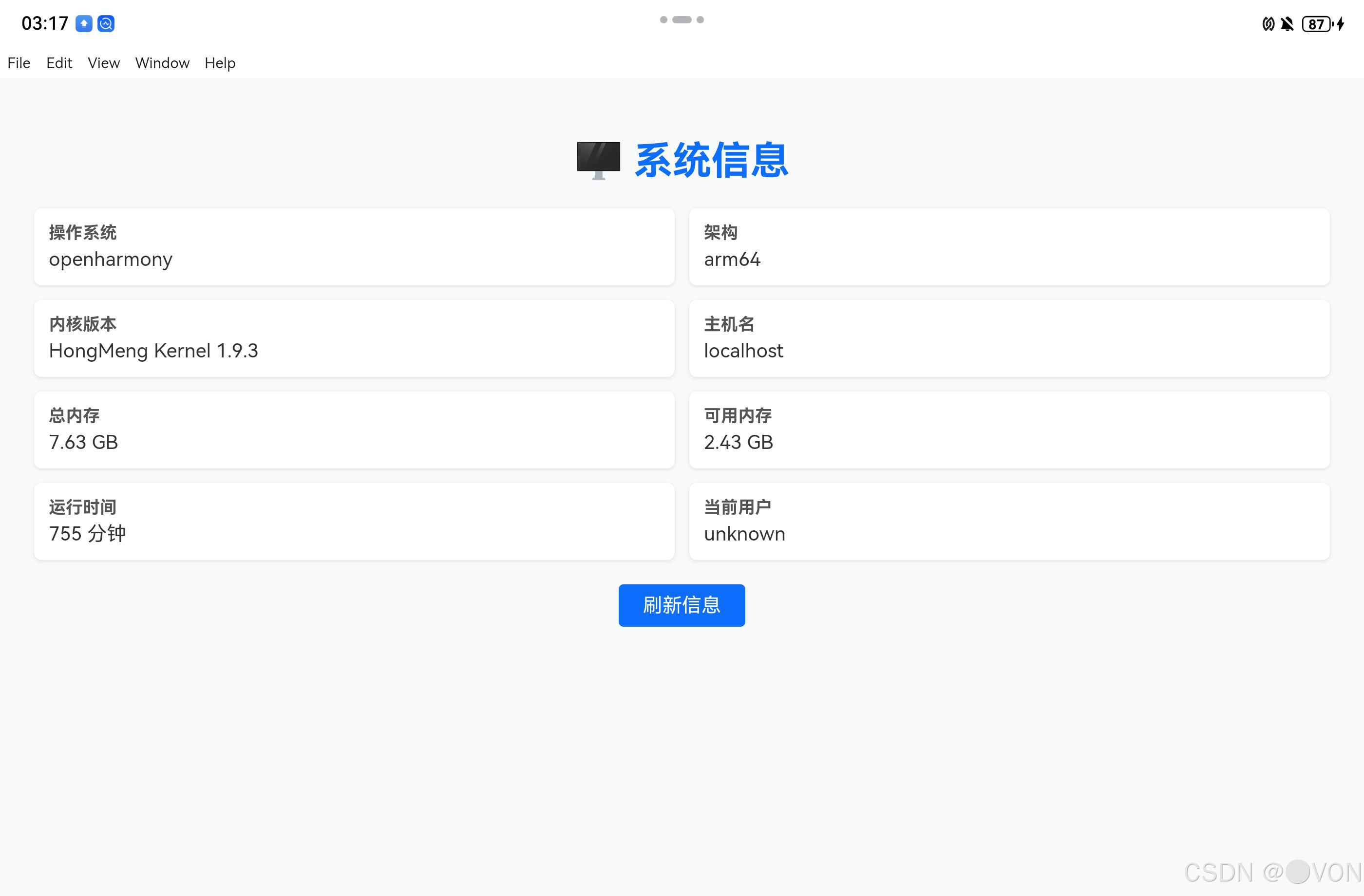
可以看到适配成功,获取到了真机设备的参数信息
在这里插入图片描述
六、安全与最佳实践总结
实践 | 说明 |
|---|---|
❌ 禁用 nodeIntegration | 防止 XSS 攻击执行任意 Node 代码 |
✅ 启用 contextIsolation | 隔离预加载脚本与页面上下文 |
✅ 最小化 API 暴露 | 仅暴露必要方法(如 getSystemInfo) |
✅ 主进程处理敏感操作 | 所有 os 调用在主进程完成 |
七、结语:从系统信息出发,走向跨端未来
“系统信息查看器”不仅是一个实用小工具,更是理解 Electron 安全架构 和 跨平台能力抽象 的绝佳载体。它教会我们:
真正的跨端开发,不是写一次跑 everywhere,而是设计出可替换、可适配的核心逻辑层。
当你在未来面对 OpenHarmony、Tauri、甚至 WebExtensions 时,这种分层思维将让你游刃有余。
了解系统,才能驾驭平台;抽象能力,方可跨越生态。
本文参与 腾讯云自媒体同步曝光计划,分享自作者个人站点/博客。
原始发表:2025-12-12,如有侵权请联系 cloudcommunity@tencent.com 删除
评论
登录后参与评论
推荐阅读
目录
腾讯云开发者

Copyright © 2013 - 2026 Tencent Cloud. All Rights Reserved. 腾讯云 版权所有
深圳市腾讯计算机系统有限公司 ICP备案/许可证号:粤B2-20090059  粤公网安备44030502008569号
腾讯云计算(北京)有限责任公司 京ICP证150476号 | 京ICP备11018762号