
颤振驱动器:测试BottomNavigationBarItem
如何通过BottomNavigationBarItems FlutterDriver测试
FlutterDriver允许通过text、byValueKey、byTooltip和byTypeE 211访问小部件。
但是,由于以下原因,这些方法都不适用于我的应用程序:
- text:应用程序是本地化的,我需要用多种语言测试应用程序。
- byValueKey:BottomNavigationBarItems没有密钥属性。
- byTooltip:BottomNavigationBarItems没有toolTip属性。
- byType :byType只返回类型的第一次匹配,不返回列表(因为我有多个选项卡)。
非常感谢!
干杯。
回答 4
Stack Overflow用户
发布于 2019-05-22 09:40:07
不知道你是否找到了这个问题的答案,但我将在这里张贴一个对我有用的解决方案。基本上,BottomNavigationBar有一个您需要使用的key属性。一旦颤振驱动程序识别了这个键,那么您就可以告诉驱动程序点击它的任何子项,即BottomNavigationBarItem。
我的屏幕有2个bottomNavigationBarItems,如下所示,并且我为它们的父小部件(即BottomNavigationBar )定义了键:
bottomNavigationBar: BottomNavigationBar(
        type: BottomNavigationBarType.shifting,
        key: Key('bottom'),
        items: [
          BottomNavigationBarItem(
            icon: Icon(Icons.ac_unit, color: Colors.green,),
            title: Text('First', style: TextStyle(color: Colors.black),)
          ),
          BottomNavigationBarItem(
            icon: Icon(Icons.cast, color: Colors.yellow,),
            title: Text('Second', style: TextStyle(color: Colors.black),)
          )
        ],
      ),
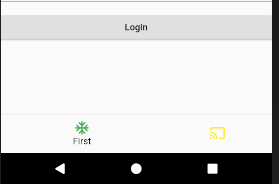
我还写了一个颤振驾驶测试来分析这两个项目,这两个项目都运行得很好。
test('bottomnavigationbar test', () async {
      await driver.waitFor(find.byValueKey('bottom'));
      await driver.tap(find.text('First'));
      print('clicked on first');
      await driver.tap(find.text('Second'));
      print('clicked on second too');
    });
结果:

Stack Overflow用户
发布于 2020-01-06 18:46:18
正如@bsr和@ use 12563357所提到的,您可以在文本小部件上使用键:
bottomNavigationBar: BottomNavigationBar(
        type: BottomNavigationBarType.shifting,
        key: Key('bottom'),
        items: [
          BottomNavigationBarItem(
            icon: Icon(Icons.ac_unit),
            title: Text('First', key: Key('first'),)
          ),
          BottomNavigationBarItem(
            icon: Icon(Icons.cast),
            title: Text('Second', key: Key('second'),)
          )
        ],
      ),
并在测试中找到要单击条形图项的文本:
final firstItem = find.byValueKey('first');
await driver.tap(firstItem);
顺便说一句:您也可以使用BottomNavigationBarItem find.ancestor找到
find.ancestor(of: firstItem, matching: find.byType("BottomNavigationBarItem"));但你不能点击它。
Stack Overflow用户
发布于 2022-04-12 11:55:32
您有两个选项- byIcon或通过从上下文中获取本地化的文本。
您可以获得任何类型的StatefulWidget的状态。
final MyWidgetState state = tester.state(find.byType(MyWidget));有了这一点,您就可以得到上下文,以及当前本地化的内容。
final l10n = AppLocalizations.of(state.context);

await tester.tap(find.text(l10n.youTitle));
另一种选择是通过Icon获取小部件:
await tester.tap(find.byIcon(Icons.your_icon));https://stackoverflow.com/questions/55460993
复制相似问题
腾讯云开发者

Copyright © 2013 - 2026 Tencent Cloud. All Rights Reserved. 腾讯云 版权所有
深圳市腾讯计算机系统有限公司 ICP备案/许可证号:粤B2-20090059  粤公网安备44030502008569号
腾讯云计算(北京)有限责任公司 京ICP证150476号 | 京ICP备11018762号