
ImageSharp和字体高度
我有一个任务,要创建一个图像,将被打印。在图片上,我需要放一个大写字母(大写字母,A-Z).
打印的图像大小可以在15厘米高和30厘米高之间变化(包括两者之间的任何尺寸)。
这封信需要跨越印刷图像的全部高度。
在设置字体大小时,我看到您可以得到文本的大小。
using (Image<Rgba32> img = new Image<Rgba32>(imageWidth, imageHeight))
{
    img.Mutate(x => x.Fill(Rgba32.White));
    img.MetaData.HorizontalResolution = 96;
    img.MetaData.VerticalResolution = 96;
    var fo = SystemFonts.Find("Arial");
    var font = new Font(fo, 1350, FontStyle.Regular);
我可以在这里得到我的文本的大小:
SizeF size = TextMeasurer.Measure(group.Text, new RendererOptions(font));但是,正如你所看到的,我在这里硬编码我的字体的大小。高度需要与图像的高度相匹配。
有没有办法在不拉伸和质量下降的情况下指定这一点?是否有一种方法可以指定高度,以像素为单位?也许我可以安全地使用字体大小的颜色?
当我将字体大小设置为图像的像素高度时,我看到的是:
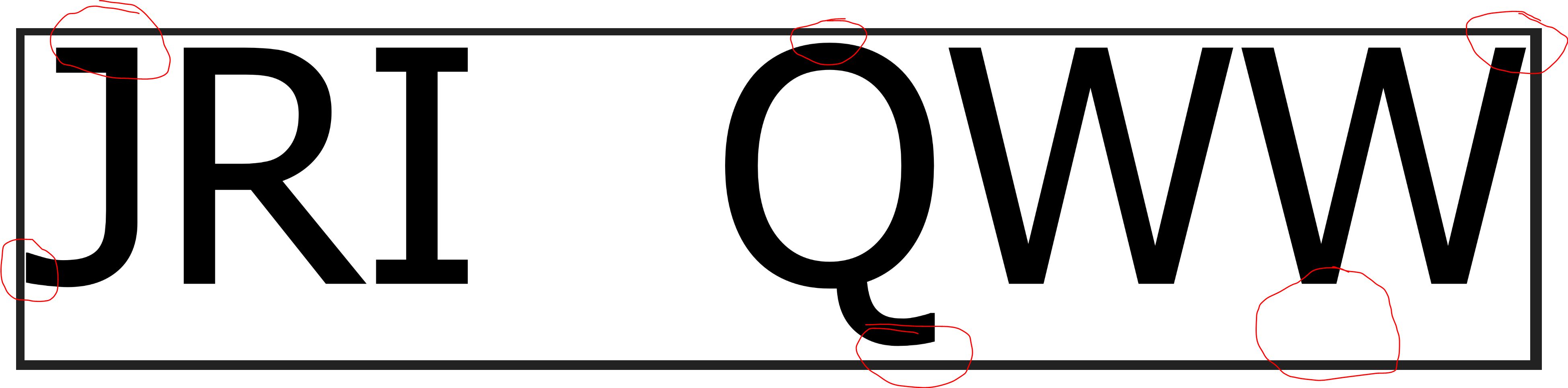
我不知道为什么圆圈的部分有空隙。我将左手文字的左上角位置设置为0,0.和'QWW‘组的右上角到图像的宽度,0作为Y,但我希望它们与大小和底部齐平。
回答 2
Stack Overflow用户
发布于 2018-10-20 00:39:52
我把你的问题分成三部分:
- 动态字体大小,而不是硬编码字体大小
- 字形应使用图像的全部高度。
- 字形应与左边对齐。
动态缩放文本以填充图像的高度
测量文本大小后,计算字体需要向上或向下缩放以匹配图像高度的因子:
SizeF size = TextMeasurer.Measure(text, new RendererOptions(font));
float scalingFactor = finalImage.Height / size.Height;
var scaledFont = new Font(font, scalingFactor * font.Size);
这样,最初设置的字体大小基本上就被忽略了。现在我们可以使用动态缩放字体绘制文本,这取决于图像的高度:
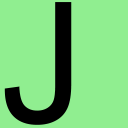
膨胀文本以使用图像的整个高度
根据每个字形,我们现在可能在图像的上/下边和文本的上/下边之间有一个空白。字形的呈现或绘制方式在很大程度上取决于使用中的字体。我不是排版方面的专家,但是AFAIK每种字体都有自己的边距/填充,并且在基线周围有自定义的高度。
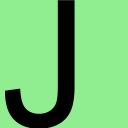
为了使我们的字形与图像的顶部和底部对齐,我们必须进一步放大字体。要计算这个因子,我们可以通过搜索上、下两个像素的高度(y)来确定当前绘制的文本的顶部和底部边缘,并根据这个差异缩放字体。此外,我们还需要用从图像顶部到字形顶部边缘的距离来抵消字形:
int top = GetTopPixel(initialImage, Rgba32.White);
int bottom = GetBottomPixel(initialImage, Rgba32.White);
int offset = top + (initialImage.Height - bottom);

SizeF inflatedSize = TextMeasurer.Measure(text, new RendererOptions(scaledFont));
float inflatingFactor = (inflatedSize.Height + offset) / inflatedSize.Height;
var inflatedFont = new Font(font, inflatingFactor * scaledFont.Size);

location.Offset(0.0f, -top);
现在,我们可以画文本的顶部和底部快照到顶部和底部边缘的图像:
把字形移到最左边
最后,根据字形的不同,字形的左侧可能不会与图像的左侧发生碰撞。与上一步类似,我们可以确定当前图像中包含充气字形的文本的最左边像素,并相应地将文本移动到左侧,以消除以下之间的空白:
int left = GetLeftPixel(intermediateImage, Rgba32.White);

location.Offset(-left, 0.0f);
现在,我们可以绘制与图像左侧对齐的文本:
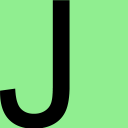
这个最后的图像现在根据图像的大小动态缩放字体,并被进一步放大和移动以填充图像的整个高度,并且进一步移动到没有左边的空白。
备注
在绘制文本时,TextGraphicsOptions的DPI应该与图像的DPI匹配:
var textGraphicOptions = new TextGraphicsOptions(true)
{
    HorizontalAlignment = HorizontalAlignment.Left,
    VerticalAlignment = VerticalAlignment.Top,
    DpiX = (float)finalImage.MetaData.HorizontalResolution,
    DpiY = (float)finalImage.MetaData.VerticalResolution
};
代码
private static void CreateImageFiles()
{
    Directory.CreateDirectory("output");

    string text = "J";

    Rgba32 backgroundColor = Rgba32.White;
    Rgba32 foregroundColor = Rgba32.Black;

    int imageWidth = 256;
    int imageHeight = 256;
    using (var finalImage = new Image<Rgba32>(imageWidth, imageHeight))
    {
        finalImage.Mutate(context => context.Fill(backgroundColor));
        finalImage.MetaData.HorizontalResolution = 96;
        finalImage.MetaData.VerticalResolution = 96;
        FontFamily fontFamily = SystemFonts.Find("Arial");
        var font = new Font(fontFamily, 10, FontStyle.Regular);

        var textGraphicOptions = new TextGraphicsOptions(true)
        {
            HorizontalAlignment = HorizontalAlignment.Left,
            VerticalAlignment = VerticalAlignment.Top,
            DpiX = (float)finalImage.MetaData.HorizontalResolution,
            DpiY = (float)finalImage.MetaData.VerticalResolution
        };

        SizeF size = TextMeasurer.Measure(text, new RendererOptions(font));
        float scalingFactor = finalImage.Height / size.Height;
        var scaledFont = new Font(font, scalingFactor * font.Size);

        PointF location = new PointF();
        using (Image<Rgba32> initialImage = finalImage.Clone(context => context.DrawText(textGraphicOptions, text, scaledFont, foregroundColor, location)))
        {
            initialImage.Save("output/initial.png");

            int top = GetTopPixel(initialImage, backgroundColor);
            int bottom = GetBottomPixel(initialImage, backgroundColor);
            int offset = top + (initialImage.Height - bottom);

            SizeF inflatedSize = TextMeasurer.Measure(text, new RendererOptions(scaledFont));
            float inflatingFactor = (inflatedSize.Height + offset) / inflatedSize.Height;
            var inflatedFont = new Font(font, inflatingFactor * scaledFont.Size);

            location.Offset(0.0f, -top);
            using (Image<Rgba32> intermediateImage = finalImage.Clone(context => context.DrawText(textGraphicOptions, text, inflatedFont, foregroundColor, location)))
            {
                intermediateImage.Save("output/intermediate.png");

                int left = GetLeftPixel(intermediateImage, backgroundColor);

                location.Offset(-left, 0.0f);
                finalImage.Mutate(context => context.DrawText(textGraphicOptions, text, inflatedFont, foregroundColor, location));
                finalImage.Save("output/final.png");
            }
        }
    }
}

private static int GetTopPixel(Image<Rgba32> image, Rgba32 backgroundColor)
{
    for (int y = 0; y < image.Height; y++)
    {
        for (int x = 0; x < image.Width; x++)
        {
            Rgba32 pixel = image[x, y];
            if (pixel != backgroundColor)
            {
                return y;
            }
        }
    }

    throw new InvalidOperationException("Top pixel not found.");
}

private static int GetBottomPixel(Image<Rgba32> image, Rgba32 backgroundColor)
{
    for (int y = image.Height - 1; y >= 0; y--)
    {
        for (int x = image.Width - 1; x >= 0; x--)
        {
            Rgba32 pixel = image[x, y];
            if (pixel != backgroundColor)
            {
                return y;
            }
        }
    }

    throw new InvalidOperationException("Bottom pixel not found.");
}

private static int GetLeftPixel(Image<Rgba32> image, Rgba32 backgroundColor)
{
    for (int x = 0; x < image.Width; x++)
    {
        for (int y = 0; y < image.Height; y++)
        {
            Rgba32 pixel = image[x, y];
            if (pixel != backgroundColor)
            {
                return x;
            }
        }
    }

    throw new InvalidOperationException("Left pixel not found.");
}
我们不需要保存所有3个图像,但是我们确实需要创建所有3个图像,并逐步膨胀和移动文本,以填充图像的整个高度,并从图像的最左边开始。
此解决方案独立于使用的字体工作。此外,对于生产应用程序,避免通过SystemFonts查找字体,因为所讨论的字体可能无法在目标计算机上使用。要有一个稳定的独立解决方案,部署一个TTF字体与应用程序,并通过FontCollection手动安装字体。
Stack Overflow用户
发布于 2018-10-27 15:28:24
TextMeasurer是为在行和单词的上下文中测量文本而设计的,而不是针对单个字符,因为它不查看单个的字形形式,而是将字体作为一个整体来度量行距等等。
相反,您需要使用nuget包SixLabors.Shapes.Text直接将字形呈现给向量。这将使您能够准确地测量最终的字形+应用缩放和转换,以确保字形线与您的图像边缘。它还使您不必执行任何昂贵的像素级操作,只需将字形最终绘制到图像中。
/// <param name="text">one or more characters to scale to fill as much of the target image size as required.</param>
/// <param name="targetSize">the size in pixels to generate the image</param>
/// <param name="outputFileName">path/filename where to save the image to</param>
private static void GenerateImage(string text, Primitives.Size targetSize, string outputFileName)
{
    FontFamily fam = SystemFonts.Find("Arial");
    Font font = new Font(fam, 100); // size doesn't matter too much as we will be scaling shortly anyway
    RendererOptions style = new RendererOptions(font, 72); // again dpi doesn't overlay matter as this code genreates a vector

    // this is the important line, where we render the glyphs to a vector instead of directly to the image
    // this allows further vector manipulation (scaling, translating) etc without the expensive pixel operations.
    IPathCollection glyphs = SixLabors.Shapes.TextBuilder.GenerateGlyphs(text, style);

    var widthScale = (targetSize.Width / glyphs.Bounds.Width);
    var heightScale = (targetSize.Height / glyphs.Bounds.Height);
    var minScale = Math.Min(widthScale, heightScale);

    // scale so that it will fit exactly in image shape once rendered
    glyphs = glyphs.Scale(minScale);

    // move the vectorised glyph so that it touchs top and left edges
    // could be tweeked to center horizontaly & vertically here
    glyphs = glyphs.Translate(-glyphs.Bounds.Location);

    using (Image<Rgba32> img = new Image<Rgba32>(targetSize.Width, targetSize.Height))
    {
        img.Mutate(i => i.Fill(new GraphicsOptions(true), Rgba32.Black, glyphs));

        img.Save(outputFileName);
    }
}https://stackoverflow.com/questions/52866348
复制相似问题
腾讯云开发者

Copyright © 2013 - 2026 Tencent Cloud. All Rights Reserved. 腾讯云 版权所有
深圳市腾讯计算机系统有限公司 ICP备案/许可证号:粤B2-20090059  粤公网安备44030502008569号
腾讯云计算(北京)有限责任公司 京ICP证150476号 | 京ICP备11018762号