
JTAppleCalendar编程,单元格未显示
我正在尝试以编程方式实现JTAppleCalendar,而不使用情节提要,为单元格使用xib文件。我已经设置了委托和数据源,并实现了所需的函数,但是单元格没有显示。我可以看到集合视图是在视图控制器(链接2中的图像中的蓝色方框)中设置和可见的,并且调用了configureCalendar()和cellForItemAt(),但是仍然没有显示数据。
我遗漏了什么?
    var calendarView: JTAppleCalendarView!

  override func viewDidLoad() {
    super.viewDidLoad()

    calendarView = JTAppleCalendarView(frame: CGRect(x: 0, y: 0, width: 300, height: 300))
    calendarView.register(CalendarCellView.self, forCellWithReuseIdentifier: "cell")
    calendarView.ibCalendarDelegate = self
    calendarView.ibCalendarDataSource = self
    self.view.addSubview(calendarView)
    self.view.bringSubview(toFront: calendarView)
    self.calendarView.backgroundColor = UIColor.blue
}

extension TestViewController: JTAppleCalendarViewDataSource {
   func configureCalendar(_ calendar: JTAppleCalendarView) -> ConfigurationParameters {
    let formatter = DateFormatter()
    formatter.dateFormat = "yyyy MM dd"

    let startDate = formatter.date(from: "2016 02 01")! // You can use date generated from a formatter
    let endDate = Date()                                // You can also use dates created from this function
    let parameters = ConfigurationParameters(startDate: startDate,
                                             endDate: endDate,
                                             numberOfRows: 6, // Only 1, 2, 3, & 6 are allowed
        calendar: Calendar.current,
        generateInDates: .forAllMonths,
        generateOutDates: .tillEndOfGrid,
        firstDayOfWeek: .sunday)
    return parameters
}

func calendar(_ calendar: JTAppleCalendarView, willDisplay cell: JTAppleCell, forItemAt date: Date, cellState: CellState, indexPath: IndexPath) {

    }
}

extension TestViewController: JTAppleCalendarViewDelegate {
  func calendar(_ calendar: JTAppleCalendarView, cellForItemAt date: Date, cellState: CellState, indexPath: IndexPath) -> JTAppleCell {

    let cell = calendar.dequeueReusableJTAppleCell(withReuseIdentifier: "cell", for: indexPath) as! CalendarCellView
    cell.dayLabel?.text = cellState.text
    print(cellState.text)

    return cell
  }
}


class CalendarCellView: JTAppleCell {

@IBOutlet var dayLabel: UILabel!
@IBOutlet var taskImage: UIImageView!

override func awakeFromNib() {
    dayLabel.textColor = UIColor.red
    self.backgroundColor = UIColor.blue
  }
}

回答 2
Stack Overflow用户
发布于 2018-08-27 02:49:23
布局
JTAppleCalendarView的超类是UICollectionView,它使用UICollectionViewFlowLayout来布局项目。JTAppleCalendarView提供CellSize来配置项目大小,您也可以使用UICollectionViewFlowLayout配置Min Spacing。
使用自定义单元格
我想您是在使用xib来自定义单元格,所以您必须使用register(_ nib: UINib?, forCellWithReuseIdentifier identifier: String)注册Cell.Finally,不要忘记为dayLabel添加约束。
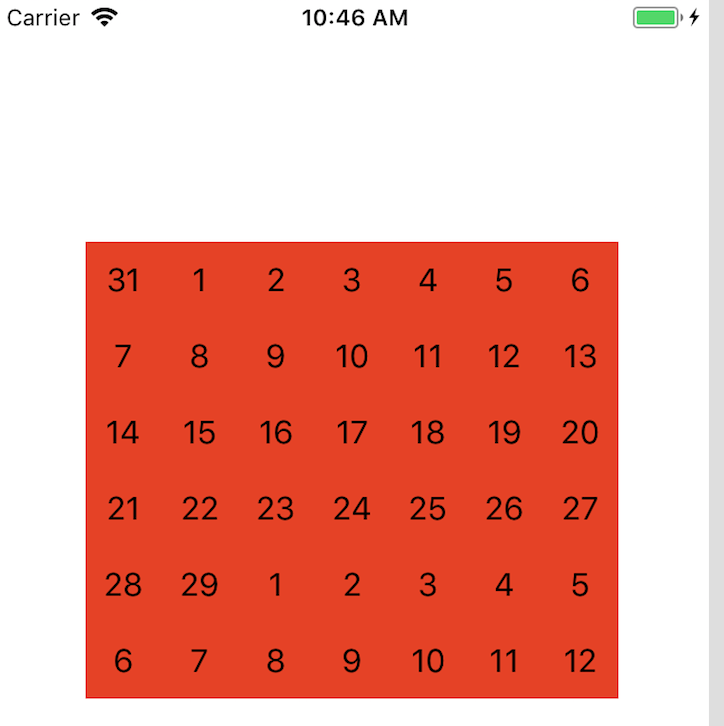
示例
日历视图的单元格大小为40,宽度为280(7列),高度为240(6行),单元格和行的最小间距为0。
Stack Overflow用户
发布于 2020-11-20 11:23:16
以下是通过代码实现JTAppleCalendar的一种可能方法,这些代码可能对您有用:
注意:这只是启动和运行的起点,进一步的定制取决于您的。
JTAppleCalendar版本: 8.0.3
In viewDidLoad:
let cal = JTACMonthView(frame: CGRect.zero)
        cal.backgroundColor = .white
        cal.cellSize = 20
        cal.calendarDelegate = self
        cal.calendarDataSource = self
        cal.register(DateCell.self, forCellWithReuseIdentifier: "calenderCellID")
        view.addSubview(cal)
        cal.translatesAutoresizingMaskIntoConstraints = false
        NSLayoutConstraint.activate([cal.centerXAnchor.constraint(equalTo: view.centerXAnchor),
                                     cal.topAnchor.constraint(equalTo: view.topAnchor),
                                     cal.widthAnchor.constraint(equalToConstant: 200),
                                     cal.heightAnchor.constraint(equalToConstant: 200)])
自定义单元格:
class DateCell: JTACDayCell {
    var dateLabel : UILabel = {
        let dateLabel = UILabel()
        dateLabel.text = "sample"
        return dateLabel
    }()

    override init(frame: CGRect) {
        super.init(frame: frame)

        addSubview(dateLabel)
        dateLabel.translatesAutoresizingMaskIntoConstraints = false
        NSLayoutConstraint.activate([dateLabel.centerXAnchor.constraint(equalTo: centerXAnchor),
                                    dateLabel.centerYAnchor.constraint(equalTo: centerYAnchor),
                                    dateLabel.heightAnchor.constraint(equalToConstant: 15)])
    }

    required init?(coder aDecoder: NSCoder) {
        fatalError("init(coder:) has not been implemented")
    }
}
最终数据源和委托方法:
func calendar(_ calendar: JTACMonthView, cellForItemAt date: Date, cellState: CellState, indexPath: IndexPath) -> JTACDayCell {
        let cell = calendar.dequeueReusableCell(withReuseIdentifier: calenderCellID, for: indexPath) as! DateCell
        cell.dateLabel.text = cellState.text
        return cell
    }

    func configureCalendar(_ calendar: JTACMonthView) -> ConfigurationParameters {
        let formatter = DateFormatter()
        formatter.dateFormat = "yyyy MM dd"

        let startDate = formatter.date(from: "2016 02 01")!
        let endDate = Date()
        let parameters = ConfigurationParameters(startDate: startDate,
                                                 endDate: endDate,
                                                 numberOfRows: 6, // Only 1, 2, 3, & 6 are allowed
                                                 calendar: Calendar.current,
                                                 generateInDates: .forAllMonths,
                                                 generateOutDates: .tillEndOfGrid,
                                                 firstDayOfWeek: .sunday)
        return parameters
    }

    func calendar(_ calendar: JTACMonthView, willDisplay cell: JTACDayCell, forItemAt date: Date, cellState: CellState, indexPath: IndexPath) {
        let cell = cell as! DateCell
        cell.dateLabel.text = cellState.text
}注:根据这
这两个函数应该包含相同的代码,因此使用共享函数来减少代码重复是明智的。这两个函数之间唯一的区别应该是第一行代码(去队列代码)。
规定的职能是:
func calendar(_ calendar: JTACMonthView, cellForItemAt date: Date, cellState: CellState, indexPath: IndexPath)func calendar(_ calendar: JTACMonthView, willDisplay cell: JTACDayCell, forItemAt date: Date, cellState: CellState, indexPath: IndexPath)
https://stackoverflow.com/questions/52000892
复制相似问题
腾讯云开发者

Copyright © 2013 - 2026 Tencent Cloud. All Rights Reserved. 腾讯云 版权所有
深圳市腾讯计算机系统有限公司 ICP备案/许可证号:粤B2-20090059  粤公网安备44030502008569号
腾讯云计算(北京)有限责任公司 京ICP证150476号 | 京ICP备11018762号