
如何在Android测试中找到嵌套元素?
如何在Android测试中找到嵌套元素?
提问于 2018-08-22 12:22:39
我是新来的Appium。我搜索了网络,尝试了几种方法,但都没有用。请查找以下代码:
driver.findElementByXPath("//android.widget.FrameLayout[1]/android.widget.FrameLayout[1]/android.widget.LinearLayout[1]/android.widget.RelativeLayout[@resource-id=\"in.dmart:id/linear_guide_view_skip\"]/android.widget.android.widget.TextView").click();和
driver.findElementByXPath("//android.widget.LinearLayout[1]/android.widget.RelativeLayout[1]/android.widget.android.widget.TextView[1]").click();和
driver.findElementByAndroidUIAutomator("text(\"GOT IT\")").click();和
List<WebElement>textView=driver.findElements(By.className("android.widget.android.widget.TextView"));
for(i=0;i<textView.size();i++){
if(textView.get(i).getText().equals("GOT IT"))
    textView.get(i).click()
}
请查找UIAutomator查看器屏幕截图附件:
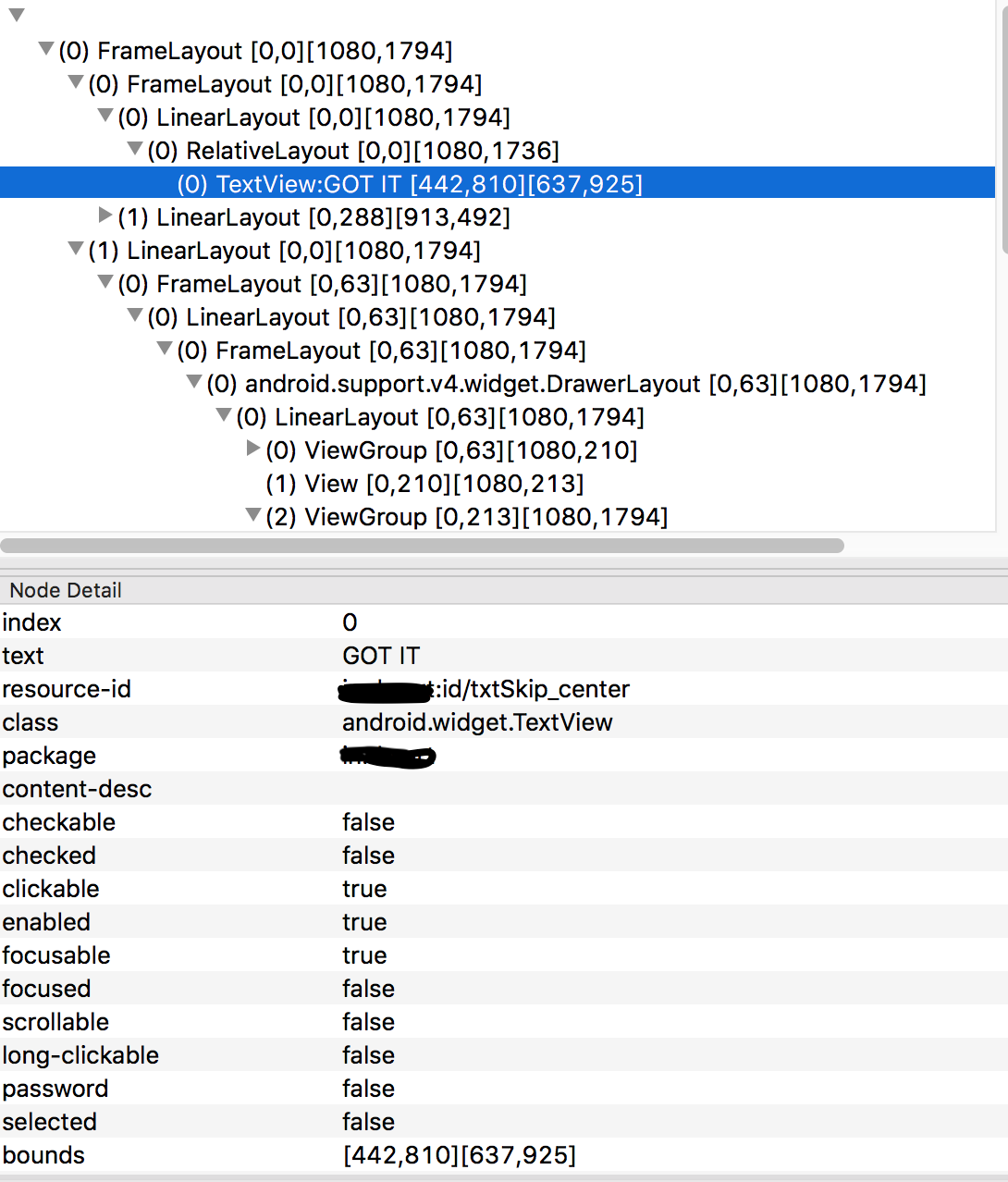
服务器日志:
[debug] [W3C] Calling AppiumDriver.findElements() with args: ["class name","android.widget.android.widget.TextView","e75769f1-53cb-44f7-9094-988b73fbc7be"]
[debug] [BaseDriver] Valid locator strategies for this request: xpath, id, class name, accessibility id, -android uiautomator
[debug] [BaseDriver] Waiting up to 0 ms for condition
[debug] [AndroidBootstrap] Sending command to android: {"cmd":"action","action":"find","params":{"strategy":"class name","selector":"android.widget.android.widget.TextView","context":"","multiple":true}}
[debug] [AndroidBootstrap] [BOOTSTRAP LOG] [debug] Got data from client: {"cmd":"action","action":"find","params":{"strategy":"class name","selector":"android.widget.android.widget.TextView","context":"","multiple":true}}
[debug] [AndroidBootstrap] [BOOTSTRAP LOG] [debug] Got command of type ACTION
[debug] [AndroidBootstrap] [BOOTSTRAP LOG] [debug] Got command action: find
[debug] [AndroidBootstrap] [BOOTSTRAP LOG] [debug] Finding 'android.widget.android.widget.TextView' using 'CLASS_NAME' with the contextId: '' multiple: true
[debug] [AndroidBootstrap] [BOOTSTRAP LOG] [debug] Using: UiSelector[CLASS=android.widget.android.widget.TextView]
[debug] [AndroidBootstrap] [BOOTSTRAP LOG] [debug] getElements selector:UiSelector[CLASS=android.widget.android.widget.TextView]
[debug] [AndroidBootstrap] [BOOTSTRAP LOG] [debug] Element[] is null: (0)
[debug] [AndroidBootstrap] [BOOTSTRAP LOG] [debug] getElements tmp selector:UiSelector[CLASS=android.widget.android.widget.TextView, INSTANCE=0]
[debug] [AndroidBootstrap] [BOOTSTRAP LOG] [debug] Failed to locate element. Clearing Accessibility cache and retrying.
[debug] [AndroidBootstrap] [BOOTSTRAP LOG] [debug] Finding 'android.widget.android.widget.TextView' using 'CLASS_NAME' with the contextId: '' multiple: true
[debug] [AndroidBootstrap] [BOOTSTRAP LOG] [debug] Using: UiSelector[CLASS=android.widget.android.widget.TextView]
[debug] [AndroidBootstrap] [BOOTSTRAP LOG] [debug] getElements selector:UiSelector[CLASS=android.widget.android.widget.TextView]
[debug] [AndroidBootstrap] [BOOTSTRAP LOG] [debug] Element[] is null: (0)
[debug] [AndroidBootstrap] [BOOTSTRAP LOG] [debug] getElements tmp selector:UiSelector[CLASS=android.widget.android.widget.TextView, INSTANCE=0]
[debug] [AndroidBootstrap] Received command result from bootstrap
[debug] [AndroidBootstrap] [BOOTSTRAP LOG] [debug] Returning result: {"status":0,"value":[]}
[debug] [W3C] Responding to client with driver.findElements() result: []
[HTTP] <-- POST /wd/hub/session/e75769f1-53cb-44f7-9094-988b73fbc7be/elements 200 13691 ms - 12回答 2
Stack Overflow用户
发布于 2018-08-22 15:22:37
通过查看视图层次结构,找到TextView不需要担心嵌套视图。
您可以尝试使用来自UiSelector()的UIAutomator作为下面的示例。请参阅UiSelector文档这里。
driver.findElementByAndroidUIAutomator("new UiSelector().text(\""+GOT IT+"\")").click();更新:
尝试使用driver和AndroidDriver进行转换。
((AndroidDriver<MobileElement>)driver).findElementByAndroidUIAutomator("new UiSelector().text(\"GOT IT\")");
Stack Overflow用户
发布于 2018-08-22 16:36:52
你可以这样做。如果className值与应用程序不同,请编辑它。
- 获取类名的所有元素
- 单击文本“获取它”的位置 driver.findElements(By.className("android.widget.TextView"));=(i=0;i
页面原文内容由Stack Overflow提供。腾讯云小微IT领域专用引擎提供翻译支持
原文链接:
https://stackoverflow.com/questions/51966825
复制相关文章
相似问题
腾讯云开发者

Copyright © 2013 - 2026 Tencent Cloud. All Rights Reserved. 腾讯云 版权所有
深圳市腾讯计算机系统有限公司 ICP备案/许可证号:粤B2-20090059  粤公网安备44030502008569号
腾讯云计算(北京)有限责任公司 京ICP证150476号 | 京ICP备11018762号