
HTML,Python,Brython,javascript -在Brython上运行
帮助使用Brython在Python中运行一个简单的程序。
该基础是从示例http://www.brython.info/gallery/pygame/chimp.html中获取的(没有工作)文件。
同一目录中有3个文件:Eventlist.html、py_VFS.js、brython.js。
py_VFS.js:
<!DOCTYPE HTML PUBLIC "-//IETF//DTD HTML 2.0//EN">
<html><head>
<title>404 Not Found</title>
</head><body>
<h1>Not Found</h1>
<p>The requested URL py_VFS.js was not found on this server.</p>
</body></html>
brython.js
<!DOCTYPE HTML PUBLIC "-//IETF//DTD HTML 2.0//EN">
<html><head>
<title>404 Not Found</title>
</head><body>
<h1>Not Found</h1>
<p>The requested URL brython.js was not found on this server.</p>
</body></html>
行中的Eventlist.html固定路径:
<script type="text/javascript" src="external/brython/brython.js"></script>
<script type="text/javascript" src="external/brython/py_VFS.js"></script>
并替换了Python的一个模块( pygame \ examples \eventlist.py的标准单元)。因此,Eventlist.html的整个代码:
<html>

<head>

<script type="text/javascript" src="brython.js"></script>
<script type="text/javascript" src="py_VFS.js"></script>

<script type="text/python">
#!/usr/bin/env python

"""Eventlist is a sloppy style of pygame, but is a handy
tool for learning about pygame events and input. At the
top of the screen are the state of several device values,
and a scrolling list of events are displayed on the bottom.

This is not quality 'ui' code at all, but you can see how
to implement very non-interactive status displays, or even
a crude text output control.
"""

from pygame import *

ImgOnOff = []
Font = None
LastKey = None

def showtext(win, pos, text, color, bgcolor):
    textimg = Font.render(text, 1, color, bgcolor)
    win.blit(textimg, pos)
    return pos[0] + textimg.get_width() + 5, pos[1]


def drawstatus(win):
    bgcolor = 50, 50, 50
    win.fill(bgcolor, (0, 0, 640, 120))
    win.blit(Font.render('Status Area', 1, (155, 155, 155), bgcolor), (2, 2))

    pos = showtext(win, (10, 30), 'Mouse Focus', (255, 255, 255), bgcolor)
    win.blit(ImgOnOff[mouse.get_focused()], pos)

    pos = showtext(win, (330, 30), 'Keyboard Focus', (255, 255, 255), bgcolor)
    win.blit(ImgOnOff[key.get_focused()], pos)

    pos = showtext(win, (10, 60), 'Mouse Position', (255, 255, 255), bgcolor)
    p = '%s, %s' % mouse.get_pos()
    pos = showtext(win, pos, p, bgcolor, (255, 255, 55))

    pos = showtext(win, (330, 60), 'Last Keypress', (255, 255, 255), bgcolor)
    if LastKey:
        p = '%d, %s' % (LastKey, key.name(LastKey))
    else:
        p = 'None'
    pos = showtext(win, pos, p, bgcolor, (255, 255, 55))

    pos = showtext(win, (10, 90), 'Input Grabbed', (255, 255, 255), bgcolor)
    win.blit(ImgOnOff[event.get_grab()], pos)


def drawhistory(win, history):
    win.blit(Font.render('Event History Area', 1, (155, 155, 155), (0,0,0)), (2, 132))
    ypos = 450
    h = list(history)
    h.reverse()
    for line in h:
        r = win.blit(line, (10, ypos))
        win.fill(0, (r.right, r.top, 620, r.height))
        ypos -= Font.get_height()


def main():
    init()

    win = display.set_mode((640, 480), RESIZABLE)
    display.set_caption("Mouse Focus Workout")

    global Font
    Font = font.Font(None, 26)

    global ImgOnOff
    ImgOnOff.append(Font.render("Off", 1, (0, 0, 0), (255, 50, 50)))
    ImgOnOff.append(Font.render("On", 1, (0, 0, 0), (50, 255, 50)))

    history = []

    #let's turn on the joysticks just so we can play with em
    for x in range(joystick.get_count()):
        j = joystick.Joystick(x)
        j.init()
        txt = 'Enabled joystick: ' + j.get_name()
        img = Font.render(txt, 1, (50, 200, 50), (0, 0, 0))
        history.append(img)
    if not joystick.get_count():
        img = Font.render('No Joysticks to Initialize', 1, (50, 200, 50), (0, 0, 0))
        history.append(img)

    going = True
    while going:
        for e in event.get():
            if e.type == QUIT:
                going = False
            if e.type == KEYDOWN:
                if e.key == K_ESCAPE:
                    going = False
                else:
                    global LastKey
                    LastKey = e.key
            if e.type == MOUSEBUTTONDOWN:
                event.set_grab(1)
            elif e.type == MOUSEBUTTONUP:
                event.set_grab(0)
            if e.type == VIDEORESIZE:
                win = display.set_mode(e.size, RESIZABLE)

            if e.type != MOUSEMOTION:
                txt = '%s: %s' % (event.event_name(e.type), e.dict)
                img = Font.render(txt, 1, (50, 200, 50), (0, 0, 0))
                history.append(img)
                history = history[-13:]


        drawstatus(win)
        drawhistory(win, history)

        display.flip()
        time.wait(10)

    quit()


if __name__ == '__main__':
    main()

</script>
</head>
<body onload="brython({debug:1})">
  <div id="pydiv"></div>
</body>

</html>
运行Eventlist.html时,浏览器中会显示一个空白页。文件eventlist.py的代码工作正常,结果如下:
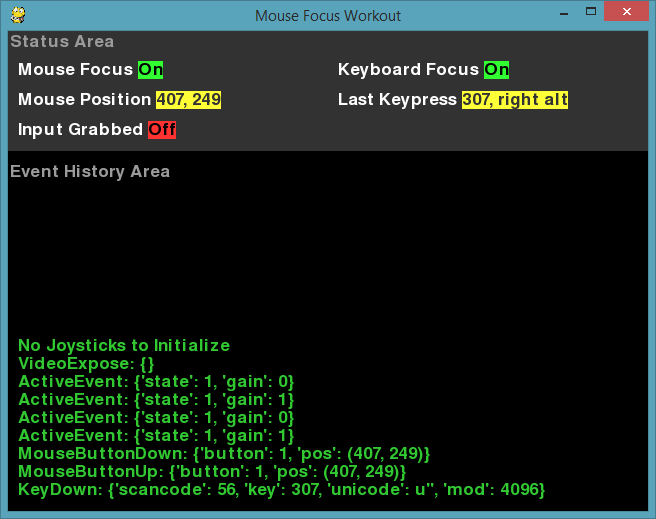
因此,我想在浏览器中获得一个类似的窗口。
回答 1
Stack Overflow用户
发布于 2020-10-01 07:55:45
在过去的几天里,我花了一些时间试图让布莱顿-派格在浏览器中工作,并得出结论:
- 从来没有完全实现过.
- 几乎不可能在Brython中实现一个完全工作的PyGame版本,因为PyGame和浏览器在用户交互建模方式上有根本的区别。
以下是详细信息:
不完全实现
Brython有许多未实现的函数。其中一些可能被认为是非关键的(例如,模块transform.py完全缺失)。但也有一些涉及到任何PyGame程序的核心。例如,event.py模块中的所有非平凡函数,例如event.get()和event.wait(),都依赖于对SDL.py中未实现的函数的调用,例如SDL_WaitEventAndReturn()和SDL_PeepEvents()。如果没有这些函数作为事件循环的基础,任何非平凡的PyGame程序都无法工作。
基本设计差异
event.wait()从未完全实现这一事实并非巧合。这个函数是PyGame和客户端web编程之间概念设计差异的核心:
- PyGame假定控制运行您的游戏的应用程序,这意味着它可以而且经常阻止主线程,直到发生感兴趣的事件。
- 相反,JavaScript编程不允许阻塞主JS线程,因为这个线程用于页面的UI呈现。如果试图阻止此线程,浏览器将显示一条消息,称该页已失去响应,并建议用户关闭该选项卡。相反,JS在很大程度上依赖于在事件发生时运行的承诺和回调。
因此,在浏览器的客户端不可能实现对event.wait()的调用,直到鼠标移动等事件为止。
还有其他一些情况,PyGame使用阻塞调用的方式在JavaScript中是不允许的。例如,考虑以下看似无辜的PyGame片段:
import pygame as pg
img = pg.image.load('flag.png')
screen.blit(img, (0,0))这将加载一个图像文件并在屏幕上呈现它。在幕后,pg.image.load命令在将文件读入内存时阻塞。在Brython中,实现尝试从给定的URL读取文件。但是,在JavaScript中读取URL是一种非阻塞操作,因为所需的网络操作可能需要一段时间,并且我们不希望UI线程阻塞直到它完成。在JavaScript中,可以实现类似的操作,如
var img = new Image();
ctx = getContextForSomeCanvas();
img.onload = function() {
  ctx.drawImage(img, 0, 0);
}
img.src = 'flag.png';其中,onload回调确保只有在加载图像之后才能执行ctx.drawImage。将以前的Python代码转换成类似于上述JavaScript的代码是非常重要的:它需要对异步加载操作进行一些幕后处理,这将延迟对blit()的调用,直到加载映像。即使这样可以工作,对于一个天真的PyGame程序员来说,这是非常不直观的,并且很容易导致代码后面的错误(例如,如果代码假设鼠标单击图像,即使它还没有加载)。在任何情况下,Brython实现都不会实现这个幕后处理,导致上面的代码失败,因为图像在加载之前会被闪现。
https://stackoverflow.com/questions/40300705
复制相似问题
腾讯云开发者

Copyright © 2013 - 2026 Tencent Cloud. All Rights Reserved. 腾讯云 版权所有
深圳市腾讯计算机系统有限公司 ICP备案/许可证号:粤B2-20090059  粤公网安备44030502008569号
腾讯云计算(北京)有限责任公司 京ICP证150476号 | 京ICP备11018762号