
如何用detailCalloutAccessoryView更改标注气泡的默认背景色
在我的应用程序中,我有以下内容。
我实现了一个带有两个标签的自定义detailCalloutAccessoryView的自定义标注泡。
我知道如何用这一行改变detailCalloutAccessoryView的颜色。
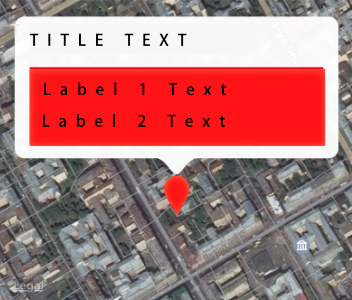
view.detailCalloutAccessoryView?.backgroundColor = UIColor.red但我不知道如何改变主气泡的背景色(它现在是透明的灰色/白色)。使用view.detailCalloutAccessoryView?.backgroundColor = UIColor.red行,我的回调泡如下所示:
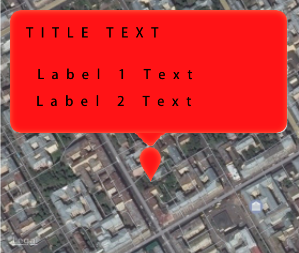
但我希望我的定制泡泡看起来像这样:
下面是我的viewFor注释方法:
 func mapView(_ mapView: MKMapView, viewFor annotation: MKAnnotation) -> MKAnnotationView? {

        if annotation is MKUserLocation {
            return nil
        }

        let identifier = "pin"
        var view : MKAnnotationView

        if let dequedView = mapView.dequeueReusableAnnotationView(withIdentifier: identifier) {
            dequedView.annotation = annotation

            view = dequedView

        } else {
            view = MKAnnotationView(annotation: annotation, reuseIdentifier: identifier)

            view.canShowCallout = true

        }

             let pinImage = UIImage.init(named: "customPin")


        DispatchQueue.main.async(execute: {

            view.detailCalloutAccessoryView?.backgroundColor = UIColor.red

        })

        view.image = pinImage

        configureDetailView(annotationView: view)
        return view
    }
我在Xcode 8w/ Swift 3中工作。
了解如何将标题的字体类型和默认黑色从黑色更改为另一种颜色也会很有趣。在详细的视图中,我可以轻松地更改xib文件中自定义标签的颜色,但不知道如何访问默认的标题属性。
回答 4
Stack Overflow用户
发布于 2016-09-22 12:05:20
我已经为您的需求创建了代码,请找到下面的url下载代码并检查它。
链接:https://www.dropbox.com/s/o2howwqceq8rsgu/MapInformation.zip?dl=0
环境: Xcode 8和Swift3
突出显示我所做的代码.
我采用的方法是显示弹出窗口(UIPresentationController),而不是标注。有关更多信息,请查找以下代码。
( A)我曾使用UIButton在MapView上显示注释,并在用户单击它时显示弹出窗口。
func mapView(_ mapView: MKMapView, viewFor annotation: MKAnnotation) -> MKAnnotationView? {

        if annotation is MKUserLocation {
            return nil
        }

        let identifier = "pin"
        var annotationView = self.mapView.dequeueReusableAnnotationView(withIdentifier: identifier) as! AnnotationView?

        if annotationView == nil {

            annotationView = AnnotationView(annotation: annotation, reuseIdentifier: identifier)
            annotationView?.canShowCallout = false
        }

        else {
            annotationView?.annotation = annotation
        }

        //Take the UIButton and implement the touchupinside action for showing the popup.
        let pinImage = UIImage.init(named: "customPin")
        annotationView?.frame = CGRect(x: 0, y: 0, width: (pinImage?.size.width)!, height: (pinImage?.size.width)!)
        annotationView?.mapPin = UIButton(frame: (annotationView?.frame)!);
        annotationView?.mapPin.addTarget(self, action: #selector(ViewController.showPopup(sender:)), for: .touchUpInside)

        annotationView?.addSubview((annotationView?.mapPin)!)
        annotationView?.mapPin.setImage(pinImage, for: .normal)

        return annotationView
    }
( B)当用户单击注释时显示弹出窗口。
func showPopup(sender: UIButton!) {

        let popupVC = self.storyboard?.instantiateViewController(withIdentifier: "Popup") as? Popup
        popupVC?.preferredContentSize = CGSize(width: 250, height: 150)
        popupVC?.modalPresentationStyle = UIModalPresentationStyle.popover

        let rect = sender.superview?.convert(sender.frame, to: self.view)
        popupVC?.popoverPresentationController?.delegate = self;
        popupVC?.popoverPresentationController?.sourceView = self.view
        popupVC?.popoverPresentationController?.sourceRect = rect!
        popupVC?.popoverPresentationController?.backgroundColor = UIColor.red

        self.present(popupVC!, animated: true, completion: nil)
    }
Note
如果要将弹出颜色从红色更改为其他不同颜色,则可以通过更改颜色名称只进行一行编码。 popupVC?.popoverPresentationController?.backgroundColor = UIColor.red
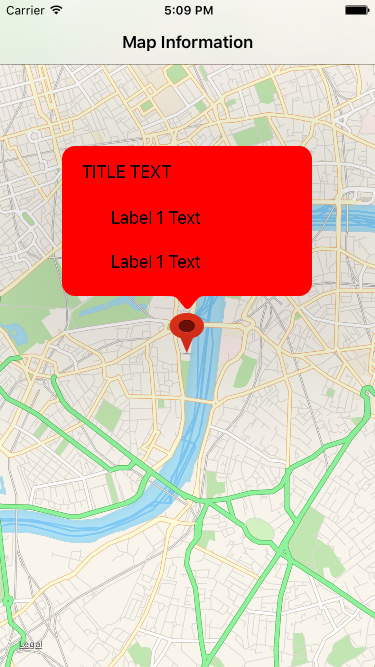
请查看下面的截图。
Stack Overflow用户
发布于 2020-09-27 04:26:44
   func mapView(_ mapView: MKMapView, didSelect view: MKAnnotationView) {

        //design your custom view and set it to detailCalloutAccessoryView

        view.detailCalloutAccessoryView = yourDetailView
        detail.superview?.superview?.backgroundColor = yourColor
        // This view is type of MKSmallCalloutView
}Stack Overflow用户
发布于 2016-09-18 13:40:16
UIViewCallout是一个私有类。如果您想要自定义标注视图:
- 禁用标准标注
view.canShowCallout = false - 使用自定义的
MKMapViewDelegate方法实现UIView: func mapView(_ mapView: MKMapView,didSelect视图: MKAnnotationView) { let RedCalloutView = RedCalloutView(view.annotation) view.addSubview( redCalloutView ) } func mapView(_ mapView: MKMapView,didDeselect视图: MKAnnotationView) { view.subviews.forEach { if $0是RedCalloutView{$0.emoveFromSuperview()}}
https://stackoverflow.com/questions/39467838
复制相似问题
腾讯云开发者

Copyright © 2013 - 2026 Tencent Cloud. All Rights Reserved. 腾讯云 版权所有
深圳市腾讯计算机系统有限公司 ICP备案/许可证号:粤B2-20090059  粤公网安备44030502008569号
腾讯云计算(北京)有限责任公司 京ICP证150476号 | 京ICP备11018762号