
MaterialDrawer如何定制迷你抽屉
MaterialDrawer如何定制迷你抽屉
提问于 2016-07-13 08:20:38
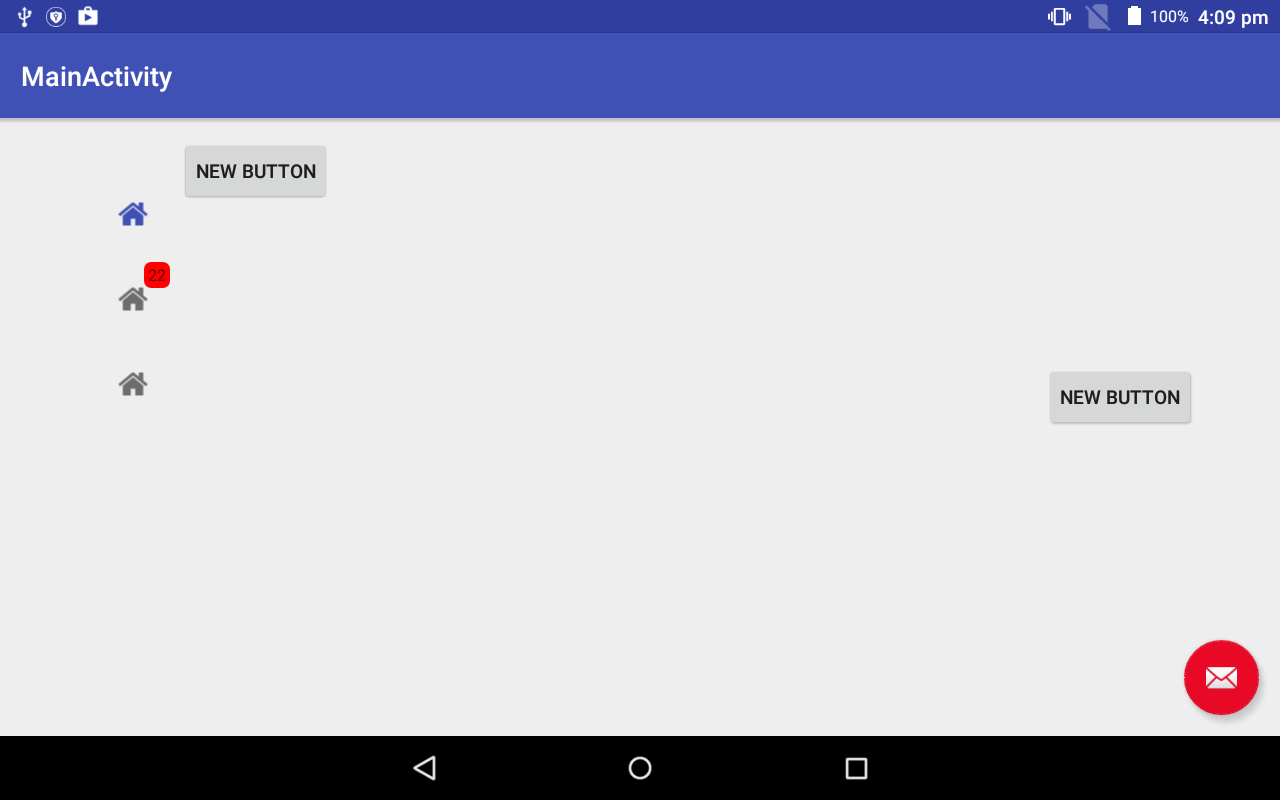
我正在努力弄清楚如何通过https://github.com/mikepenz/MaterialDrawer定制https://github.com/mikepenz/MaterialDrawer
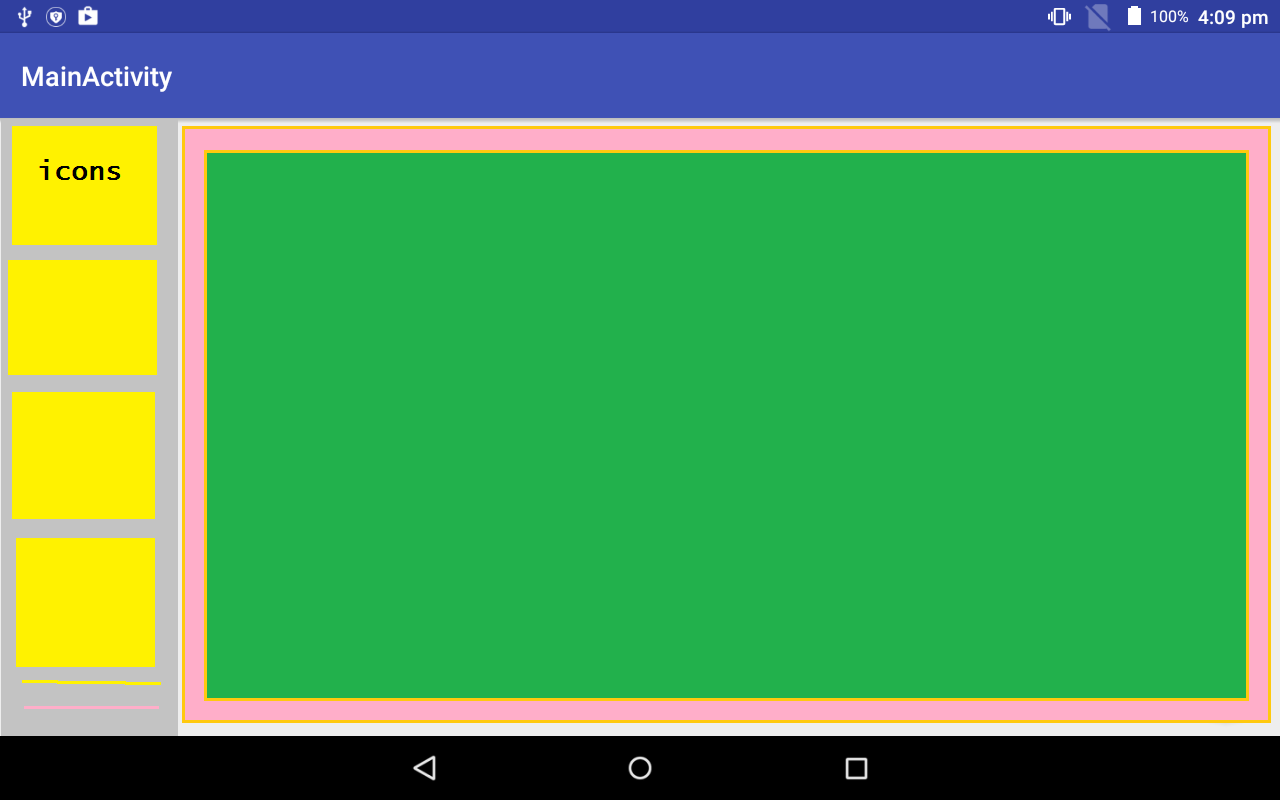
现在宽度太大了。我想让宽度更小,用更大的图标来覆盖空间和改变背景颜色。
这个应用程序只适用于平板电脑。谢谢。
这是我的抽屉:
    <LinearLayout
        android:id="@+id/container"
        android:layout_width="match_parent"
        android:layout_height="match_parent"
        android:layout_below="@id/toolbar">
        <RelativeLayout
            android:layout_width="match_parent"
            android:layout_height="match_parent">
            <!-- Place your content here -->

            <Button
                android:layout_width="wrap_content"
                android:layout_height="wrap_content"
                android:text="New Button"
                android:id="@+id/button"
                android:layout_alignParentTop="true"
                android:layout_alignParentStart="true" />

            <Button
                android:layout_width="wrap_content"
                android:layout_height="wrap_content"
                android:text="New Button"
                android:id="@+id/button2"
                android:layout_alignParentBottom="true"
                android:layout_alignParentEnd="true"
                android:layout_marginBottom="215dp" />
        </RelativeLayout>
    </LinearLayout>


result = new DrawerBuilder()
                .withActivity(this)
                .addDrawerItems(
                        new PrimaryDrawerItem().withName("1").withIcon(FontAwesome.Icon.faw_home).withIdentifier(1),
                        new PrimaryDrawerItem().withName("2").withIcon(FontAwesome.Icon.faw_home).withBadge("22").withBadgeStyle(new BadgeStyle(Color.RED, Color.RED)).withIdentifier(2),
                        new PrimaryDrawerItem().withName("3").withIcon(FontAwesome.Icon.faw_home).withIdentifier(3)
                ) // add the items we want to use with our Drawer
                .withOnDrawerItemClickListener(new Drawer.OnDrawerItemClickListener() {
                    @Override
                    public boolean onItemClick(View view, int position, IDrawerItem drawerItem) {
                        if (drawerItem instanceof Nameable) {
                            Toast.makeText(MainActivity.this, ((Nameable) drawerItem).getName().getText(MainActivity.this), Toast.LENGTH_SHORT).show();
                        }
                        return false;
                    }
                })
                .withGenerateMiniDrawer(true)
                .withSavedInstance(savedInstanceState)
                // build only the view of the Drawer (don't inflate it automatically in our layout which is done with .build())
                .buildView();


        miniResult = result.getMiniDrawer();
        View view = miniResult.build(this);

        LinearLayout  container = (LinearLayout) findViewById(R.id.container);
        container.addView(view, 0); //view is the view of your MiniDrawer
图片:
我想建造这样的东西:
谢谢
我最初问的问题是如何在这里启用一个固定的迷你抽屉( Android build mini navigation drawer with Icons )
回答 1
Stack Overflow用户
回答已采纳
发布于 2016-07-14 17:02:55
这个答案基于>= v5.3.5版本
首先,我们必须定义MiniDrawer本身的宽度。在下面所示的代码示例中,我们将配置MiniDrawer,并将其项配置为采用144 to 。在将View添加到您的布局之前,我建议这样做,如本示例所示。
//get the MiniDrawer
MiniDrawer miniDrawer = result.getMiniDrawer();
//build it and get the view
View miniDrawerView = miniDrawer.build(this);
//define the width (You could also do it via the LayoutParams
miniDrawerView.setMinimumWidth((int) UIUtils.convertDpToPixel(144, this));
//add the MiniDrawer to your view hirachy
findViewById(R.id.frame_container)).addView(miniDrawerView, 0);在将MiniDrawer视图本身添加到布局中之后,要定义MiniDrawerItems更改的维度,可以通过定义以下dimens.xml文件来实现这一点:
<!-- required for a changed size -->
<!-- 144dp = the full width of the MiniDrawer -->
<dimen name="material_mini_drawer_item">144dp</dimen>
<!-- 144dp - 8dp padding around = 128dp -->
<dimen name="material_mini_drawer_item_icon">128dp</dimen>
<!-- 144dp - 16dp padding around = 112dp -->
<dimen name="material_mini_drawer_item_profile_icon">112dp</dimen>

<!-- optional configurable dimensions -->
<dimen name="material_mini_drawer_item_padding">4dp</dimen>
<dimen name="material_mini_drawer_item_padding_sides">8dp</dimen>
<dimen name="material_mini_drawer_item_icon_padding">16dp</dimen>
<dimen name="material_mini_drawer_item_badge_text">12sp</dimen>
<dimen name="material_mini_drawer_item_profile_icon_padding">16dp</dimen>在此之后,您的MiniDrawer和项目将以正确的大小显示。
页面原文内容由Stack Overflow提供。腾讯云小微IT领域专用引擎提供翻译支持
原文链接:
https://stackoverflow.com/questions/38346239
复制相关文章
相似问题
腾讯云开发者

Copyright © 2013 - 2026 Tencent Cloud. All Rights Reserved. 腾讯云 版权所有
深圳市腾讯计算机系统有限公司 ICP备案/许可证号:粤B2-20090059  粤公网安备44030502008569号
腾讯云计算(北京)有限责任公司 京ICP证150476号 | 京ICP备11018762号