
模糊XAML矢量图形
为了使我的WPF应用程序具有很高的新闻部感知能力,我选择使用嵌入式XAML矢量图形创建所有内部图形和图标。
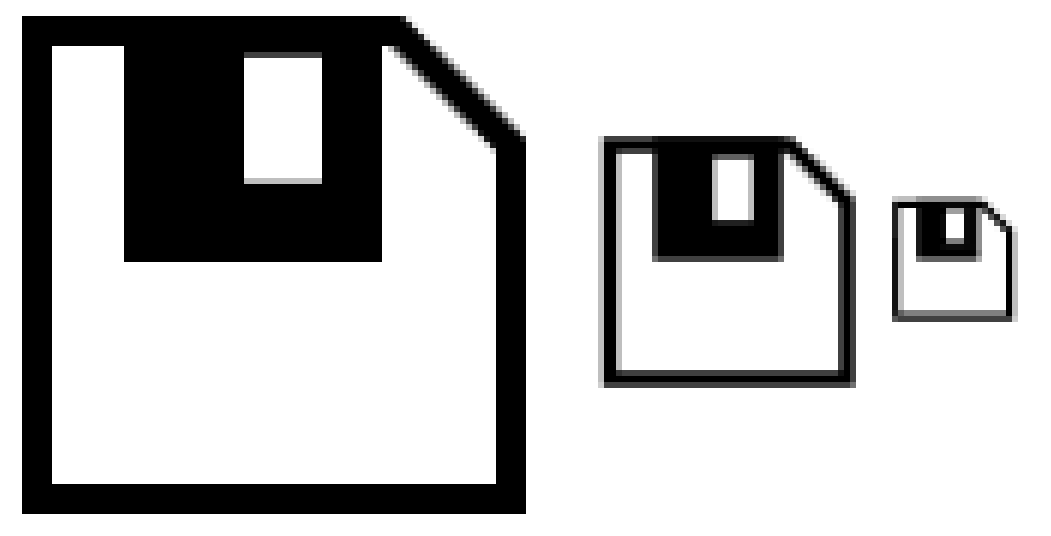
但是,我不明白为什么我的XAML矢量图形在呈现时是模糊的。下面是一个例子。我使用XAML路径和矩形元素绘制了一个简单的软盘图标。下面的图像是以两个不同大小呈现的相同图标,其值为SnapsToDevicePixels和UseLayoutRounding (这是我的监视器在Windows 7中的本机分辨率2048x1152 )。
鉴于图标主要是水平和垂直线,它看起来奇怪模糊。以下是较大图标的600%缩放视图:
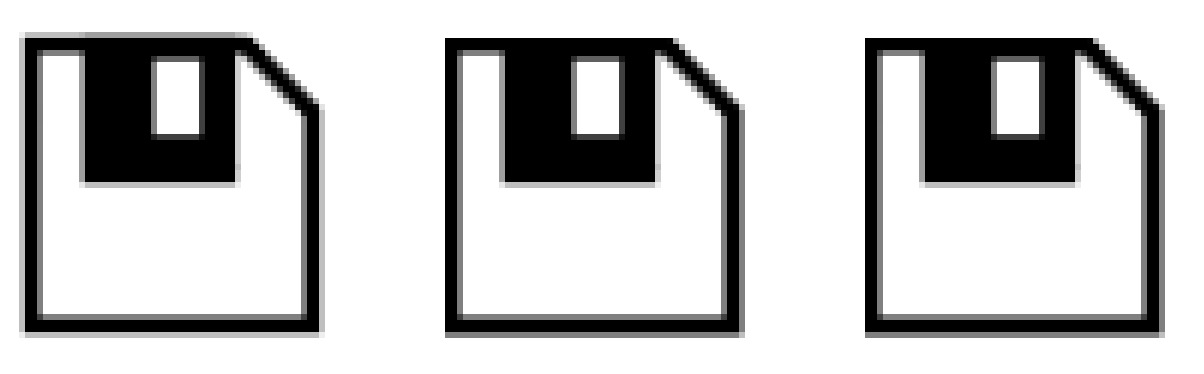
更小的图标:
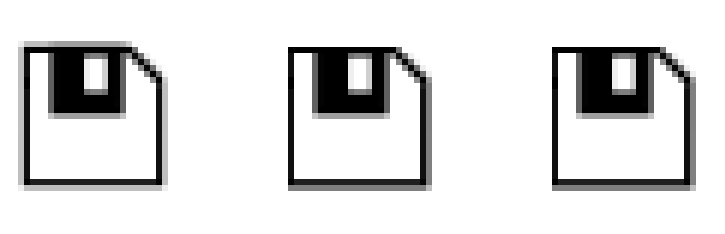
两种尺寸的边缘都一点也不脆。随着SnapsToDevicePixels值的变化,有些边是清晰的,而另一些则不是。
有什么正确的方法来绘制这样的图标,使它们不会被模糊地渲染?
下面是此窗口的XAML,包括路径数据:
<Window x:Class="WpfApplication1.MainWindow"
        xmlns="http://schemas.microsoft.com/winfx/2006/xaml/presentation"
        xmlns:x="http://schemas.microsoft.com/winfx/2006/xaml"
        Title="XAML Path Test" Height="175" Width="525">
    <Window.Resources>
        <ResourceDictionary>
            <Canvas x:Key="icon">
                <Path Width="84" Height="83" Canvas.Left="6.5" Canvas.Top="9.5" Stretch="Fill" StrokeThickness="5" StrokeMiterLimit="2.75" Stroke="#FF000000" Fill="#FFFFFFFF" Data="F1 M 9,12L 68.9914,12L 88,31.0086L 88,90L 9,90L 9,12 Z "/>
                <Rectangle Width="43" Height="41" Canvas.Left="23.5" Canvas.Top="9.5" Stretch="Fill" StrokeThickness="5" StrokeMiterLimit="2.75" Stroke="#FF000000" Fill="#FF000000"/>
                <Rectangle Width="23" Height="31" Canvas.Left="38.5" Canvas.Top="11.25" Stretch="Fill" StrokeThickness="5" StrokeMiterLimit="2.75" Stroke="#FF000000" Fill="#FFFFFFFF"/>
            </Canvas>
        </ResourceDictionary>
    </Window.Resources>
    <StackPanel HorizontalAlignment="Center" VerticalAlignment="Center">
        <StackPanel Orientation="Horizontal" HorizontalAlignment="Center" VerticalAlignment="Center">
            <Rectangle Width="50" Height="50" Margin="10">
                <Rectangle.Fill>
                    <VisualBrush Visual="{StaticResource icon}"/>
                </Rectangle.Fill>
            </Rectangle>

            <Rectangle Width="50" Height="50" Margin="10" SnapsToDevicePixels="True">
                <Rectangle.Fill>
                    <VisualBrush Visual="{StaticResource icon}"/>
                </Rectangle.Fill>
            </Rectangle>

            <Rectangle Width="50" Height="50" Margin="10" UseLayoutRounding="True" SnapsToDevicePixels="True">
                <Rectangle.Fill>
                    <VisualBrush Visual="{StaticResource icon}"/>
                </Rectangle.Fill>
            </Rectangle>
        </StackPanel>

        <StackPanel Orientation="Horizontal" HorizontalAlignment="Center" VerticalAlignment="Center">
            <Rectangle Width="24" Height="24" Margin="10">
                <Rectangle.Fill>
                    <VisualBrush Visual="{StaticResource icon}"/>
                </Rectangle.Fill>
            </Rectangle>

            <Rectangle Width="24" Height="24" Margin="10" SnapsToDevicePixels="True">
                <Rectangle.Fill>
                    <VisualBrush Visual="{StaticResource icon}"/>
                </Rectangle.Fill>
            </Rectangle>

            <Rectangle Width="24" Height="24" Margin="10" UseLayoutRounding="True" SnapsToDevicePixels="True">
                <Rectangle.Fill>
                    <VisualBrush Visual="{StaticResource icon}"/>
                </Rectangle.Fill>
            </Rectangle>
        </StackPanel>
    </StackPanel>
</Window>
编辑:
按照Chris .的建议,通过将path+rectangles包装在ControlTemplate中,并使用视图框进行调整,图像仍然模糊。从左到右,这是不调整大小的(画布大小为100x100),大小调整为50,大小调整为24:
600%的缩放视图:
这是ControlTemplate
<ControlTemplate x:Key="icon">
    <Canvas Width="100" Height="100">
        <Path Width="84" Height="83" Canvas.Left="6.5" Canvas.Top="9.5" Stretch="Fill" StrokeThickness="5" StrokeMiterLimit="2.75" Stroke="#FF000000" Fill="#FFFFFFFF" Data="F1 M 9,12L 68.9914,12L 88,31.0086L 88,90L 9,90L 9,12 Z "/>
        <Rectangle Width="43" Height="41" Canvas.Left="23.5" Canvas.Top="9.5" Stretch="Fill" StrokeThickness="5" StrokeMiterLimit="2.75" Stroke="#FF000000" Fill="#FF000000"/>
        <Rectangle Width="23" Height="31" Canvas.Left="38.5" Canvas.Top="11.25" Stretch="Fill" StrokeThickness="5" StrokeMiterLimit="2.75" Stroke="#FF000000" Fill="#FFFFFFFF"/>
    </Canvas>
</ControlTemplate>
其用法是:
<Control Template="{StaticResource icon}"/>
<Viewbox Height="50">
    <Control Template="{StaticResource icon}"/>
</Viewbox>
<Viewbox Height="24">
    <Control Template="{StaticResource icon}"/>
</Viewbox>回答 1
Stack Overflow用户
发布于 2016-07-08 20:32:47
您的问题是,您使用的是VisualBrush,其中您正在绘制一个区域,而您失去了实际的向量状态。
有许多other ways可以根据您的实际需求和计划来完成这一任务,但是对于您的特定实例,基于我所看到的,我只需要使用ControlTemplate就可以实现它。
<Window>
    <Window.Resources>
        <ControlTemplate x:Key="icon">
            <Canvas>
               <Path Width="84" Height="83" Canvas.Left="6.5" Canvas.Top="9.5" Stretch="Fill" StrokeThickness="5" StrokeMiterLimit="2.75" Stroke="#FF000000" Fill="#FFFFFFFF" Data="F1 M 9,12L 68.9914,12L 88,31.0086L 88,90L 9,90L 9,12 Z "/>
                <Rectangle Width="43" Height="41" Canvas.Left="23.5" Canvas.Top="9.5" Stretch="Fill" StrokeThickness="5" StrokeMiterLimit="2.75" Stroke="#FF000000" Fill="#FF000000"/>
                <Rectangle Width="23" Height="31" Canvas.Left="38.5" Canvas.Top="11.25" Stretch="Fill" StrokeThickness="5" StrokeMiterLimit="2.75" Stroke="#FF000000" Fill="#FFFFFFFF"/>
             </Canvas>
        </ControlTemplate>
    </Window.Resources>

    <Grid>

        <Control Template="{StaticResource icon}"/>

    </Grid>
</Window>
希望这会有帮助,祝你周末愉快!)
On和PS -为了调整大小,请记住ViewBox,否则您将需要重新工具您的路径,以避免设置困难。如果是我,我会在一条路径上创建一个连接的图标(如果你使用的是混合方式,选择路径和矩形,然后右击->组合-> Unite)作为一条路径数据行,然后把它变成一个样式模板,放弃ViewBox和其他东西。
附加信息:
你也可以模板这样的路径,这将是真正的向量;
<StackPanel>
    <StackPanel.Resources>

        <Style TargetType="Path" x:Key="DiskIcon">
            <Setter Property="Data" Value="F1 M 88.813,81.850 L 2.000,81.850 L 2.000,2.000 L 17.070,2.000 L 17.070,35.930 L 63.417,35.930 L 63.417,2.299 L 88.813,27.379 L 88.813,81.850 Z M 55.800,2.825 L 55.800,26.341 L 39.818,26.341 L 39.818,2.825 L 55.800,2.825 Z M 63.935,0.000 L 0.000,0.000 L 0.000,83.850 L 90.813,83.850 L 90.813,26.543 L 63.935,0.000 Z"/>
            <Setter Property="Fill" Value="Black"/>
            <Setter Property="Margin" Value="10"/>
            <Setter Property="Height" Value="100"/>
            <Setter Property="Width" Value="100"/>
        </Style>

    </StackPanel.Resources>

    <Path Style="{StaticResource DiskIcon}"/>

    <Path Style="{StaticResource DiskIcon}" Fill="Red"/>

    <Path Style="{StaticResource DiskIcon}" Fill="Blue"/>

</StackPanel>不过,根据情况和需要,我经常将其构建到ContentControl中来托管嵌入式CLR ViewBox,就像我在开头添加的“其他方式”链接中提到的那样;
<StackPanel>
        <StackPanel.Resources>
            <Style x:Key="TheAwesomeXAMLimage" TargetType="ContentControl">
                <Setter Property="Background" Value="Black"/>
                <Setter Property="Height" Value="90"/>
                <Setter Property="Width" Value="100"/>
                <Setter Property="Template">
                    <Setter.Value>
                        <ControlTemplate TargetType="ContentControl">

                            <Viewbox Stretch="Fill">

                                <Path Fill="{TemplateBinding Background}"
                                          Data="F1 M 88.813,81.850 L 2.000,81.850 L 2.000,2.000 L 17.070,2.000 L 17.070,35.930 L 63.417,35.930 L 63.417,2.299 L 88.813,27.379 L 88.813,81.850 Z M 55.800,2.825 L 55.800,26.341 L 39.818,26.341 L 39.818,2.825 L 55.800,2.825 Z M 63.935,0.000 L 0.000,0.000 L 0.000,83.850 L 90.813,83.850 L 90.813,26.543 L 63.935,0.000 Z"/>

                            </Viewbox>

                        </ControlTemplate>
                    </Setter.Value>
                </Setter>
            </Style>
        </StackPanel.Resources>

        <ContentControl Style="{StaticResource TheAwesomeXAMLimage}"/>
        <ContentControl Style="{StaticResource TheAwesomeXAMLimage}"
                        Background="Red" Height="50" Width="60" Margin="10"/>

</StackPanel>https://stackoverflow.com/questions/38274670
复制相似问题
腾讯云开发者

Copyright © 2013 - 2026 Tencent Cloud. All Rights Reserved. 腾讯云 版权所有
深圳市腾讯计算机系统有限公司 ICP备案/许可证号:粤B2-20090059  粤公网安备44030502008569号
腾讯云计算(北京)有限责任公司 京ICP证150476号 | 京ICP备11018762号