
带有心脏图像的Android列表视图项,单击以在收藏夹中添加项目
带有心脏图像的Android列表视图项,单击以在收藏夹中添加项目
提问于 2016-07-01 10:28:39
请帮帮我。
我有 ListView with ImageView.I想要将心脏图像的颜色更改为红色,当我单击.I image.then时,我想显示在favorites.it中单击的所有项目,就像书签ListView项目一样
这是输出。
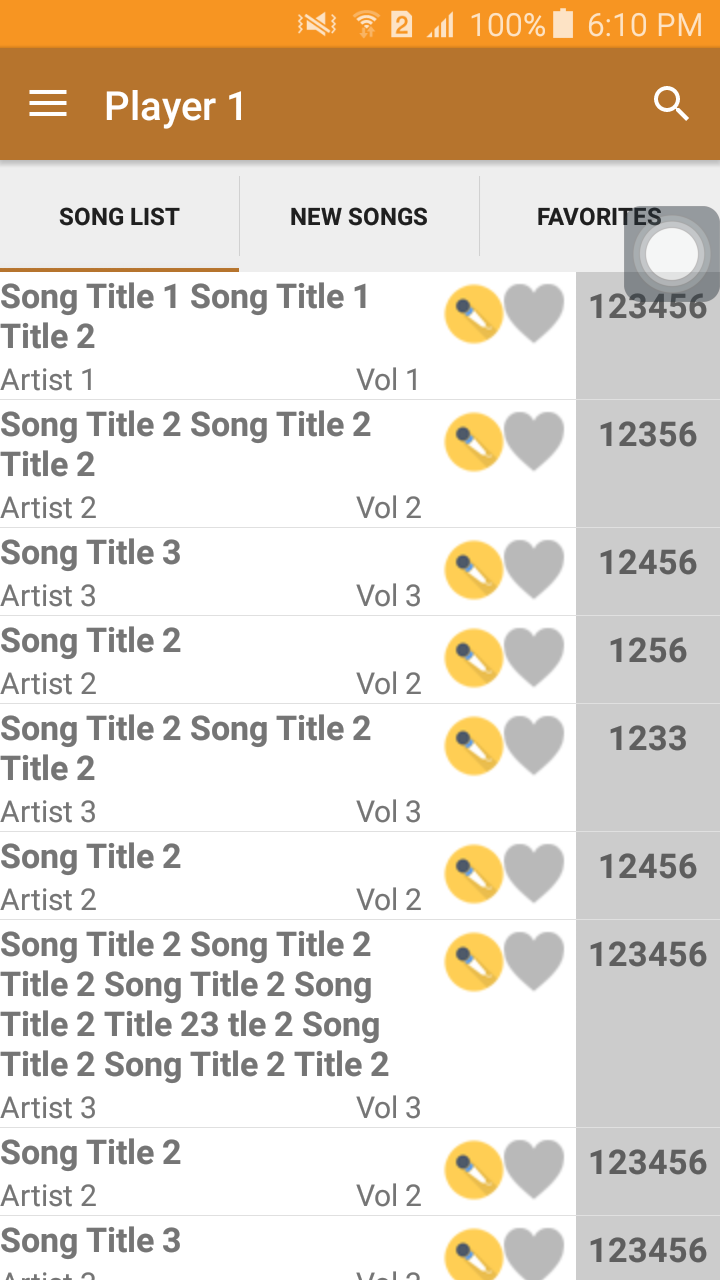
这是我的密码。
FragmentOne
@Override
    public View onCreateView(LayoutInflater inflater, ViewGroup container,
                             Bundle savedInstanceState) {
        // Inflate the layout for this fragment
        View rootView = inflater.inflate(R.layout.fragment_fragment_one, container, false);

        TabHost host = (TabHost) rootView.findViewById(R.id.tabHost);
        host.setup();

        //Tab 1
        TabHost.TabSpec spec = host.newTabSpec("SONG LIST");
        spec.setContent(R.id.tab1);
        spec.setIndicator("SONG LIST");
        host.addTab(spec);

            ArrayList<FragmentOne_slResults> slResults = GetSearchResults();
        final ListView sllv = (ListView) rootView.findViewById(R.id.slListView);
        sllv.setAdapter(new FragmentOne_Adapter(getActivity(), slResults));


        //Tab 2
        spec = host.newTabSpec("NEW SONGS");
        spec.setContent(R.id.tab2);
        spec.setIndicator("NEW SONGS");
        host.addTab(spec);

        //Tab 3
        spec = host.newTabSpec("FAVORITES");
        spec.setContent(R.id.tab3);
        spec.setIndicator("FAVORITES");
        host.addTab(spec);

        return rootView;
    }

    //SONG LIST
    private ArrayList<FragmentOne_slResults> GetSearchResults(){
        ArrayList<FragmentOne_slResults> results = new ArrayList<FragmentOne_slResults>();

        FragmentOne_slResults slr = new FragmentOne_slResults();
        slr.setTitle("Song Title 1 Song Title 1 Title 2");
        slr.setArtist("Artist 1");
        slr.setVolume("Vol 1");
        slr.setNumber("123456");
        results.add(slr);

        slr = new FragmentOne_slResults();
        slr.setTitle("Song Title 2 Song Title 2 Title 2");
        slr.setArtist("Artist 2");
        slr.setVolume("Vol 2");
        slr.setNumber("12356");
        results.add(slr);

        slr = new FragmentOne_slResults();
        slr.setTitle("Song Title 3");
        slr.setArtist("Artist 3");
        slr.setVolume("Vol 3");
        slr.setNumber("12456");
        results.add(slr);

        slr = new FragmentOne_slResults();
        slr.setTitle("Song Title 2");
        slr.setArtist("Artist 2");
        slr.setVolume("Vol 2");
        slr.setNumber("1256");
        results.add(slr);

        slr = new FragmentOne_slResults();
        slr.setTitle("Song Title 2 Song Title 2 Title 2");
        slr.setArtist("Artist 3");
        slr.setVolume("Vol 3");
        slr.setNumber("1233");
        results.add(slr);

        slr = new FragmentOne_slResults();
        slr.setTitle("Song Title 2");
        slr.setArtist("Artist 2");
        slr.setVolume("Vol 2");
        slr.setNumber("12456");
        results.add(slr);

        slr = new FragmentOne_slResults();
        slr.setTitle("Song Title 2 Song Title 2 Title 2 Song Title 2 Song Title 2 Title 23 tle 2 Song Title 2 Song Title 2 Title 2");
        slr.setArtist("Artist 3");
        slr.setVolume("Vol 3");
        slr.setNumber("123456");
        results.add(slr);

        slr = new FragmentOne_slResults();
        slr.setTitle("Song Title 2");
        slr.setArtist("Artist 2");
        slr.setVolume("Vol 2");
        slr.setNumber("123456");
        results.add(slr);

        slr = new FragmentOne_slResults();
        slr.setTitle("Song Title 3");
        slr.setArtist("Artist 3");
        slr.setVolume("Vol 3");
        slr.setNumber("123456");
        results.add(slr);

        slr = new FragmentOne_slResults();
        slr.setTitle("Song Title 2");
        slr.setArtist("Artist 2");
        slr.setVolume("Vol 2");
        slr.setNumber("1256");
        results.add(slr);

        slr = new FragmentOne_slResults();
        slr.setTitle("Song Title 3");
        slr.setArtist("Artist 3");
        slr.setVolume("Vol 3");
        slr.setNumber("123456");
        results.add(slr);

        slr = new FragmentOne_slResults();
        slr.setTitle("Song Title 2");
        slr.setArtist("Artist 2");
        slr.setVolume("Vol 2");
        slr.setNumber("123456");
        results.add(slr);

        slr = new FragmentOne_slResults();
        slr.setTitle("Song Title 3");
        slr.setArtist("Artist 3");
        slr.setVolume("Vol 3");
        slr.setNumber("123456");
        results.add(slr);

        slr = new FragmentOne_slResults();
        slr.setTitle("Song Title 2");
        slr.setArtist("Artist 2");
        slr.setVolume("Vol 2");
        slr.setNumber("123456");
        results.add(slr);

        slr = new FragmentOne_slResults();
        slr.setTitle("Song Title 3");
        slr.setArtist("Artist 3");
        slr.setVolume("Vol 3");
        slr.setNumber("1236");
        results.add(slr);

        slr = new FragmentOne_slResults();
        slr.setTitle("Song Title 2");
        slr.setArtist("Artist 2");
        slr.setVolume("Vol 2");
        slr.setNumber("123456");
        results.add(slr);

        slr = new FragmentOne_slResults();
        slr.setTitle("Song Title 3");
        slr.setArtist("Artist 3");
        slr.setVolume("Vol 3");
        slr.setNumber("123456");
        results.add(slr);

        return results;
    }
FragmentOne_Adapter
package com.magicstarme.virtualsongbook;

import android.content.Context;
import android.view.LayoutInflater;
import android.view.View;
import android.view.ViewGroup;
import android.widget.BaseAdapter;
import android.widget.TextView;

import java.util.ArrayList;

/**
 * Created by Joe on 6/29/2016.
 */
public class FragmentOne_Adapter extends BaseAdapter {
    private static ArrayList<FragmentOne_slResults> oneslArrayList;

    private LayoutInflater mInflater;

    public FragmentOne_Adapter(Context context, ArrayList<FragmentOne_slResults> slresults) {
        oneslArrayList = slresults;
        mInflater = LayoutInflater.from(context);
    }

    public int getCount() {
        return oneslArrayList.size();
    }

    public Object getItem(int position) {
        return oneslArrayList.get(position);
    }

    public long getItemId(int position) {
        return position;
    }

    public View getView(int position, View convertView, ViewGroup parent) {
        ViewHolder holder;
        if (convertView == null) {
            convertView = mInflater.inflate(R.layout.fragment_fragment_one_slview, null);
            holder = new ViewHolder();

            holder.txtTitle = (TextView) convertView.findViewById(R.id.title);
            holder.txtArtist = (TextView) convertView.findViewById(R.id.artist);
            holder.txtVolume = (TextView) convertView.findViewById(R.id.volume);
            holder.txtNumber = (TextView) convertView.findViewById(R.id.number);

            convertView.setTag(holder);
        } else {
            holder = (ViewHolder) convertView.getTag();
        }

        holder.txtTitle.setText(oneslArrayList.get(position).getTitle());
        holder.txtArtist.setText(oneslArrayList.get(position).getArtist());
        holder.txtVolume.setText(oneslArrayList.get(position).getVolume());
        holder.txtNumber.setText(oneslArrayList.get(position).getNumber());

        return convertView;
    }

    static class ViewHolder {
        TextView txtTitle;
        TextView txtArtist;
        TextView txtVolume;
        TextView txtNumber;
    }
}
这是xml
<?xml version="1.0" encoding="utf-8"?>
<!--<RelativeLayout xmlns:android="http://schemas.android.com/apk/res/android"
    android:layout_width="match_parent"
    android:layout_height="match_parent"
    android:orientation="horizontal"
    android:paddingLeft="10dip" >
    <LinearLayout
        android:layout_width="wrap_content"
        android:layout_height="wrap_content"
        android:orientation="horizontal">
        <RelativeLayout
            android:layout_width="200dp"
            android:layout_height="match_parent"
            android:id="@+id/relativeLayout1"
            android:paddingRight="5dip">

            <LinearLayout
                android:layout_width="wrap_content"
                android:layout_height="wrap_content"
                android:orientation="vertical">

                    <FrameLayout
                        android:id="@+id/framelayout"
                        android:layout_width="match_parent"
                        android:layout_height="match_parent">

                        <TextView
                            android:id="@+id/title"
                            android:layout_width="wrap_content"
                            android:layout_height="wrap_content"
                            android:textSize="17dp"
                            android:textStyle="bold" />

                    </FrameLayout>

                    <FrameLayout
                        android:id="@+id/framelayout2"
                        android:layout_width="match_parent"
                        android:layout_height="match_parent">

                        <TextView
                            android:id="@+id/volume"
                            android:layout_width="wrap_content"
                            android:layout_height="wrap_content"
                            android:textSize="15dp"
                            android:layout_gravity="right|top" />

                        <TextView
                            android:id="@+id/artist"
                            android:layout_width="wrap_content"
                            android:layout_height="wrap_content"
                            android:textSize="15dp"
                            android:layout_gravity="left|top" />

                    </FrameLayout>

            </LinearLayout>
        </RelativeLayout>

        <RelativeLayout
            android:layout_width="65dp"
            android:layout_height="match_parent"
            android:layout_alignParentTop="true"
            android:id="@+id/relativeLayout2"
            android:layout_toStartOf="@+id/relativeLayout3">

            <FrameLayout
                android:layout_width="65dp"
                android:layout_height="match_parent"
                android:layout_alignParentTop="true"
                android:layout_alignParentStart="true"
                android:paddingTop="5dp">

                <ImageView
                    android:layout_width="wrap_content"
                    android:layout_height="wrap_content"
                    android:src="@drawable/mic"
                    android:layout_gravity="left|top" />

                <ImageView
                    android:layout_width="wrap_content"
                    android:layout_height="wrap_content"
                    android:src="@drawable/heart"
                    android:layout_gravity="right|top" />

            </FrameLayout>

        </RelativeLayout>

        <RelativeLayout
            android:layout_width="80dp"
            android:layout_height="match_parent"
            android:background="#cccccc"
            android:layout_alignParentTop="true"
            android:layout_alignParentEnd="true"
            android:id="@+id/relativeLayout3">

            <FrameLayout
                android:layout_width="80dp"
                android:layout_height="match_parent"
                android:padding="5dp"
                android:background="#cccccc">

                <TextView
                    android:id="@+id/number"
                    android:layout_width="wrap_content"
                    android:layout_height="wrap_content"
                    android:textSize="17dp"
                    android:textStyle="bold"
                    android:layout_alignParentTop="true"
                    android:layout_centerHorizontal="true"
                    android:layout_gravity="center_horizontal|top" />

            </FrameLayout>

        </RelativeLayout>
    </LinearLayout>
</RelativeLayout>-->

<LinearLayout
    android:layout_width="match_parent"
    android:layout_height="match_parent"
    android:orientation="horizontal"
    xmlns:android="http://schemas.android.com/apk/res/android">

    <LinearLayout
        android:layout_width="0dp"
        android:layout_height="match_parent"
        android:paddingRight="5dip"
        android:orientation="vertical"
        android:layout_weight="3
        ">
        <FrameLayout
            android:id="@+id/framelayout"
            android:layout_width="match_parent"
            android:layout_height="wrap_content">

            <TextView
                android:id="@+id/title"
                android:layout_width="wrap_content"
                android:layout_height="wrap_content"
                android:textSize="17dp"
                android:textStyle="bold" />

        </FrameLayout>

        <FrameLayout
            android:id="@+id/framelayout2"
            android:layout_width="match_parent"
            android:layout_height="wrap_content">

            <TextView
                android:id="@+id/artist"
                android:layout_width="wrap_content"
                android:layout_height="wrap_content"
                android:textSize="15dp"
                android:layout_gravity="left|top"/>

            <TextView
                android:id="@+id/volume"
                android:layout_width="wrap_content"
                android:layout_height="wrap_content"
                android:textSize="15dp"
                android:layout_gravity="right|top"/>

        </FrameLayout>

    </LinearLayout>

    <LinearLayout
        android:layout_width="0dp"
        android:layout_height="match_parent"
        android:layout_alignParentTop="true"
        android:layout_weight="1"
        android:layout_toStartOf="@+id/relativeLayout3">

        <FrameLayout
            android:layout_width="match_parent"
            android:layout_height="match_parent"
            android:layout_alignParentTop="true"
            android:layout_alignParentStart="true"
            android:padding="5dp">

            <ImageView
                android:layout_width="wrap_content"
                android:layout_height="wrap_content"
                android:src="@drawable/mic"
                android:layout_gravity="left|top" />

            <ImageView
                android:layout_width="wrap_content"
                android:layout_height="wrap_content"
                android:src="@drawable/heart"
                android:layout_gravity="right|top" />

        </FrameLayout>

    </LinearLayout>

    <LinearLayout
        android:layout_width="0dp"
        android:layout_weight="1"
        android:layout_height="match_parent"
        android:background="#cccccc"
        android:layout_alignParentTop="true"
        android:layout_alignParentEnd="true">

        <FrameLayout
            android:layout_width="match_parent"
            android:layout_height="match_parent"
            android:padding="5dp"
            android:background="#cccccc">

            <TextView
                android:id="@+id/number"
                android:layout_width="wrap_content"
                android:layout_height="wrap_content"
                android:textSize="17dp"
                android:textStyle="bold"
                android:layout_alignParentTop="true"
                android:layout_centerHorizontal="true"
                android:layout_gravity="center_horizontal|top" />

        </FrameLayout>

    </LinearLayout>
</LinearLayout>
请帮帮我。
我正在开发一个类似于playstore的数字歌曲集的歌曲簿应用程序。
谢谢,
乔
回答 2
Stack Overflow用户
回答已采纳
发布于 2016-07-01 11:27:49
这是我换心颜色的密码。在布局xml文件中使用以下内容
<ToggleButton
     android:id="@+id/toggleButton"
     style="@style/toggleButton"
     android:layout_width="40dp"
     android:layout_height="40dp"
     android:layout_gravity="right"
     android:background="@drawable/favourite_toggle_bg"/>
在样式文件中添加以下内容。
<style name="toggleButton"  parent="@android:Theme.Black">
    <item name="android:buttonStyleToggle">@style/Widget.Button.Toggle</item>
    <item name="android:textOn"></item>
    <item name="android:textOff"></item>
</style>
在可绘图文件夹中的favourite_toggle_bg.xml中创建新文件并添加此代码。
<selector xmlns:android="http://schemas.android.com/apk/res/android">
        <item android:state_checked="false"
              android:drawable="@mipmap/favourite_no" />
        <item android:state_checked="true"
              android:drawable="@mipmap/favourite_yes" />
    </selector>
将ToggleButton btnFavourite添加到持卡器中,并使用ToggleButton初始化
holder.btnFavourite = (ToggleButton) convertView.findViewById(R.id.toggleButton);在java代码中,如果您想要最喜欢的Toggle按钮,请检查,然后将其添加到getView适配器方法中。
holder.btnFavourite.setChecked(true);Stack Overflow用户
发布于 2016-07-01 10:30:32
您是否尝试过将其作为ImageButton添加到Viewholder中,然后在getView中为其添加一个SetOnclickListener?
holder.button = (ImageButton)convertView.findviewById( ... );
final ImageButton tmp = holder.button;
tmp.setOnClickListenet( ... ) ;
编辑:在XML中,而不是:
<ImageView
            android:layout_width="wrap_content"
            android:layout_height="wrap_content"
            android:src="@drawable/heart"
            android:layout_gravity="right|top" />
代之以:
<ImageButton
android:id  < add your ID here !!! >
            android:layout_width="wrap_content"
            android:layout_height="wrap_content"
            android:src="@drawable/heart"
android:layout_gravity="right|top" />页面原文内容由Stack Overflow提供。腾讯云小微IT领域专用引擎提供翻译支持
原文链接:
https://stackoverflow.com/questions/38143077
复制相关文章
相似问题
腾讯云开发者

Copyright © 2013 - 2026 Tencent Cloud. All Rights Reserved. 腾讯云 版权所有
深圳市腾讯计算机系统有限公司 ICP备案/许可证号:粤B2-20090059  粤公网安备44030502008569号
腾讯云计算(北京)有限责任公司 京ICP证150476号 | 京ICP备11018762号