
在iOS中,如何创建始终位于所有其他视图控制器之上的按钮?
无论是否呈现调制解调器或用户执行任何类型的segue。
有没有办法让按钮“始终在顶部”(而不是屏幕的顶部)贯穿整个应用程序?
有什么方法可以让这个按钮被拉到屏幕上吗?
我把苹果自己的“辅助触控”( Assistive )作为这种按钮的例子。
回答 10
Stack Overflow用户
发布于 2016-01-17 05:11:21
您可以通过创建自己的UIWindow子类,然后创建该子类的实例来做到这一点。你需要对窗口做三件事:
- 将其
windowLevel设置为非常高的数字,如CGFloat.max。它被固定在10000000 (截至iOS 9.2),但您最好将其设置为尽可能高的值。 - 将窗口的背景色设置为零,以使其透明。
- 重写窗口的
pointInside(_:withEvent:)方法,仅对按钮中的点返回true。这将使窗口只接受按下按钮的触摸,所有其他触摸都将传递到其他窗口。
然后为窗口创建根视图控制器。创建该按钮并将其添加到视图层次结构中,并将其告知窗口,以便该窗口可以在pointInside(_:withEvent:)中使用它。
还有最后一件事要做。结果显示,屏幕上的键盘也使用最高的窗口级别,而且由于它可能在窗口之后出现在屏幕上,所以它将位于窗口的顶部。您可以通过观察UIKeyboardDidShowNotification并在发生这种情况时重置窗口的windowLevel来修复这个问题(因为这样做的目的是将您的窗口放在所有窗口的同一级别上)。
这是一个演示。我将从窗口中使用的视图控制器开始。
import UIKit

class FloatingButtonController: UIViewController {下面是按钮实例变量。创建FloatingButtonController的人可以访问按钮来向其添加目标/操作。我过会儿再演示。
private(set) var button: UIButton!您必须“实现”这个初始化器,但是我不打算在故事板中使用这个类。
    required init?(coder aDecoder: NSCoder) {
        fatalError()
    }
这是真正的初始化器。
    init() {
        super.init(nibName: nil, bundle: nil)
        window.windowLevel = CGFloat.max
        window.hidden = false
window.rootViewController = self设置window.hidden = false会将其放到屏幕上(当当前CATransaction提交时)。我还需要注意键盘是否会出现:
        NSNotificationCenter.defaultCenter().addObserver(self, selector: "keyboardDidShow:", name: UIKeyboardDidShowNotification, object: nil)
    }
我需要对我的窗口的引用,它将是一个自定义类的实例:
private let window = FloatingButtonWindow()我将在代码中创建视图层次结构,以保持这个答案是独立的:
    override func loadView() {
        let view = UIView()
        let button = UIButton(type: .Custom)
        button.setTitle("Floating", forState: .Normal)
        button.setTitleColor(UIColor.greenColor(), forState: .Normal)
        button.backgroundColor = UIColor.whiteColor()
        button.layer.shadowColor = UIColor.blackColor().CGColor
        button.layer.shadowRadius = 3
        button.layer.shadowOpacity = 0.8
        button.layer.shadowOffset = CGSize.zero
        button.sizeToFit()
        button.frame = CGRect(origin: CGPointMake(10, 10), size: button.bounds.size)
        button.autoresizingMask = []
        view.addSubview(button)
        self.view = view
        self.button = button
        window.button = button
那里没什么特别的事。我只是在创建我的根视图并在其中添加一个按钮。
为了允许用户拖动按钮,我将在按钮中添加一个pan手势识别器:
        let panner = UIPanGestureRecognizer(target: self, action: "panDidFire:")
        button.addGestureRecognizer(panner)
    }
当窗口第一次出现时,以及当它被调整大小时(特别是由于界面旋转),该窗口将显示它的子视图,因此,我希望在这些时候重新定位按钮:
    override func viewDidLayoutSubviews() {
        super.viewDidLayoutSubviews()
        snapButtonToSocket()
}(稍后将详细介绍snapButtonToSocket。)
为了处理拖动按钮,我以标准的方式使用pan手势识别器:
    func panDidFire(panner: UIPanGestureRecognizer) {
        let offset = panner.translationInView(view)
        panner.setTranslation(CGPoint.zero, inView: view)
        var center = button.center
        center.x += offset.x
        center.y += offset.y
        button.center = center
您要求“点击”,所以如果pan即将结束或取消,我将按下按钮到固定数量的位置之一,我称之为“套接字”:
        if panner.state == .Ended || panner.state == .Cancelled {
            UIView.animateWithDuration(0.3) {
                self.snapButtonToSocket()
            }
        }
}我通过重置window.windowLevel来处理键盘通知
    func keyboardDidShow(note: NSNotification) {
        window.windowLevel = 0
        window.windowLevel = CGFloat.max
    }
要将按钮按到套接字上,我会找到与按钮位置最近的套接字,并将按钮移到那里。请注意,这并不一定是您想要的接口旋转,但我将留下一个更完美的解决方案,作为一个练习的读者。无论如何,它会在旋转后将按钮保持在屏幕上。
    private func snapButtonToSocket() {
        var bestSocket = CGPoint.zero
        var distanceToBestSocket = CGFloat.infinity
        let center = button.center
        for socket in sockets {
            let distance = hypot(center.x - socket.x, center.y - socket.y)
            if distance < distanceToBestSocket {
                distanceToBestSocket = distance
                bestSocket = socket
            }
        }
        button.center = bestSocket
    }
我在屏幕的每个角落放置了一个套接字,为了演示目的在中间放了一个插座:
    private var sockets: [CGPoint] {
        let buttonSize = button.bounds.size
        let rect = view.bounds.insetBy(dx: 4 + buttonSize.width / 2, dy: 4 + buttonSize.height / 2)
        let sockets: [CGPoint] = [
            CGPointMake(rect.minX, rect.minY),
            CGPointMake(rect.minX, rect.maxY),
            CGPointMake(rect.maxX, rect.minY),
            CGPointMake(rect.maxX, rect.maxY),
            CGPointMake(rect.midX, rect.midY)
        ]
        return sockets
    }

}最后,定制的UIWindow子类:
private class FloatingButtonWindow: UIWindow {

    var button: UIButton?

    init() {
        super.init(frame: UIScreen.mainScreen().bounds)
        backgroundColor = nil
    }

    required init?(coder aDecoder: NSCoder) {
        fatalError("init(coder:) has not been implemented")
}如前所述,我需要重写pointInside(_:withEvent:),以便窗口忽略按钮外部的触摸:
    private override func pointInside(point: CGPoint, withEvent event: UIEvent?) -> Bool {
        guard let button = button else { return false }
        let buttonPoint = convertPoint(point, toView: button)
        return button.pointInside(buttonPoint, withEvent: event)
    }

}现在你怎么用这个东西?我下载了苹果的AdaptivePhotos示例项目并将FloatingButtonController.swift文件添加到AdaptiveCode目标中。我向AppDelegate添加了一个属性
var floatingButtonController: FloatingButtonController?然后,我将代码添加到application(_:didFinishLaunchingWithOptions:)的末尾,以创建一个FloatingButtonController
    floatingButtonController = FloatingButtonController()
floatingButtonController?.button.addTarget(self, action: "floatingButtonWasTapped", forControlEvents: .TouchUpInside)这些行就在函数末尾的return true之前。我还需要为按钮编写操作方法:
func floatingButtonWasTapped() {
    let alert = UIAlertController(title: "Warning", message: "Don't do that!", preferredStyle: .Alert)
    let action = UIAlertAction(title: "Sorry…", style: .Default, handler: nil)
    alert.addAction(action)
    window?.rootViewController?.presentViewController(alert, animated: true, completion: nil)
}这就是我所要做的。但为了演示起见,我还做了一件事:在AboutViewController中,我将label更改为UITextView,这样就可以打开键盘。
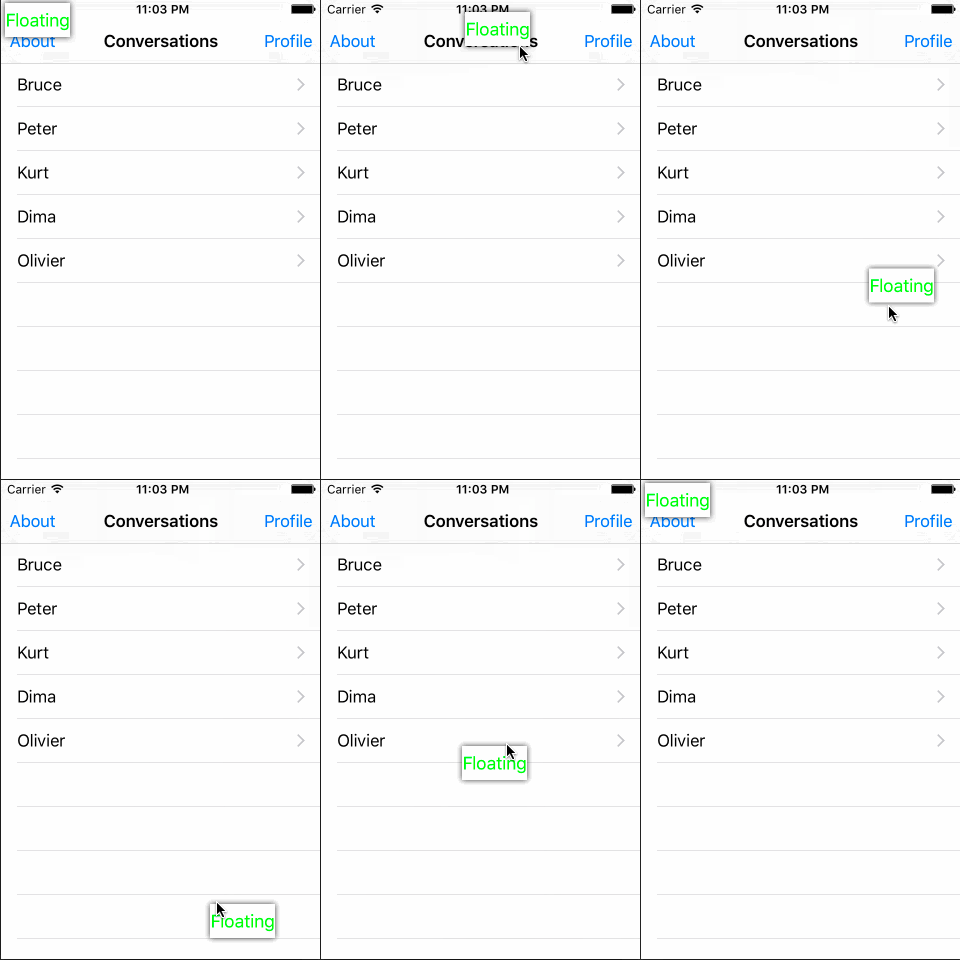
下面是按钮的样子:
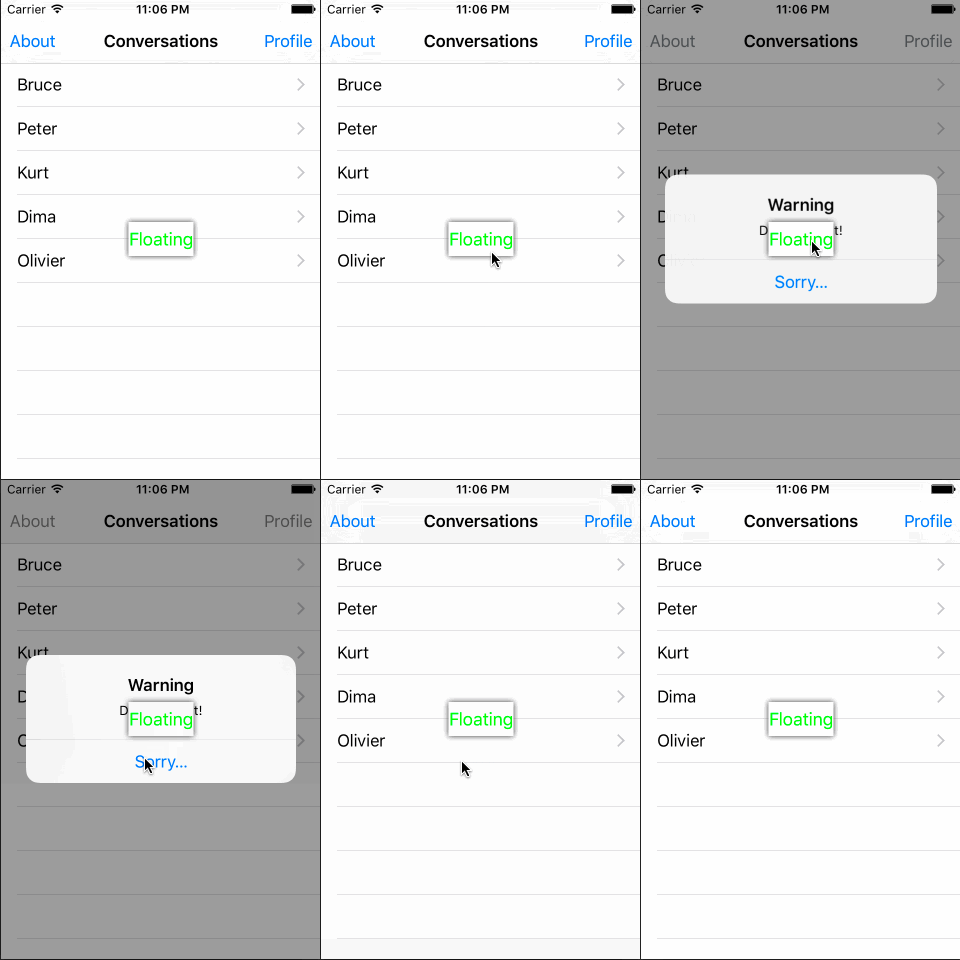
这是点击按钮的效果。请注意,该按钮浮动在警报上方:
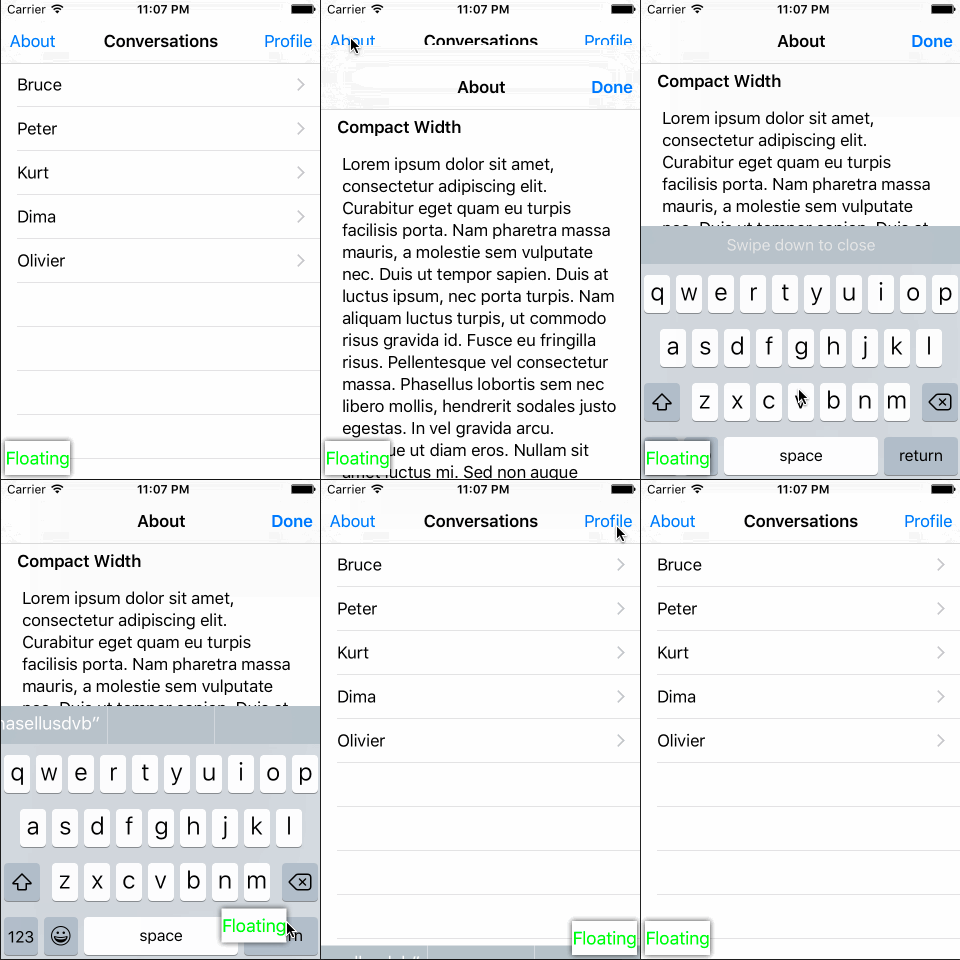
下面是当我打开键盘时会发生的事情:
它能处理旋转吗?你说的是:
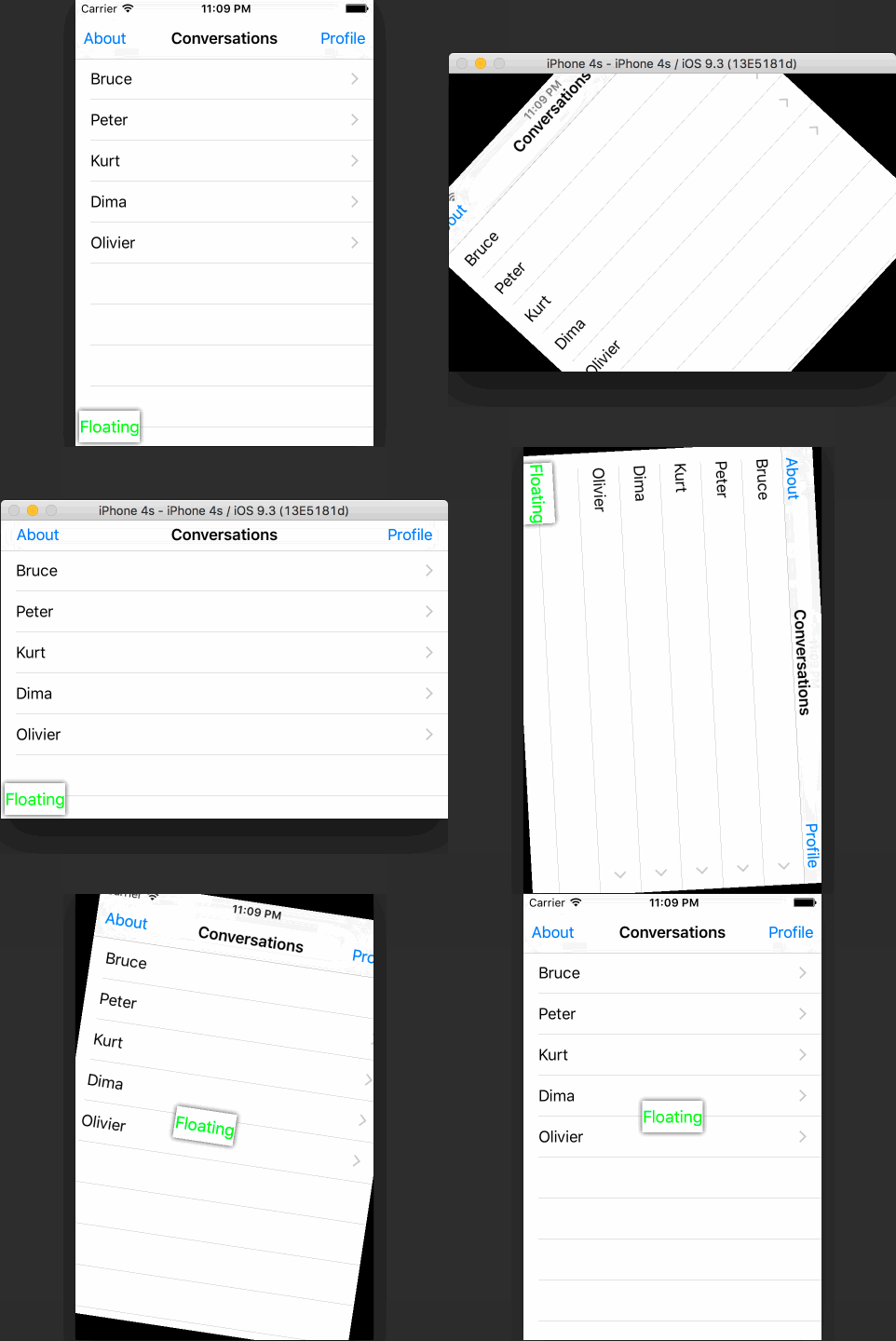
嗯,旋转处理并不完美,因为旋转后哪个套接字离按钮最近,可能不是旋转之前的“逻辑”套接字。您可以通过跟踪上一次按下按钮的套接字,并专门处理旋转(通过检测大小的变化)来修复这个问题。
为了您的方便,我将整个FloatingViewController.swift放在这个要旨中。
Stack Overflow用户
发布于 2017-11-29 14:49:49
在Swift 3中:
import UIKit

private class FloatingButtonWindow: UIWindow {
    var button: UIButton?

    var floatingButtonController: FloatingButtonController?

    init() {
        super.init(frame: UIScreen.main.bounds)
        backgroundColor = nil
    }

    required init?(coder aDecoder: NSCoder) {
        fatalError("init(coder:) has not been implemented")
    }

    fileprivate override func point(inside point: CGPoint, with event: UIEvent?) -> Bool {
        guard let button = button else { return false }
        let buttonPoint = convert(point, to: button)
        return button.point(inside: buttonPoint, with: event)
    }
}

class FloatingButtonController: UIViewController {
    private(set) var button: UIButton!

    private let window = FloatingButtonWindow()

    required init?(coder aDecoder: NSCoder) {
        fatalError()
    }

    init() {
        super.init(nibName: nil, bundle: nil)
        window.windowLevel = CGFloat.greatestFiniteMagnitude
        window.isHidden = false
        window.rootViewController = self
        NotificationCenter.default.addObserver(self, selector: #selector(keyboardDidShow), name: NSNotification.Name.UIKeyboardDidShow, object: nil)
    }

    func keyboardDidShow(note: NSNotification) {
        window.windowLevel = 0
        window.windowLevel = CGFloat.greatestFiniteMagnitude
    }

    override func loadView() {
        let view = UIView()
        let button = UIButton(type: .custom)
        button.setTitle("Floating", for: .normal)
        button.setTitleColor(UIColor.green, for: .normal)
        button.backgroundColor = UIColor.white
        button.layer.shadowColor = UIColor.black.cgColor
        button.layer.shadowRadius = 3
        button.layer.shadowOpacity = 0.8
        button.layer.shadowOffset = CGSize.zero
        button.sizeToFit()
        button.frame = CGRect(origin: CGPoint(x: 10, y: 10), size: button.bounds.size)
        button.autoresizingMask = []
        view.addSubview(button)
        self.view = view
        self.button = button
        window.button = button


        let panner = UIPanGestureRecognizer(target: self, action: #selector(panDidFire))
        button.addGestureRecognizer(panner)
    }

    func panDidFire(panner: UIPanGestureRecognizer) {
        let offset = panner.translation(in: view)
        panner.setTranslation(CGPoint.zero, in: view)
        var center = button.center
        center.x += offset.x
        center.y += offset.y
        button.center = center

        if panner.state == .ended || panner.state == .cancelled {
            UIView.animate(withDuration: 0.3) {
                self.snapButtonToSocket()
            }
        }
    }

    override func viewDidLayoutSubviews() {
        super.viewDidLayoutSubviews()
        snapButtonToSocket()
    }

    private var sockets: [CGPoint] {
        let buttonSize = button.bounds.size
        let rect = view.bounds.insetBy(dx: 4 + buttonSize.width / 2, dy: 4 + buttonSize.height / 2)
        let sockets: [CGPoint] = [
            CGPoint(x: rect.minX, y: rect.minY),
            CGPoint(x: rect.minX, y: rect.maxY),
            CGPoint(x: rect.maxX, y: rect.minY),
            CGPoint(x: rect.maxX, y: rect.maxY),
            CGPoint(x: rect.midX, y: rect.midY)
        ]
        return sockets
    }

    private func snapButtonToSocket() {
        var bestSocket = CGPoint.zero
        var distanceToBestSocket = CGFloat.infinity
        let center = button.center
        for socket in sockets {
            let distance = hypot(center.x - socket.x, center.y - socket.y)
            if distance < distanceToBestSocket {
                distanceToBestSocket = distance
                bestSocket = socket
            }
        }
        button.center = bestSocket
    }
}
在AppDelegate中:
    var floatingButtonController: FloatingButtonController?

func application(_ application: UIApplication, didFinishLaunchingWithOptions launchOptions: [UIApplicationLaunchOptionsKey: Any]?) -> Bool {
    // Override point for customization after application launch.

     floatingButtonController = FloatingButtonController()
     floatingButtonController?.button.addTarget(self, action: #selector(AppDelegate.floatingButtonWasTapped), for: .touchUpInside)


    return true
}

func floatingButtonWasTapped() {
    let alert = UIAlertController(title: "Warning", message: "Don't do that!", preferredStyle: .alert)
    let action = UIAlertAction(title: "Sorry…", style: .default, handler: nil)
    alert.addAction(action)
    window?.rootViewController?.present(alert, animated: true, completion: nil)
}Stack Overflow用户
发布于 2019-03-14 10:05:24
SWIFT4.2- UIViewController扩展
一个修改版本的罗布梅奥夫的答案本地浮动按钮。
UIViewController扩展可以使您更好地控制浮动按钮。但是,它将被添加到一个您称为addFloatingButton的视图控制器上,而不是所有视图控制器上。
- 在特定视图控制器中添加浮动按钮可以将视图控制器特定的操作添加到浮动按钮中。
- 如果经常使用topViewController函数,它不会阻塞它。(下文提供)
- 如果使用浮动按钮为应用程序(例如Zendesk )切换支持聊天,则UIViewController扩展方法可以更好地控制视图控制器之间的导航。
对于这个问题,这可能不是最佳实践,但是,对于浮动按钮的这种类型控制应该可以为不同的目的启用不同的实践。
UIViewController扩展
import UIKit

extension UIViewController {
    private struct AssociatedKeys {
        static var floatingButton: UIButton?
    }

    var floatingButton: UIButton? {
        get {
            guard let value = objc_getAssociatedObject(self, &AssociatedKeys.floatingButton) as? UIButton else {return nil}
            return value
        }
        set(newValue) {
            objc_setAssociatedObject(self, &AssociatedKeys.floatingButton, newValue, .OBJC_ASSOCIATION_RETAIN_NONATOMIC)
        }
    }

    func addFloatingButton() {
        // Customize your own floating button UI
        let button = UIButton(type: .custom)
        let image = UIImage(named: "tab_livesupport_unselected")?.withRenderingMode(.alwaysTemplate)
        button.tintColor = .white
        button.setImage(image, for: .normal)
        button.backgroundColor = UIColor.obiletGreen
        button.layer.shadowColor = UIColor.black.cgColor
        button.layer.shadowRadius = 3
        button.layer.shadowOpacity = 0.12
        button.layer.shadowOffset = CGSize(width: 0, height: 1)
        button.sizeToFit()
        let buttonSize = CGSize(width: 60, height: 60)
        let rect = UIScreen.main.bounds.insetBy(dx: 4 + buttonSize.width / 2, dy: 4 + buttonSize.height / 2)
        button.frame = CGRect(origin: CGPoint(x: rect.maxX - 15, y: rect.maxY - 50), size: CGSize(width: 60, height: 60))
        // button.cornerRadius = 30 -> Will destroy your shadows, however you can still find workarounds for rounded shadow.
        button.autoresizingMask = []
        view.addSubview(button)
        floatingButton = button
        let panner = UIPanGestureRecognizer(target: self, action: #selector(panDidFire(panner:)))
        floatingButton?.addGestureRecognizer(panner)
        snapButtonToSocket()
    }

    @objc fileprivate func panDidFire(panner: UIPanGestureRecognizer) {
        guard let floatingButton = floatingButton else {return}
        let offset = panner.translation(in: view)
        panner.setTranslation(CGPoint.zero, in: view)
        var center = floatingButton.center
        center.x += offset.x
        center.y += offset.y
        floatingButton.center = center

        if panner.state == .ended || panner.state == .cancelled {
            UIView.animate(withDuration: 0.3) {
                self.snapButtonToSocket()
            }
        }
    }

    fileprivate func snapButtonToSocket() {
        guard let floatingButton = floatingButton else {return}
        var bestSocket = CGPoint.zero
        var distanceToBestSocket = CGFloat.infinity
        let center = floatingButton.center
        for socket in sockets {
            let distance = hypot(center.x - socket.x, center.y - socket.y)
            if distance < distanceToBestSocket {
                distanceToBestSocket = distance
                bestSocket = socket
            }
        }
        floatingButton.center = bestSocket
    }

    fileprivate var sockets: [CGPoint] {
        let buttonSize = floatingButton?.bounds.size ?? CGSize(width: 0, height: 0)
        let rect = view.bounds.insetBy(dx: 4 + buttonSize.width / 2, dy: 4 + buttonSize.height / 2)
        let sockets: [CGPoint] = [
            CGPoint(x: rect.minX + 15, y: rect.minY + 30),
            CGPoint(x: rect.minX + 15, y: rect.maxY - 50),
            CGPoint(x: rect.maxX - 15, y: rect.minY + 30),
            CGPoint(x: rect.maxX - 15, y: rect.maxY - 50)
        ]
        return sockets
    }
    // Custom socket position to hold Y position and snap to horizontal edges.
    // You can snap to any coordinate on screen by setting custom socket positions.
    fileprivate var horizontalSockets: [CGPoint] {
        guard let floatingButton = floatingButton else {return []}
        let buttonSize = floatingButton.bounds.size
        let rect = view.bounds.insetBy(dx: 4 + buttonSize.width / 2, dy: 4 + buttonSize.height / 2)
        let y = min(rect.maxY - 50, max(rect.minY + 30, floatingButton.frame.minY + buttonSize.height / 2))
        let sockets: [CGPoint] = [
            CGPoint(x: rect.minX + 15, y: y),
            CGPoint(x: rect.maxX - 15, y: y)
        ]
        return sockets
    }
}
UIViewController使用
我更喜欢在viewDidLoad(_动画:)之后添加浮动按钮。如果随后另一个子视图阻塞了浮动按钮,则可能需要调用bringSubviewToFront()。
override func viewDidAppear(_ animated: Bool) {
        super.viewDidAppear(animated)
        addFloatingButton()
        floatingButton?.addTarget(self, action: #selector(floatingButtonPressed), for: .touchUpInside)
    }

    @objc func floatingButtonPressed(){
        print("Floating button tapped")
    }
UIApplication -顶视图控制器
extension UIApplication{

    class func topViewController(controller: UIViewController? = UIApplication.shared.keyWindow?.rootViewController) -> UIViewController? {
        if let navigationController = controller as? UINavigationController {
            return topViewController(controller: navigationController.visibleViewController)
        }
        if let tabController = controller as? UITabBarController {
            if let selected = tabController.selectedViewController {
                return topViewController(controller: selected)
            }
        }
        if let presented = controller?.presentedViewController {
            return topViewController(controller: presented)
        }
        return controller
    }
}https://stackoverflow.com/questions/34777558
复制相似问题
腾讯云开发者

Copyright © 2013 - 2026 Tencent Cloud. All Rights Reserved. 腾讯云 版权所有
深圳市腾讯计算机系统有限公司 ICP备案/许可证号:粤B2-20090059  粤公网安备44030502008569号
腾讯云计算(北京)有限责任公司 京ICP证150476号 | 京ICP备11018762号