
向ActionBar/工具栏添加无边距的自定义布局
我想要创建一个自定义高度工具栏,它可以正常工作,直到我向它添加内容。然后调整内容,使其位于后箭头和actionbar按钮之间。
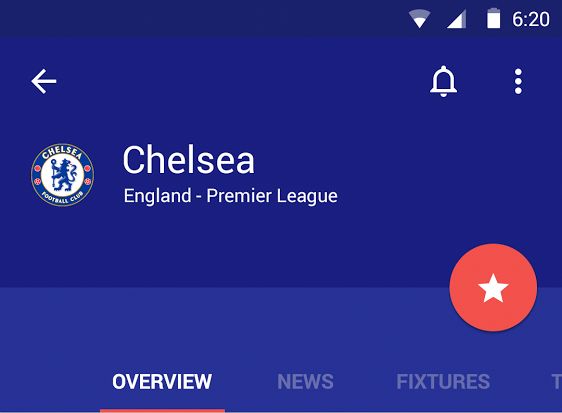
我如何使我的内容采取整个宽度,以便我可以创建一个布局如下所示?我想"+“图标需要在工具栏的父布局中吗?
医生说:
应用程序可以向工具栏添加任意子视图。它们将出现在布局中的这个位置。如果子视图的Toolbar.LayoutParams表示CENTER_HORIZONTAL的重力值,则视图将尝试在测量完所有其他元素之后,在工具栏中的可用空间内进行中心设置。
但我没有把重力设为CENTER_HORIZONTAL.
 <android.support.v7.widget.Toolbar xmlns:android="http://schemas.android.com/apk/res/android"
        xmlns:iosched="http://schemas.android.com/apk/res-auto"
        iosched:theme="@style/ActionBarThemeOverlay"

        iosched:popupTheme="@style/ActionBarPopupThemeOverlay"
        android:id="@+id/toolbar_actionbar"
        android:background="@color/theme_primary"
        iosched:titleTextAppearance="@style/ActionBar.TitleText"
        iosched:contentInsetStart="16dp"
        iosched:contentInsetEnd="16dp"
        android:layout_width="match_parent"
        android:layout_height="128dp" >
        <RelativeLayout
            android:layout_width="match_parent"
            android:layout_height="wrap_content">

        ... My Content
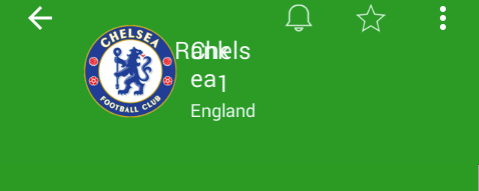
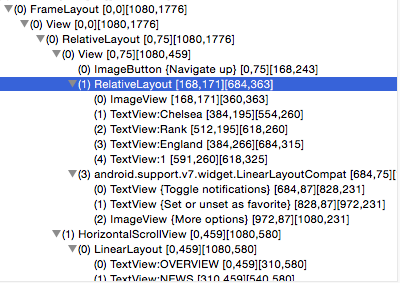
当前,当左边距设置为168时,我的布局就这样结束了:
回答 1
Stack Overflow用户
发布于 2015-06-27 01:05:29
我不确定你是否还需要帮助,但它对一个未回答的问题的投票最多,不仅是android-5.0-lollipop标签,还有现在的android-toolbar标签。所以,我想我应该给它一个。
这个布局非常容易实现,特别是使用新的Design Support Library。
Implementation
您的层次结构的根需要是CoordinatorLayout。
根据文档::
CoordinatorLayout的子类可能有一个锚。此视图id必须对应于CoordinatorLayout的任意子代,但它可能不是锚定子或锚定子的子代。这可用于放置相对于其他任意内容窗格的浮动视图。
因此,我们将使用这个来定位FloatingActionButton需要到达的位置。
其余的都很简单。我们将使用垂直LinearLayout来定位Toolbar、文本容器、选项卡容器,然后是ViewPager。因此,整个布局看起来如下:
<android.support.design.widget.CoordinatorLayout
    xmlns:android="http://schemas.android.com/apk/res/android"
    xmlns:app="http://schemas.android.com/apk/res-auto"
    android:layout_width="match_parent"
    android:layout_height="match_parent"
    android:fitsSystemWindows="true">

    <LinearLayout
        android:layout_width="match_parent"
        android:layout_height="wrap_content"
        android:background="#181E80"
        android:orientation="vertical">

        <android.support.v7.widget.Toolbar
            android:id="@+id/toolbar"
            android:layout_width="match_parent"
            android:layout_height="wrap_content"
            android:minHeight="?attr/actionBarSize" />

        <RelativeLayout
            android:layout_width="match_parent"
            android:layout_height="wrap_content"
            android:layout_marginBottom="48dp"
            android:paddingTop="8dp">

            <ImageView
                android:id="@android:id/icon"
                android:layout_width="54dp"
                android:layout_height="54dp"
                android:layout_alignParentStart="true"
                android:layout_marginStart="16dp"
                android:importantForAccessibility="no"
                android:src="@drawable/logo" />

            <TextView
                android:id="@android:id/text1"
                android:layout_width="wrap_content"
                android:layout_height="wrap_content"
                android:layout_alignTop="@android:id/icon"
                android:layout_marginStart="14dp"
                android:layout_toEndOf="@android:id/icon"
                android:text="Chelsea"
                android:textColor="@android:color/white"
                android:textSize="24sp" />

            <TextView
                android:layout_width="match_parent"
                android:layout_height="wrap_content"
                android:layout_alignStart="@android:id/text1"
                android:layout_below="@android:id/text1"
                android:text="England - Premier League"
                android:textColor="@android:color/white"
                android:textSize="12sp" />

        </RelativeLayout>

        <FrameLayout
            android:id="@+id/tab_container"
            android:layout_width="match_parent"
            android:layout_height="90dp"
            android:background="#272F93">

            <android.support.design.widget.TabLayout
                android:id="@+id/tabs"
                android:layout_width="match_parent"
                android:layout_height="wrap_content"
                android:layout_gravity="bottom"
                app:tabContentStart="70dp"
                app:tabGravity="center"
                app:tabIndicatorColor="#F1514A"
                app:tabMode="scrollable"
                app:tabSelectedTextColor="@android:color/white"
                app:tabTextColor="#99ffffff" />

        </FrameLayout>

        <android.support.v4.view.ViewPager
            android:id="@+id/pager"
            android:layout_width="match_parent"
            android:layout_height="match_parent" />

    </LinearLayout>

    <android.support.design.widget.FloatingActionButton
        android:layout_width="60dp"
        android:layout_height="60dp"
        android:layout_margin="16dp"
        android:src="@drawable/ic_star_white_24dp"
        app:backgroundTint="#F1514A"
        app:borderWidth="0dp"
        app:elevation="8dp"
        app:layout_anchor="@id/tab_container"
        app:layout_anchorGravity="top|right|end" />

</android.support.design.widget.CoordinatorLayout>没有太多要补充的了,我要提到的唯一其他事情是如何使用TabLayout。如果您像我们一样使用的是ViewPager,您可能会调用其中的一个:
Notes
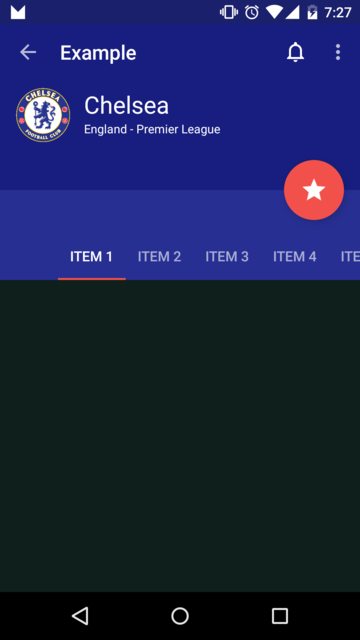
我只是看了看尺寸,尽量匹配图片。
结果
https://stackoverflow.com/questions/26861843
复制相似问题
腾讯云开发者

Copyright © 2013 - 2026 Tencent Cloud. All Rights Reserved. 腾讯云 版权所有
深圳市腾讯计算机系统有限公司 ICP备案/许可证号:粤B2-20090059  粤公网安备44030502008569号
腾讯云计算(北京)有限责任公司 京ICP证150476号 | 京ICP备11018762号