
如何在FtpWebRequest中使用无源模式&修正.Net 3.5中的PASV错误并通过代码定义端口范围
请先查看我的windows窗体代码:
        using System;
        using System.Collections.Generic;
        using System.ComponentModel;
        using System.Data;
        using System.Drawing;
        using System.Linq;
        using System.Text;
        using System.Windows.Forms;

        namespace my_prog
        {
            public partial class Form1 : Form
            {
                public Form1()
                {
                    InitializeComponent();
                }
                string ftp_username = "goodzilla_user";
                string ftp_password = "goodzilla_pass";
                string ftp_remote_host = @"ftp://11.11.111.11";

                private void Form1_Load(object sender, EventArgs e)
                {
                    UploadFile("d:\\test.txt", ftp_remote_host + @"/test.txt", ftp_username, ftp_password);
                }

                #region UploadFile Method

                /// <summary>
                /// Methods to upload file to FTP Server
                /// </summary>
                /// <param name="_FileName">local source file name</param>
                /// <param name="_UploadPath">Upload FTP path including Host name</param>
                /// <param name="_FTPUser">FTP login username</param>
                /// <param name="_FTPPass">FTP login password</param>
                ///
                public void UploadFile(string _FileName, string _UploadPath, string _FTPUser, string _FTPPass)
                {
                    System.IO.FileInfo _FileInfo = new System.IO.FileInfo(_FileName);

                    // Create FtpWebRequest object from the Uri provided
                    System.Net.FtpWebRequest _FtpWebRequest = (System.Net.FtpWebRequest)System.Net.FtpWebRequest.Create(new Uri(_UploadPath));

                    // Provide the WebPermission Credintials
                    _FtpWebRequest.Credentials = new System.Net.NetworkCredential(_FTPUser, _FTPPass);

                    // By default KeepAlive is true, where the control connection is not closed
                    // after a command is executed.
                    _FtpWebRequest.KeepAlive = false;

                    // set timeout for 20 seconds
                    _FtpWebRequest.Timeout = 20000;

                    // Specify the command to be executed.
                    _FtpWebRequest.Method = System.Net.WebRequestMethods.Ftp.UploadFile;

                    // Specify the data transfer type.
                    _FtpWebRequest.UseBinary = true;

                    // Notify the server about the size of the uploaded file
                    _FtpWebRequest.ContentLength = _FileInfo.Length;

                    // The buffer size is set to 2kb
                    int buffLength = 2048;
                    byte[] buff = new byte[buffLength];

                    // Opens a file stream (System.IO.FileStream) to read the file to be uploaded
                    System.IO.FileStream _FileStream = _FileInfo.OpenRead();

                    try
                    {
                        // Stream to which the file to be upload is written
                        System.IO.Stream _Stream = _FtpWebRequest.GetRequestStream();

                        // Read from the file stream 2kb at a time
                        int contentLen = _FileStream.Read(buff, 0, buffLength);

                        // Till Stream content ends
                        while (contentLen != 0)
                        {
                            // Write Content from the file stream to the FTP Upload Stream
                            _Stream.Write(buff, 0, contentLen);
                            contentLen = _FileStream.Read(buff, 0, buffLength);
                        }

                        // Close the file stream and the Request Stream
                        _Stream.Close();
                        _Stream.Dispose();
                        _FileStream.Close();
                        _FileStream.Dispose();

                        MessageBox.Show("Done");
                    }
                    catch (Exception ex)
                    {
                        MessageBox.Show(ex.Message, "Upload Error", MessageBoxButtons.OK, MessageBoxIcon.Error);
                    }
                }

                #endregion

            }
}我使用UploadFile方法将数据上载到windows服务器2008 r2服务器。
.net 4中的这些代码工作得很完美,我的问题是关于.net 3.5的。
在.net 3.5中,我得到了以下错误:
“服务器返回一个响应于PASV命令的地址,该地址与FTP连接所指向的地址不同。”
出于以下原因,我不想使用active mode:
- 如你所知,被动模式比主动模式更适合连接.
- 当我在.net 3.5中使用活动模式并打开代理软件时,我得到了以下错误:
“底层连接已关闭:服务器违反了协议。”
但是.net 4对代理软件和被动模式没有问题,因为我的用户不能切换到.net 4 .
那么如何修复.net 3.5中的被动模式错误?
在堆栈中的每一个线程中,人们都说只需使用:
_FtpWebRequest.UsePassive = false; 这不是我的答案!
注意:服务器和客户端的防火墙都是off
另一个问题是:
是否可以通过代码定义端口范围 of pssive ?
我在这个线程中问了这个问题,因为我认为通过这样做,我们可以修复这个PASV错误并帮助passive-mode更快地完成它的工作…
编辑:
我发现了下面的线索&我想我在第二号答复中找到了这个情况,
ftp问题
我的服务器中有两个网络适配器,服务器内部每个适配器的ip都类似于192.168.5。?&192.168.5。?
但我的两个公共ip地址是不同的。
那么,我如何通过更改代码或WindowsServer2008-R2VPS中的某些内容来修复该错误?为什么该错误只出现在.net 3.5中,而在.net 4中却没有呢?
我可以完全访问我的服务器,并且可以更改所有必要的东西。
提前感谢
回答 1
Stack Overflow用户
发布于 2014-01-10 17:59:50
这是你的回答:
看来这个问题与.net 3.5和.net 4无关。
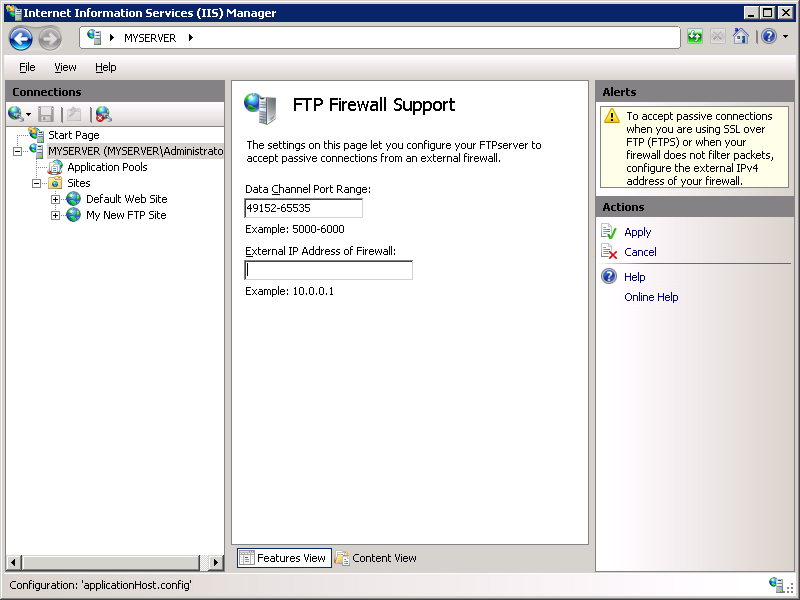
您可以在服务器内部解决这个问题,如下所示
配置-ftp-防火墙-设置iis-7
代理软件错误的 :更改端口范围。
被动错误的 :将防火墙的外部IP地址更改为公共ip地址。
编辑:
对其他人来说真的很感激,知道我们是否需要在后面的代码中定义端口范围?
https://stackoverflow.com/questions/21032577
复制相似问题
腾讯云开发者

Copyright © 2013 - 2026 Tencent Cloud. All Rights Reserved. 腾讯云 版权所有
深圳市腾讯计算机系统有限公司 ICP备案/许可证号:粤B2-20090059  粤公网安备44030502008569号
腾讯云计算(北京)有限责任公司 京ICP证150476号 | 京ICP备11018762号