
如何绑定自定义控件复选框
我已经有一段时间没有使用自定义复选框控件了,并且已经发布了这个问题..。,看起来这个问题与事件无关。
自定义控件是带有复选框的组框。如果复选框为false,则应禁用所有组控件。这听起来很简单,但问题是,当内部控制失去焦点时,就会触发选中的更改事件。
经过进一步的挖掘,我认为我已经将其缩小到将选中的属性绑定到另一个对象。当包含绑定时,它不正确地工作,但是随着绑定的删除,一切都按预期的方式工作。
既然已经找到了,我不知道该如何解决这个问题。
有人能帮忙吗?
这是我的测试应用程序的一些代码--
表格:
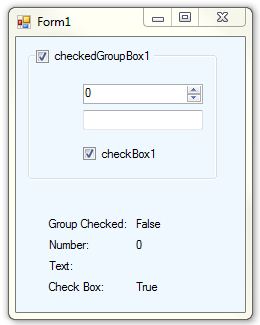
表格代码:
public partial class Form1 : Form
{
    TestProperties m_TP;

    public Form1()
    {
        // Create instance of TestProperties
        m_TP = new TestProperties();

        InitializeComponent();

        BindControls();
    }

    private void BindControls()
    {
        // Bind the values to from the controls in the group to the properties class

        // When the line below is commented out the control behaves normally
        //this.checkedGroupBox1.DataBindings.Add("Checked", m_TP, "GroupChecked");
        this.numericUpDown1.DataBindings.Add("Value", m_TP, "SomeNumber");
        this.textBox1.DataBindings.Add("Text", m_TP, "SomeText");
        this.checkBox1.DataBindings.Add("Checked", m_TP, "BoxChecked");

        // Bind the values of the properties to the lables
        this.label4.DataBindings.Add("Text", m_TP, "GroupChecked");
        this.label5.DataBindings.Add("Text", m_TP, "SomeNumber");
        this.label6.DataBindings.Add("Text", m_TP, "SomeText");
        this.label8.DataBindings.Add("Text", m_TP, "BoxChecked");
    }
}
属性存储类:
class TestProperties
{
    public bool GroupChecked { get; set; }
    public decimal SomeNumber { get; set; }
    public string SomeText { get; set; }
    public bool BoxChecked { get; set; }

    public TestProperties()
    {
        GroupChecked = false;
        SomeNumber = 0;
        SomeText = string.Empty;
        BoxChecked = true;
    }
}编辑:这里的是我的自定义控件的源代码:
/// <summary>
/// Custom control to create a checked group box.
/// Enables / disables all controls within the group depending upon the state of the check box
/// </summary>
public class CheckedGroupBox : System.Windows.Forms.GroupBox
{
    #region Private Member Variables
    private System.ComponentModel.IContainer components = null;

    /// <summary>
    /// Checkbox to enable / disable the controls within the group
    /// </summary>
    private CheckBox chkBox;

    /// <summary>
    /// Label for the group box which is set to autosize
    /// </summary>
    private Label lblDisplay;
    #endregion

    /// <summary>
    ///  Default constructor for the control
    /// </summary>
    public CheckedGroupBox()
    {
        // This call is required by the Windows Form Designer.
        InitializeComponent();

        // The text of these controls should always be empty.
        this.Text = "";
        this.chkBox.Text = "";
    }

    #region Events & Delegates

    /// <summary>
    /// Event to forward the change in checked flag
    /// </summary>
    public event EventHandler CheckedChanged;

    /// <summary>
    /// Event to forward the change in checked state of the checkbox
    /// </summary>
    public event EventHandler CheckStateChanged;

    private void chkBox_CheckedChanged(object sender, EventArgs e)
    {
        // Disable the controls within the group
        foreach (Control ctrl in this.Controls)
        {
            if (ctrl.Name != "chkBox" && ctrl.Name != "lblDisplay")
            {
                ctrl.Enabled = this.chkBox.Checked;
            }
        }

        // Now forward the Event from the checkbox
        if (this.CheckedChanged != null)
        {
            this.CheckedChanged(sender, e);
        }
    }

    private void chkBox_CheckStateChanged(object sender, EventArgs e)
    {
        // Forward the Event from the checkbox
        if (this.CheckStateChanged != null)
        {
            this.CheckStateChanged(sender, e);
        }
    }

    #endregion

    #region Designer generated code
    /// <summary>
    /// Required method for Designer support - do not modify
    /// the contents of this method with the code editor.
    /// </summary>
    private void InitializeComponent()
    {
        this.chkBox = new System.Windows.Forms.CheckBox();
        this.lblDisplay = new System.Windows.Forms.Label();
        this.SuspendLayout();
        //
        // chkBox
        //
        this.chkBox.Location = new System.Drawing.Point(8, 0);
        this.chkBox.Name = "chkBox";
        this.chkBox.Size = new System.Drawing.Size(16, 16);
        this.chkBox.TabIndex = 0;
        this.chkBox.CheckStateChanged += new System.EventHandler(this.chkBox_CheckStateChanged);
        this.chkBox.CheckedChanged += new System.EventHandler(this.chkBox_CheckedChanged);
        //
        // lblDisplay
        //
        this.lblDisplay.AutoSize = true;
        this.lblDisplay.Location = new System.Drawing.Point(24, 0);
        this.lblDisplay.Name = "lblDisplay";
        this.lblDisplay.Size = new System.Drawing.Size(97, 13);
        this.lblDisplay.TabIndex = 1;
        this.lblDisplay.Text = "CheckedGroupBox";
        //
        // CheckedGroupBox
        //
        this.BackColor = System.Drawing.Color.AliceBlue;
        this.Controls.Add(this.chkBox);
        this.Controls.Add(this.lblDisplay);
        this.Size = new System.Drawing.Size(100, 100);
        this.ResumeLayout(false);
        this.PerformLayout();

    }
    #endregion

    #region Public properties

    [Bindable(true), Category("Appearance"), DefaultValue("Check Group Text")]
    public override string Text
    {
        get{ return this.lblDisplay.Text; }
        set{ this.lblDisplay.Text = value; }
    }

    [Bindable(true), Category("Appearance"), DefaultValue("Checked")]
    public System.Windows.Forms.CheckState CheckState
    {
        get{ return this.chkBox.CheckState; }
        set
        {
            this.chkBox.CheckState = value;

            foreach( Control ctrl in this.Controls )
            {
                if( ctrl.Name != "chkBox" && ctrl.Name != "lblDisplay" )
                {
                    ctrl.Enabled = this.chkBox.Checked;
                }
            }
        }
    }

    [Bindable(true), Category("Appearance"), DefaultValue("True")]
    public bool Checked
    {
        get{ return this.chkBox.Checked; }
        set
        {
            this.chkBox.Checked = value;

            foreach( Control ctrl in this.Controls )
            {
                if( ctrl.Name != "chkBox" && ctrl.Name != "lblDisplay" )
                {
                    ctrl.Enabled = this.chkBox.Checked;
                }
            }
        }
    }

    [Bindable(true), Category("Behavior"), DefaultValue("False")]
    public bool ThreeState
    {
        get{ return this.chkBox.ThreeState; }
        set{ this.chkBox.ThreeState = value; }
    }

    #endregion

}回答 3
Stack Overflow用户
发布于 2011-10-28 11:31:52
您需要按以下方式更改BindControls方法。这样做的原因是,默认情况下,将更新控件以反映m_TP的属性,但当更改其值时,更改不会在m_TP中反映(我猜,休假事件会导致控件重新绑定到其数据源)。通过添加DataSourceUpdateMode参数,这些更改将是双向的。
private void BindControls()
{
    // Bind the values to from the controls in the group to the properties class

    // When the line below is commented out the control behaves normally
    this.checkedGroupBox1.DataBindings.Add("Checked", m_TP, "GroupChecked", false, DataSourceUpdateMode.OnPropertyChanged);
    this.numericUpDown1.DataBindings.Add("Value", m_TP, "SomeNumber", false, DataSourceUpdateMode.OnPropertyChanged);
    this.textBox1.DataBindings.Add("Text", m_TP, "SomeText", false, DataSourceUpdateMode.OnPropertyChanged);
    this.checkBox1.DataBindings.Add("Checked", m_TP, "BoxChecked", false, DataSourceUpdateMode.OnPropertyChanged);

    // Bind the values of the properties to the lables
    this.label4.DataBindings.Add("Text", m_TP, "GroupChecked");
    this.label5.DataBindings.Add("Text", m_TP, "SomeNumber");
    this.label6.DataBindings.Add("Text", m_TP, "SomeText");
    this.label8.DataBindings.Add("Text", m_TP, "BoxChecked");
}Stack Overflow用户
发布于 2011-10-27 17:24:59
首先,为了使绑定正常工作,需要在属性存储类上实现INotifyPropertyChanged。请看一个例子这里
在Visual环境中创建指向"Object“类型的新DataSource。选择您的TestProperties类作为源对象(如果类没有出现在列表中,请确保您已经构建了包含的程序集,并且您的WinForm项目对它有一个引用)。
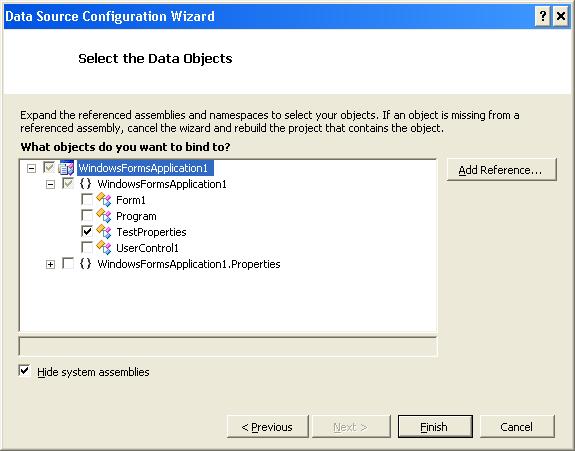
现在,将BindingSource从工具箱拖到自定义控件上。将BindingSource的BindingSource属性设置为在上一步中创建的TestProperties数据源。
现在,选择自定义控件组框并转到(DataBindings)部分。点击“……”在高级领域。将自定义网格控件的“启用”属性绑定到BindingSource的“BindingSource”属性。所有这些都可以在设计器中完成(如果您愿意的话,也可以通过后面的代码完成)
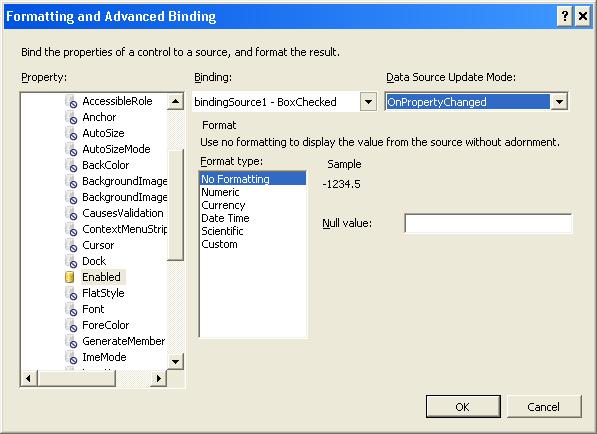
通过WinForms将自定义控件上的其他TestProperties元素绑定到TestProperties类的适当元素。
现在,在自定义控件上公开一个属性,以便您可以在“父”表单中绑定到它。确保将DataSource的“BindingSource”设置为新引用属性。
    private TestProperties _properties;
    public TestProperties Properties
    {
        get { return _properties; }
        set
        {
            _properties = value;
            this.bindingSource1.DataSource = _properties;
        }
    }

    public UserControl1()
    {
        InitializeComponent();
    }
在托管控件的父窗体中,您有几个选项。
1)可以直接执行绑定到由TestProperties公开的UserControl类,就像在上面的示例中所做的那样
2)可以重复用于在父控件上的用户控件上设置绑定的BindingSource练习,并将新BindingSource的DataSource属性(在父窗体上)设置为等于UserControl的公开TestProperties属性。
Stack Overflow用户
发布于 2011-10-27 16:51:51
像这样的东西是我能得到的最接近的:
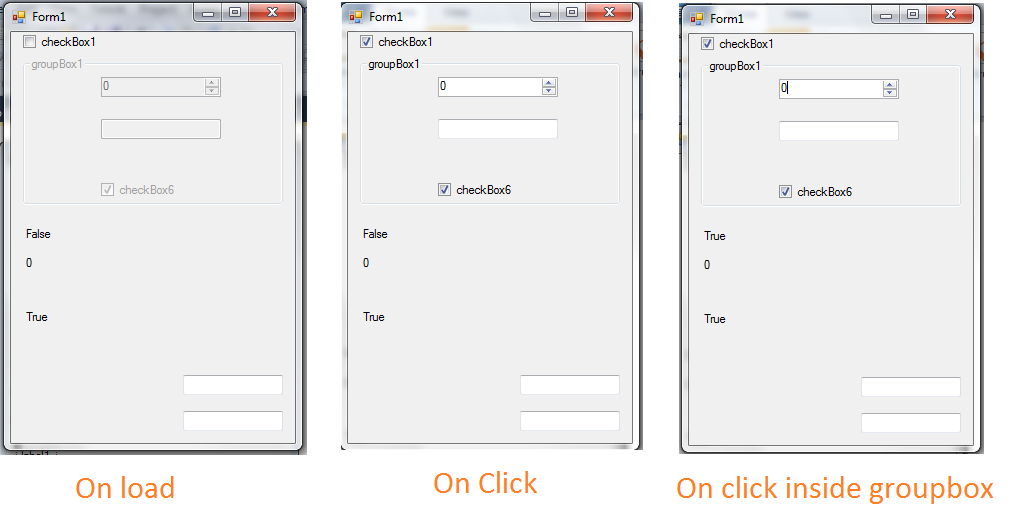
显然,我没有组框的代码(包括复选框),所以我做了我能做的事情。
这是通过将其添加到顶部复选框中实现的:
private void checkBox1_CheckedChanged(object sender, EventArgs e)
{
   groupBox1.Enabled = ((CheckBox)(sender)).Checked;
}
我还重新启用了这一行:
this.checkBox1.DataBindings.Add("Checked", m_TP, "GroupChecked");https://stackoverflow.com/questions/7918890
复制相似问题
腾讯云开发者

Copyright © 2013 - 2026 Tencent Cloud. All Rights Reserved. 腾讯云 版权所有
深圳市腾讯计算机系统有限公司 ICP备案/许可证号:粤B2-20090059  粤公网安备44030502008569号
腾讯云计算(北京)有限责任公司 京ICP证150476号 | 京ICP备11018762号