
WPF InputSimulator不工作于用户控件
WPF InputSimulator不工作于用户控件
提问于 2021-01-24 19:05:03
目标是使用户控制键盘( UserControl ),因此我从NuGet安装了NuGet,我用一个按钮尝试了它,当然,在将该按钮的可聚焦属性设置为False之后,它运行良好,但是当我将键盘创建为UserControl时,键盘不工作(不键入字符)。
下面是来自User Control的xaml.cs的代码:
private void clickAlphabet(VirtualKeyCode virtualKey)
    {
        var inputSim = new InputSimulator();
        inputSim.Keyboard.KeyPress(virtualKey);
    }

    private void Button_Click(object sender, RoutedEventArgs e)
    {
        clickAlphabet(VirtualKeyCode.VK_A);
    }
用户控制的Xaml (一个按钮):
<Button Content="a" Click="Button_Click"/>此代码来自App.xaml:
    <Style TargetType="Button">
        <Setter Property="Focusable" Value="False"/>
    </Style>
下面是我如何调用键盘用户控件:
<controls:ucKeyboard Margin="7 300"></controls:ucKeyboard>这是整个用户控件的xaml:
<UserControl x:Class="SmartCaisse.PL.UserControls.ucKeyboard"
xmlns="http://schemas.microsoft.com/winfx/2006/xaml/presentation"
xmlns:x="http://schemas.microsoft.com/winfx/2006/xaml"
xmlns:mc="http://schemas.openxmlformats.org/markup-compatibility/2006"
xmlns:d="http://schemas.microsoft.com/expression/blend/2008"
xmlns:local="clr-namespace:SmartCaisse.PL.UserControls"
mc:Ignorable="d"
d:DesignHeight="268" d:DesignWidth="797">
<Border CornerRadius="0 0 15 15" Background="green">
<Grid Width="797">
<Grid.RowDefinitions>
<RowDefinition Height="60"/>
<RowDefinition Height="7"/>
<RowDefinition Height="60"/>
<RowDefinition Height="7"/>
<RowDefinition Height="60"/>
<RowDefinition Height="7"/>
<RowDefinition Height="60"/>
</Grid.RowDefinitions>
<Grid.Resources>
<Style TargetType="{x:Type Button}">
<Setter Property="Margin" Value="0,0,7,0"/>
<Setter Property="Width" Value="60"/>
<Setter Property="Height" Value="60"/>
<Setter Property="Background" Value="{x:Null}"/>
<Setter Property="Foreground" Value="#fff"/>
<Setter Property="FontFamily" Value="Tahoma"/>
<Setter Property="FontSize" Value="20"/>
<Setter Property="Template">
<Setter.Value>
<ControlTemplate TargetType="Button">
<Border Background="{TemplateBinding Background}" BorderBrush="#fff" BorderThickness="2" Focusable="False">
<ContentPresenter HorizontalAlignment="center" VerticalAlignment="Center"/>
</Border>
</ControlTemplate>
</Setter.Value>
</Setter>
</Style>
<Style TargetType="StackPanel">
<Setter Property="Orientation" Value="Horizontal"/>
</Style>
</Grid.Resources>
<StackPanel Grid.Row="0">
<Button Content="a" Click="Button_Click"/>
<Button Content="z"/>
<Button Content="e"/>
<Button Content="r"/>
<Button Content="t"/>
<Button Content="y"/>
<Button Content="u"/>
<Button Content="i"/>
<Button Content="o"/>
<Button Content="p"/>
<Button Width="127 ">
<Image Source="/assets/Icons/VirtualKeyboardIcons/backspace.png" Width="24" Height="24"></Image>
</Button>
</StackPanel>
<StackPanel Grid.Row="2" HorizontalAlignment="Right">
<Button Content="q"/>
<Button Content="s"/>
<Button Content="d"/>
<Button Content="f"/>
<Button Content="g"/>
<Button Content="h"/>
<Button Content="j"/>
<Button Content="k"/>
<Button Content="l"/>
<Button Content="m"/>
<Button Content="Entrée" Width="103" Margin="0"/>
</StackPanel>
<StackPanel Grid.Row="4">
<Button>
<Image Source="/assets/Icons/VirtualKeyboardIcons/arrow-up.png" Width="24" Height="24"></Image>
</Button>
<Button Content="w"/>
<Button Content="x"/>
<Button Content="c"/>
<Button Content="v"/>
<Button Content="b"/>
<Button Content="n"/>
<Button Content=","/>
<Button Content="."/>
<Button Content="-"/>
<Button Content="_"/>
<Button>
<Image Source="/assets/Icons/VirtualKeyboardIcons/arrow-up.png" Width="24" Height="24"></Image>
</Button>
</StackPanel>
<Border Grid.Row="6" CornerRadius="0 0 15 15">
<StackPanel>
<Button Content="&123" FontSize="18"/>
<Button Content="@"/>
<Button Width="529"/>
<Button>
<Image Source="/assets/Icons/VirtualKeyboardIcons/arrow-left.png" Width="24" Height="24"></Image>
</Button>
<Button>
<Image Source="/assets/Icons/VirtualKeyboardIcons/arrow-right.png" Width="24" Height="24"></Image>
</Button>
</StackPanel>
</Border>
</Grid>
</Border>更新:我发现此代码(在App.XAML文件中)不会对用户控件中的按钮生效:
<Style TargetType="Button">
        <Setter Property="Focusable" Value="False"/>
</Style>
所以我在用户控件的XAML文件中重写它,这不是问题。问题是,我发现如果我单击按钮的文本(属性内容),它可以工作,但如果我单击按钮的rest空间,它就无法工作,请查看以下图像:
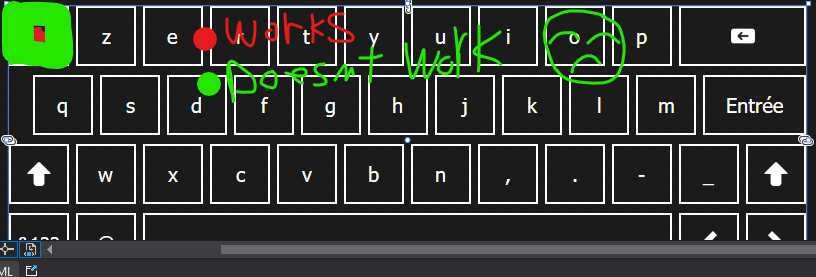
我找到了造成这个问题的代码,这段代码来自XAML文件中的用户控件,我添加了它以消除默认的鼠标悬停效果:
<Setter Property="Template">
                    <Setter.Value>
                        <ControlTemplate TargetType="Button">
                            <Border Background="{TemplateBinding Background}" BorderBrush="#fff" BorderThickness="2" Focusable="False">
                                <ContentPresenter HorizontalAlignment="center" VerticalAlignment="Center"/>
                            </Border>
                        </ControlTemplate>
                    </Setter.Value>
                </Setter>
所以,我想解决的办法是找到另一种方法来消除悬停效应,还有其他方法来消除它吗?
回答 1
Stack Overflow用户
发布于 2021-01-25 09:23:11
我更新您的按钮样式如下,它可以为单击整按钮工作。
 <Style TargetType="{x:Type Button}">
                <Setter Property="Margin" Value="0,0,7,0"/>
                <Setter Property="Width" Value="60"/>
                <Setter Property="Height" Value="60"/>
                <Setter Property="Background" Value="{x:Null}"/>
                <Setter Property="Foreground" Value="#fff"/>
                <Setter Property="FontFamily" Value="Tahoma"/>
                <Setter Property="FontSize" Value="20"/>

                <Setter Property="BorderBrush" Value="#fff"></Setter>
                <Setter Property="BorderThickness" Value="2"></Setter>
                <Setter Property="Template">
                    <Setter.Value>
                        <ControlTemplate TargetType="{x:Type Button}">
                            <Border Background="{TemplateBinding Background}" BorderBrush="{TemplateBinding BorderBrush}" BorderThickness="{TemplateBinding BorderThickness}">
                                <ContentPresenter HorizontalAlignment="Center" VerticalAlignment="Center"/>
                            </Border>
                        </ControlTemplate>
                    </Setter.Value>
                </Setter>
                <Style.Triggers>
                    <Trigger Property="IsMouseOver" Value="True">
                        <Setter Property="Background" Value="Transparent"/>
                    </Trigger>
                </Style.Triggers>

</Style>页面原文内容由Stack Overflow提供。腾讯云小微IT领域专用引擎提供翻译支持
原文链接:
https://stackoverflow.com/questions/65874729
复制相关文章
相似问题
腾讯云开发者

Copyright © 2013 - 2026 Tencent Cloud. All Rights Reserved. 腾讯云 版权所有
深圳市腾讯计算机系统有限公司 ICP备案/许可证号:粤B2-20090059  粤公网安备44030502008569号
腾讯云计算(北京)有限责任公司 京ICP证150476号 | 京ICP备11018762号