
如何通过DiffableDataSource更新节中的页脚而不产生闪烁效应?
节可以包含一个页眉、多个内容项和一个页脚。
对于DiffableDataSource,大多数在线示例都使用enum来表示节。例如
func applySnapshot(_ animatingDifferences: Bool) {
    var snapshot = Snapshot()

    snapshot.appendSections([.MainAsEnum])

    snapshot.appendItems(filteredTabInfos, toSection: .MainAsEnum)

    dataSource?.apply(snapshot, animatingDifferences: animatingDifferences)
}
但是,当区段有动态内容页脚时,我们可能需要使用struct来表示节。例如
import Foundation

struct TabInfoSection {

    // Do not include content items [TabInfo] as member of Section. If not, any mutable
    // operation performed on content items, will misguide Diff framework to throw
    // away entire current Section, and replace it with new Section. This causes
    // flickering effect.

    var footer: String
}

extension TabInfoSection: Hashable {
}
但是,我们应该如何只更新脚注呢?
目前所提供的方法
DiffableDataSource: Snapshot Doesn't reload Headers & footers并不完全准确
如果我试图更新页脚
class TabInfoSettingsController: UIViewController {
    …

    func applySnapshot(_ animatingDifferences: Bool) {
        var snapshot = Snapshot()

        let section = tabInfoSection;

        snapshot.appendSections([section])

        snapshot.appendItems(filteredTabInfos, toSection: section)

        dataSource?.apply(snapshot, animatingDifferences: animatingDifferences)
    }

var footerValue = 100

extension TabInfoSettingsController: TabInfoSettingsItemCellDelegate {
    func crossButtonClick(_ sender: UIButton) {
        let hitPoint = (sender as AnyObject).convert(CGPoint.zero, to: collectionView)
        if let indexPath = collectionView.indexPathForItem(at: hitPoint) {
            // use indexPath to get needed data

            footerValue = footerValue + 1
            tabInfoSection.footer = String(footerValue)

            //
            // Perform UI updating.
            //
            applySnapshot(true)
        }
    }
}
我会得到以下闪烁的结果。
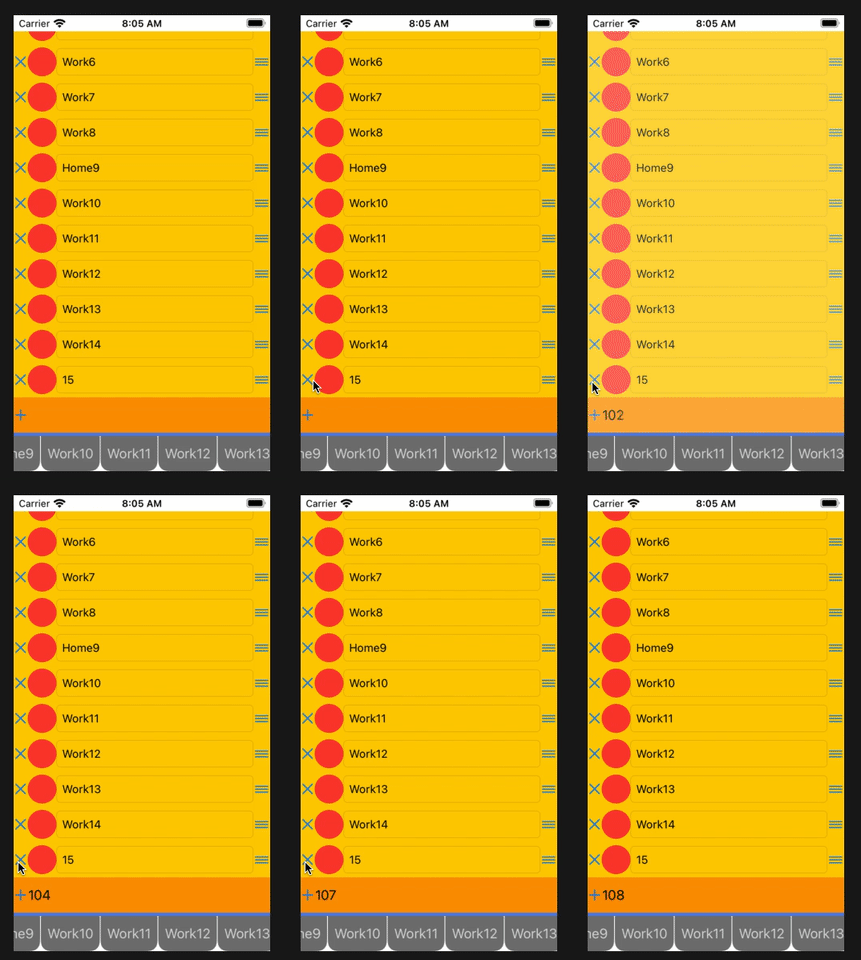
闪烁的原因是,diff框架抛出了整个旧区段,并将其替换为新节,因为它发现TabInfoSection对象中存在更改。
有没有一种好的方法,通过DiffableDataSource更新节中的页脚而不引起闪烁效应?
p/s整个项目源代码可以在https://github.com/yccheok/ios-tutorial/tree/broken-demo-for-footer-updating文件夹TabDemo下找到。
回答 3
Stack Overflow用户
发布于 2020-10-21 22:09:09
你有没有想过只为页脚制作一个部分?这样就没有重新加载,当它闪烁时,因为它在技术上不是问题部分的一部分?
Stack Overflow用户
发布于 2020-10-15 09:38:29
它有一个快速修复,但您将失去桌面视图的动画。在TabInfoSettingsController.swift中,您可以强制这个函数中的动画是假的:
func applySnapshot(_ animatingDifferences: Bool) {
    var snapshot = Snapshot()
    let section = tabInfoSection;
    snapshot.appendSections([section])
    snapshot.appendItems(filteredTabInfos, toSection: section)
    dataSource?.apply(snapshot, animatingDifferences: false)
}
你不会看到闪烁的效果,但你会失去标准的动画。
Stack Overflow用户
发布于 2020-10-14 05:50:32
如果只想更新集合视图页脚文本,那么将其设置为TabInfoSettingsFooterCell变量。
var tableSection: TabInfoSettingsFooterCell?DataSource
func makeDataSource() -> DataSource {
    let dataSource = DataSource(
        collectionView: collectionView,
        cellProvider: { (collectionView, indexPath, tabInfo) -> UICollectionViewCell? in
            guard let tabInfoSettingsItemCell = collectionView.dequeueReusableCell(
                withReuseIdentifier: TabInfoSettingsController.tabInfoSettingsItemCellClassName,
                for: indexPath) as? TabInfoSettingsItemCell else {
                return nil
            }

            tabInfoSettingsItemCell.delegate = self
            tabInfoSettingsItemCell.reorderDelegate = self
            tabInfoSettingsItemCell.textField.text = tabInfo.getPageTitle()

            return tabInfoSettingsItemCell
        }
    )

    dataSource.supplementaryViewProvider = { collectionView, kind, indexPath in
        guard kind == UICollectionView.elementKindSectionFooter else {
            return nil
        }

        let section = dataSource.snapshot().sectionIdentifiers[indexPath.section]

        guard let tabInfoSettingsFooterCell = collectionView.dequeueReusableSupplementaryView(
            ofKind: kind,
            withReuseIdentifier: TabInfoSettingsController.tabInfoSettingsFooterCellClassName,
            for: indexPath) as? TabInfoSettingsFooterCell else {

            return nil
        }

        tabInfoSettingsFooterCell.label.text = section.footer

        //set tableSection value
        self.tableSection = tabInfoSettingsFooterCell

        return tabInfoSettingsFooterCell
    }

    return dataSource
}
TabInfoSettingsItemCellDelegate
func crossButtonClick(_ sender: UIButton) {
    let hitPoint = (sender as AnyObject).convert(CGPoint.zero, to: collectionView)
    if let indexPath = collectionView.indexPathForItem(at: hitPoint) {

        footerValue = footerValue + 1
        tabInfoSection.footer = String(footerValue)

        //Update section value
        self.tableSection?.label.text = String(footerValue)
    }
}https://stackoverflow.com/questions/64326881
复制相似问题
腾讯云开发者

Copyright © 2013 - 2026 Tencent Cloud. All Rights Reserved. 腾讯云 版权所有
深圳市腾讯计算机系统有限公司 ICP备案/许可证号:粤B2-20090059  粤公网安备44030502008569号
腾讯云计算(北京)有限责任公司 京ICP证150476号 | 京ICP备11018762号