
单击按钮后如何清除画布和按钮(以及它们的功能)?
我正在尝试创建一个数据可视化程序,当用户单击其中一个主屏幕按钮时,它们会被带到数据可视化中。我想不出该如何做好这件事。到目前为止,我能够清除画布,但按钮仍然在运作,即使你看不到它们。我希望能够按其中一个主屏幕按钮将用户带到一个全新的页面(这仍然是一项正在进行的工作,所以我已经开始这样做的唯一按钮是'pieChartButton')。
到目前为止,这是我的处理代码:
Button pieChartButton, bubbleGraphButton, scatterGraphButton, homeButton; //button to be used
Button homeButtonBar, PCDescriptionBox, BGDescriptionBox, SGDescriptionBox; //design features that use same attributes as buttons
int buttonClicked = 1; //check to see if button works

void setup() {
  size(1200,800);
  pixelDensity(2); //function to make the render of the program Apple Retina displays and Windows High-DPI displays look smoother and less pixelated
  smooth();

  //creating the button object
  pieChartButton = new Button("Pie Chart", 5, 5, 590, 340);
  bubbleGraphButton = new Button("Bubble Graph", 5, 355, 590, 340);
  scatterGraphButton = new Button("Scatter Graph", 605, 5, 590, 340);

  //design features
  PCDescriptionBox = new Button("Pie chart will show this and that and other stuff \n test", 605, 355, 590, 340);
  BGDescriptionBox = new Button("Bubble graph with nice bubbles, mucho colours and information with useful stuff", 605, 355, 590, 340);
  SGDescriptionBox = new Button("Scatter Graph \n \n \n \nThis Scatter represents the data about video game publishers and what genres they publish", 605, 355, 590, 340);
}

void draw() {
  //DRAWING BUTTONS + DISPLAY DESCRIPTION
  //if mouse is hovering over button, button title & description will appear, but now a square will appear to cheack it works
  if (pieChartButton.mouseHoverOver()){
    fill(225,0,0);
    rect(700, 400, 50, 50);
    PCDescriptionBox.drawDesign(); //display of what is in the pie chart window
  } else if (bubbleGraphButton.mouseHoverOver()){
      fill(0,0,225);
      rect(700, 400, 50, 50);
      BGDescriptionBox.drawDesign(); //show description for bubble graph window
  } else if (scatterGraphButton.mouseHoverOver()){
    fill(0,225,0);
    rect(700, 400, 50, 50);
    SGDescriptionBox.drawDesign(); //show description for scattter graph window
  } else{
    homePage();
  }
}

//mouse clicked on button
void mousePressed(){
   if (pieChartButton.mouseHoverOver()){   //check if pie chart button clicked
     println("Clicked PC: "+ buttonClicked++);
     pieChartPage();
   } else if (bubbleGraphButton.mouseHoverOver()) {  //check if bubble graph button clicked
     println("Clicked BG: "+ buttonClicked++);
   } else if (scatterGraphButton.mouseHoverOver()){ //checks if scatter graph button clicked
     println("Clicked SG: "+ buttonClicked++);
   } else {
     homePage();
   }
}


//The different pages of the program
//main home screen page
void homePage(){
  background(225);
  //noStroke();
  //fill(255);
  //rect(0, 725, 1200, 100);
  pieChartButton.Draw();  //draw Pie chart button in home screen
  bubbleGraphButton.Draw();  //draw bubble graph button in home screen
  scatterGraphButton.Draw(); //draw scatter graph button in home screen
  homeButtonBar = new Button("", 5, 710, 1190, 200);
  homeButtonBar.Draw();
}

void pieChartPage(){
  background(175,0,225);
  homeButtonBar = new Button("", 5, 710, 1190, 200);
  homeButtonBar.Draw();
}
代码按钮类:
 class Button {

 String label;
 float x, y, w, h; //top left corner x position, top left corner y position, button width, button height

 Button(String labelButton, float xpos, float ypos, float widthButton, float heightButton){
   label=labelButton;
   x=xpos;
   y=ypos;
   w=widthButton;
   h=heightButton;
 }

 void Draw(){
   fill(170);
   stroke(170);
   rect(x, y, w, h, 40);
   textAlign(CENTER, CENTER);
   fill(0);
   text(label, x+(w/2), y+(h/2));
 }

  void drawDesign(){
   fill(225);
   stroke(170);
   rect(x, y, w, h, 40);
   textAlign(LEFT, BASELINE);
   fill(0);
   text(label, x+20, y+40);
 }

 boolean mouseHoverOver(){
   if (mouseX>x && mouseX<(x+w) && mouseY>y && mouseY<(y+h)){ //if mouse within button, return true, if not return false
     return true;
   }
   return false;
 }

}
任何帮助都将不胜感激,谢谢。
回答 1
Stack Overflow用户
发布于 2020-11-26 02:59:07
一个可爱的设计模式,可以帮助您摆脱这一问题将是有限状态机。FSM允许您确定可能导致另一个上下文的上下文,并将某些操作限制在某些上下文中。这方面的一个很好的例子是“超级马里奥兄弟”:当他很小的时候,得到一个神奇的蘑菇就会把他变成超级马里奥。当他是超级,得到一朵花会把他变成火马里奥。但是,虽然很小,得到一朵花只会让他变成超级马里奥,而不是火马里奥。这是因为每一个州都有规则,他不能在不考虑这些的情况下从一个跳到另一个。
下面是一个FSM的近似模式,它可能类似于您正在做的事情:您有一个菜单,而在菜单中您可以使用它,但是当您选择一个选项时,您会将状态改为其他东西,并具有不同的选项--可视化。我假设您也可以从这些图表返回到菜单并选择其他的东西。
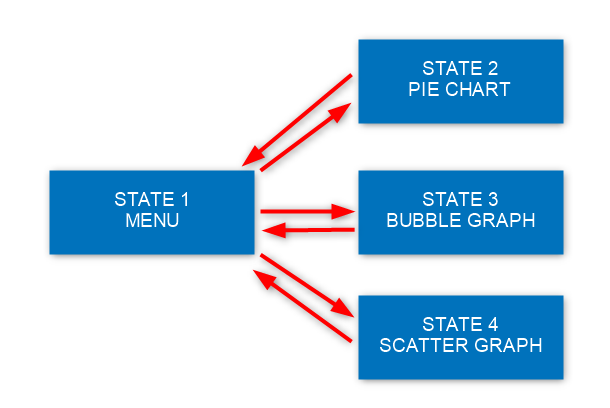
我将向您展示如何在代码中实现这一点。
菜单
在您的情况下,菜单是使其余部分就位的关键。业务规则将声明用户看到并可以使用这3个按钮。
首先,我们将添加一个全局变量:
int state = 1;1的意思是“菜单”,就像模式中的STATE 1一样。在draw()方法中,我们将放置一个开关,它将决定绘制什么:
void draw() {
  switch(state) {
  case 2:
    // pie chart
    break;
  case 3:
    // pie chart
    break;
  case 4:
    // pie chart
    break;
  default:
    // menu
    // the default case means "everything else" and in our case it will be the menu so you cannot have an impossible case
    drawMenu();
  }
}那么以前在draw()方法中的代码呢?我们将创建void menu()方法并将其放在那里。这就是当你没有“菜单”状态时被调用的按钮,所以只要你在菜单中,按钮就会是可见的和可用的。
void drawMenu() {
  // DRAWING BUTTONS
  homePage();

  // show graph previews
  if (pieChartButton.mouseHoverOver()) {
    fill(225, 0, 0);
    rect(700, 400, 50, 50);
    PCDescriptionBox.drawDesign(); //display of what is in the pie chart window
  } else if (bubbleGraphButton.mouseHoverOver()) {
    fill(0, 0, 225);
    rect(700, 400, 50, 50);
    BGDescriptionBox.drawDesign(); //show description for bubble graph window
  } else if (scatterGraphButton.mouseHoverOver()) {
    fill(0, 225, 0);
    rect(700, 400, 50, 50);
    SGDescriptionBox.drawDesign(); //show description for scattter graph window
  }
}现在,我们将添加单击按钮也将相应地改变状态。为此,我们将在state方法中实现mousePressed()开关。这是比我们刚才所做的同样的原则。注意,我删除了对"homePage“的调用,并在单击后添加了一个state更改:
//mouse clicked on button
void mousePressed() {
  switch(state) {
  case 2:
    // pie chart
    break;
  case 3:
    // bubble graph
    break;
  case 4:
    // scatter graph
    break;
  default:
    // menu
    ClickMenu();
  }
}

void ClickMenu() {
  if (pieChartButton.mouseHoverOver()) {   //check if pie chart button clicked
    println("Clicked PC: "+ buttonClicked++);
    pieChartPage();
    state = 2;
  } else if (bubbleGraphButton.mouseHoverOver()) {  //check if bubble graph button clicked
    println("Clicked BG: "+ buttonClicked++);
    state = 3;
  } else if (scatterGraphButton.mouseHoverOver()) { //checks if scatter graph button clicked
    println("Clicked SG: "+ buttonClicked++);
    state = 4;
  }
}我看到,您有一个pieChartPage()方法来绘制饼图页面(伟大的命名约定使一切变得显而易见)。这是应该在draw()方法的开关中进行的。现在,为了测试play,我将添加这样的内容:当您在饼图页面上随机单击时,您将通过在state方法中添加一个mousePressed()更改返回到菜单页面。
另外,请注意,如果您选择了饼图以外的任何其他图形,那么您将永远停留在那里(并且按钮现在无法工作)。那是因为我们没有为那些州设定的程序。下面是这个例子的完整代码,剩下的留给您:
Button pieChartButton, bubbleGraphButton, scatterGraphButton, homeButton; //button to be used
Button homeButtonBar, PCDescriptionBox, BGDescriptionBox, SGDescriptionBox; //design features that use same attributes as buttons
int buttonClicked = 1; //check to see if button works
int state = 0;

void setup() {
  size(1200, 800);
  pixelDensity(2); //function to make the render of the program Apple Retina displays and Windows High-DPI displays look smoother and less pixelated
  smooth();

  //creating the button object
  pieChartButton = new Button("Pie Chart", 5, 5, 590, 340);
  bubbleGraphButton = new Button("Bubble Graph", 5, 355, 590, 340);
  scatterGraphButton = new Button("Scatter Graph", 605, 5, 590, 340);

  //design features
  PCDescriptionBox = new Button("Pie chart will show this and that and other stuff \n test", 605, 355, 590, 340);
  BGDescriptionBox = new Button("Bubble graph with nice bubbles, mucho colours and information with useful stuff", 605, 355, 590, 340);
  SGDescriptionBox = new Button("Scatter Graph \n \n \n \nThis Scatter represents the data about video game publishers and what genres they publish", 605, 355, 590, 340);
}

void draw() {
  switch(state) {
  case 2:
    // pie chart
    pieChartPage();
    break;
  case 3:
    // pie chart
    break;
  case 4:
    // pie chart
    break;
  default:
    // menu
    // the default case means "everything else" and in our case it will be the menu so you cannot have an impossible case
    drawMenu();
  }
}

void drawMenu() {
  // DRAWING BUTTONS
  homePage();

  // show graph previews
  if (pieChartButton.mouseHoverOver()) {
    fill(225, 0, 0);
    rect(700, 400, 50, 50);
    PCDescriptionBox.drawDesign(); //display of what is in the pie chart window
  } else if (bubbleGraphButton.mouseHoverOver()) {
    fill(0, 0, 225);
    rect(700, 400, 50, 50);
    BGDescriptionBox.drawDesign(); //show description for bubble graph window
  } else if (scatterGraphButton.mouseHoverOver()) {
    fill(0, 225, 0);
    rect(700, 400, 50, 50);
    SGDescriptionBox.drawDesign(); //show description for scattter graph window
  } else {
    homePage();
  }
}

//mouse clicked on button
void mousePressed() {
  switch(state) {
  case 2:
    // pie chart
    println("Going back to state 1!");
    state = 1;
    break;
  case 3:
    // pie chart
    break;
  case 4:
    // pie chart
    break;
  default:
    // menu
    ClickMenu();
  }
}

void ClickMenu() {
  if (pieChartButton.mouseHoverOver()) {   //check if pie chart button clicked
    println("Clicked PC: "+ buttonClicked++);
    state = 2;
  } else if (bubbleGraphButton.mouseHoverOver()) {  //check if bubble graph button clicked
    println("Clicked BG: "+ buttonClicked++);
    state = 3;
  } else if (scatterGraphButton.mouseHoverOver()) { //checks if scatter graph button clicked
    println("Clicked SG: "+ buttonClicked++);
    state = 4;
  }
}

//The different pages of the program
//main home screen page
void homePage() {
  background(225);
  //noStroke();
  //fill(255);
  //rect(0, 725, 1200, 100);
  pieChartButton.Draw();  //draw Pie chart button in home screen
  bubbleGraphButton.Draw();  //draw bubble graph button in home screen
  scatterGraphButton.Draw(); //draw scatter graph button in home screen
  homeButtonBar = new Button("", 5, 710, 1190, 200);
  homeButtonBar.Draw();
}

void pieChartPage() {
  background(175, 0, 225);
  homeButtonBar = new Button("PIE CHART BUTTON", 5, 710, 1190, 200);
  homeButtonBar.Draw();
}
如果有什么你不明白的,不要犹豫地伸出手来。玩得开心!
https://stackoverflow.com/questions/65012168
复制相似问题
腾讯云开发者

Copyright © 2013 - 2026 Tencent Cloud. All Rights Reserved. 腾讯云 版权所有
深圳市腾讯计算机系统有限公司 ICP备案/许可证号:粤B2-20090059  粤公网安备44030502008569号
腾讯云计算(北京)有限责任公司 京ICP证150476号 | 京ICP备11018762号