
如何编写Python代码pyqt5,以便在主窗口上附加2个小部件
如何编写Python代码pyqt5,以便在主窗口上附加2个小部件
提问于 2020-12-25 08:59:32
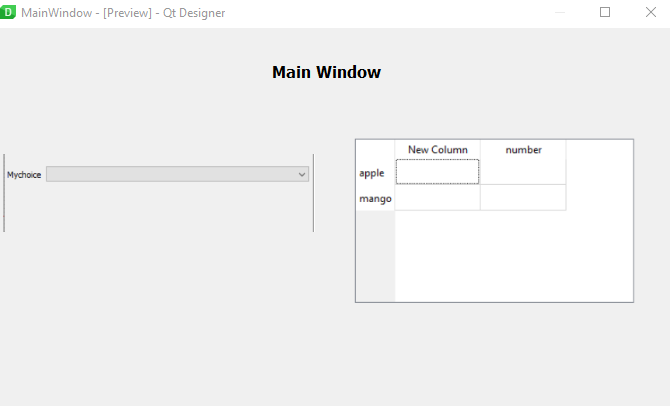
我有3个ui文件。我想创建3个类来加载文件MainWindow.ui,并将widget1.ui和widget2.ui输入到MainWindow中,并且。所以我们只有一个主窗口,在其中有两个可以相互通信的小部件。另外,还有一个特性:我们如何编写函数,使其侦听传入的数据,然后将其发送出去?
MainWindow
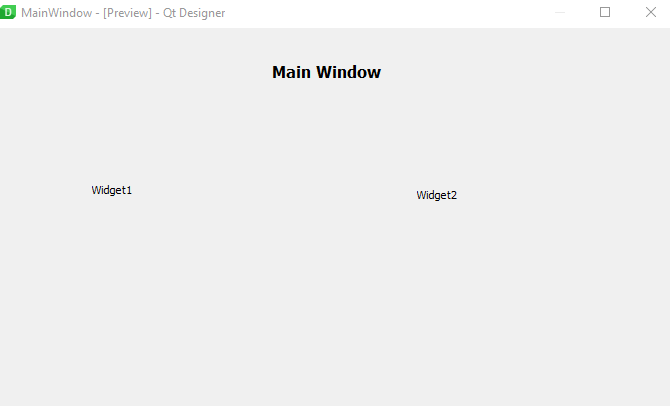
widget1
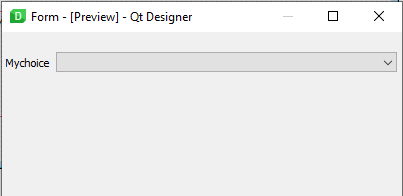
widget2
我想要的结果是
MainWindow.ui
<?xml version="1.0" encoding="UTF-8"?>
<ui version="4.0">
 <class>MainWindow</class>
 <widget class="QMainWindow" name="MainWindow">
  <property name="geometry">
   <rect>
    <x>0</x>
    <y>0</y>
    <width>682</width>
    <height>391</height>
   </rect>
  </property>
  <property name="windowTitle">
   <string>MainWindow</string>
  </property>
  <widget class="QWidget" name="centralwidget">
   <widget class="QLabel" name="label">
    <property name="geometry">
     <rect>
      <x>280</x>
      <y>35</y>
      <width>131</width>
      <height>16</height>
     </rect>
    </property>
    <property name="font">
     <font>
      <pointsize>12</pointsize>
      <weight>75</weight>
      <bold>true</bold>
     </font>
    </property>
    <property name="text">
     <string>Main Window</string>
    </property>
   </widget>
   <widget class="QWidget" name="widget1" native="true">
    <property name="geometry">
     <rect>
      <x>25</x>
      <y>95</y>
      <width>286</width>
      <height>216</height>
     </rect>
    </property>
    <widget class="QLabel" name="label_2">
     <property name="geometry">
      <rect>
       <x>75</x>
       <y>60</y>
       <width>47</width>
       <height>13</height>
      </rect>
     </property>
     <property name="text">
      <string>Widget1</string>
     </property>
    </widget>
   </widget>
   <widget class="QWidget" name="widget" native="true">
    <property name="geometry">
     <rect>
      <x>365</x>
      <y>80</y>
      <width>251</width>
      <height>236</height>
     </rect>
    </property>
    <widget class="QLabel" name="label_3">
     <property name="geometry">
      <rect>
       <x>60</x>
       <y>80</y>
       <width>47</width>
       <height>13</height>
      </rect>
     </property>
     <property name="text">
      <string>Widget2</string>
     </property>
    </widget>
   </widget>
  </widget>
  <widget class="QMenuBar" name="menubar">
   <property name="geometry">
    <rect>
     <x>0</x>
     <y>0</y>
     <width>682</width>
     <height>21</height>
    </rect>
   </property>
  </widget>
  <widget class="QStatusBar" name="statusbar"/>
 </widget>
 <resources/>
 <connections/>
</ui>
widget1.ui
<?xml version="1.0" encoding="UTF-8"?>
<ui version="4.0">
 <class>Form</class>
 <widget class="QWidget" name="Form">
  <property name="geometry">
   <rect>
    <x>0</x>
    <y>0</y>
    <width>400</width>
    <height>170</height>
   </rect>
  </property>
  <property name="windowTitle">
   <string>Form</string>
  </property>
  <widget class="QWidget" name="formLayoutWidget">
   <property name="geometry">
    <rect>
     <x>4</x>
     <y>20</y>
     <width>391</width>
     <height>106</height>
    </rect>
   </property>
   <layout class="QFormLayout" name="formLayout">
    <item row="0" column="0">
     <widget class="QLabel" name="label">
      <property name="text">
       <string>Mychoice</string>
      </property>
     </widget>
    </item>
    <item row="0" column="1">
     <widget class="QComboBox" name="comboBox"/>
    </item>
   </layout>
  </widget>
 </widget>
 <resources/>
 <connections/>
</ui>
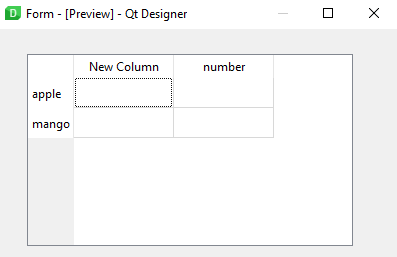
widget2.ui
<?xml version="1.0" encoding="UTF-8"?>
<ui version="4.0">
 <class>Form</class>
 <widget class="QWidget" name="Form">
  <property name="geometry">
   <rect>
    <x>0</x>
    <y>0</y>
    <width>400</width>
    <height>229</height>
   </rect>
  </property>
  <property name="windowTitle">
   <string>Form</string>
  </property>
  <widget class="QTableWidget" name="tableWidget">
   <property name="geometry">
    <rect>
     <x>30</x>
     <y>25</y>
     <width>326</width>
     <height>192</height>
    </rect>
   </property>
   <row>
    <property name="text">
     <string>apple</string>
    </property>
   </row>
   <row>
    <property name="text">
     <string>mango</string>
    </property>
   </row>
   <column>
    <property name="text">
     <string>New Column</string>
    </property>
   </column>
   <column>
    <property name="text">
     <string>number</string>
    </property>
   </column>
  </widget>
 </widget>
 <resources/>
 <connections/>
</ui>回答 1
Stack Overflow用户
回答已采纳
发布于 2020-12-25 10:21:48
您可以首先使用函数PyQt5.uic.loadUi,然后在python脚本中操作并组合您的小部件。看起来是这样的:
from PyQt5.uic import loadUi
from PyQt5 import QtCore, QtGui, QtWidgets
import sys

app = QtWidgets.QApplication(sys.argv)

m = loadUi('MainWindow.ui')
w1 = loadUi('widget1.ui')
w2 = loadUi('widget2.ui')

w = QtWidgets.QWidget()
m.setCentralWidget(w)

hbox = QtWidgets.QHBoxLayout()
w.setLayout(hbox)

hbox.addWidget(w1)
hbox.addWidget(w2)

m.show()
sys.exit(app.exec_())页面原文内容由Stack Overflow提供。腾讯云小微IT领域专用引擎提供翻译支持
原文链接:
https://stackoverflow.com/questions/65446698
复制相关文章
相似问题
腾讯云开发者

Copyright © 2013 - 2026 Tencent Cloud. All Rights Reserved. 腾讯云 版权所有
深圳市腾讯计算机系统有限公司 ICP备案/许可证号:粤B2-20090059  粤公网安备44030502008569号
腾讯云计算(北京)有限责任公司 京ICP证150476号 | 京ICP备11018762号