
对PDF的反应组件
我正在致力于一个功能,将允许用户采取他们的管道的最后阶段,并从它得到一个不错的PDF。
我的服务器和客户端都玩得很好。我无法完成的是将整个文档放入pdf中。它只捕捉到一小部分。
我不需要多页,虽然那会很好。我只想捕捉所有的东西,不管渲染的时间有多长。有可能有100个项目,例如图像和复选框在他们旁边。我需要一个完整的pdf,到目前为止,我只能得到一小部分它的快照。
我试着摆弄高度选项和各种各样的包,完全没有运气。
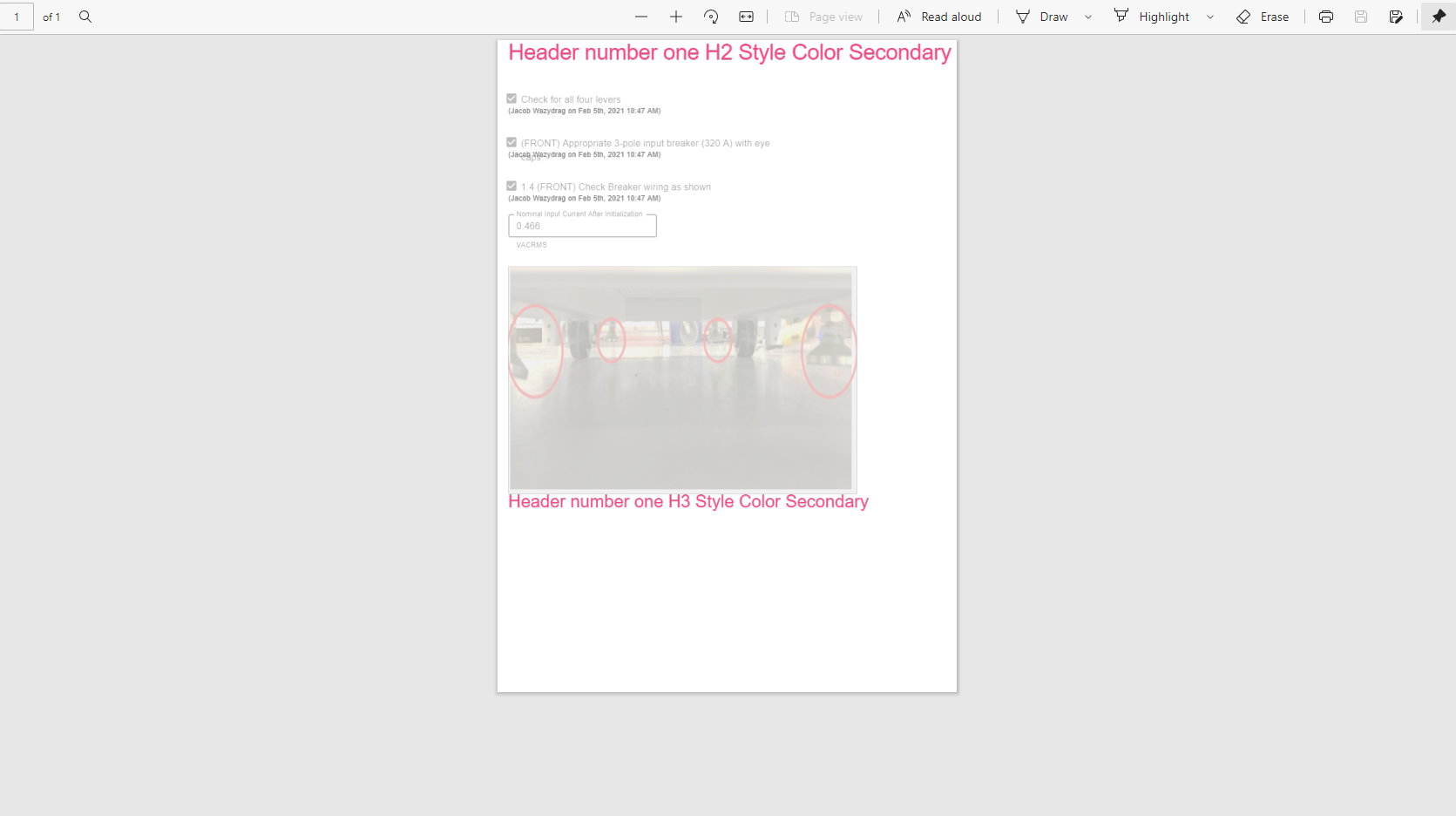
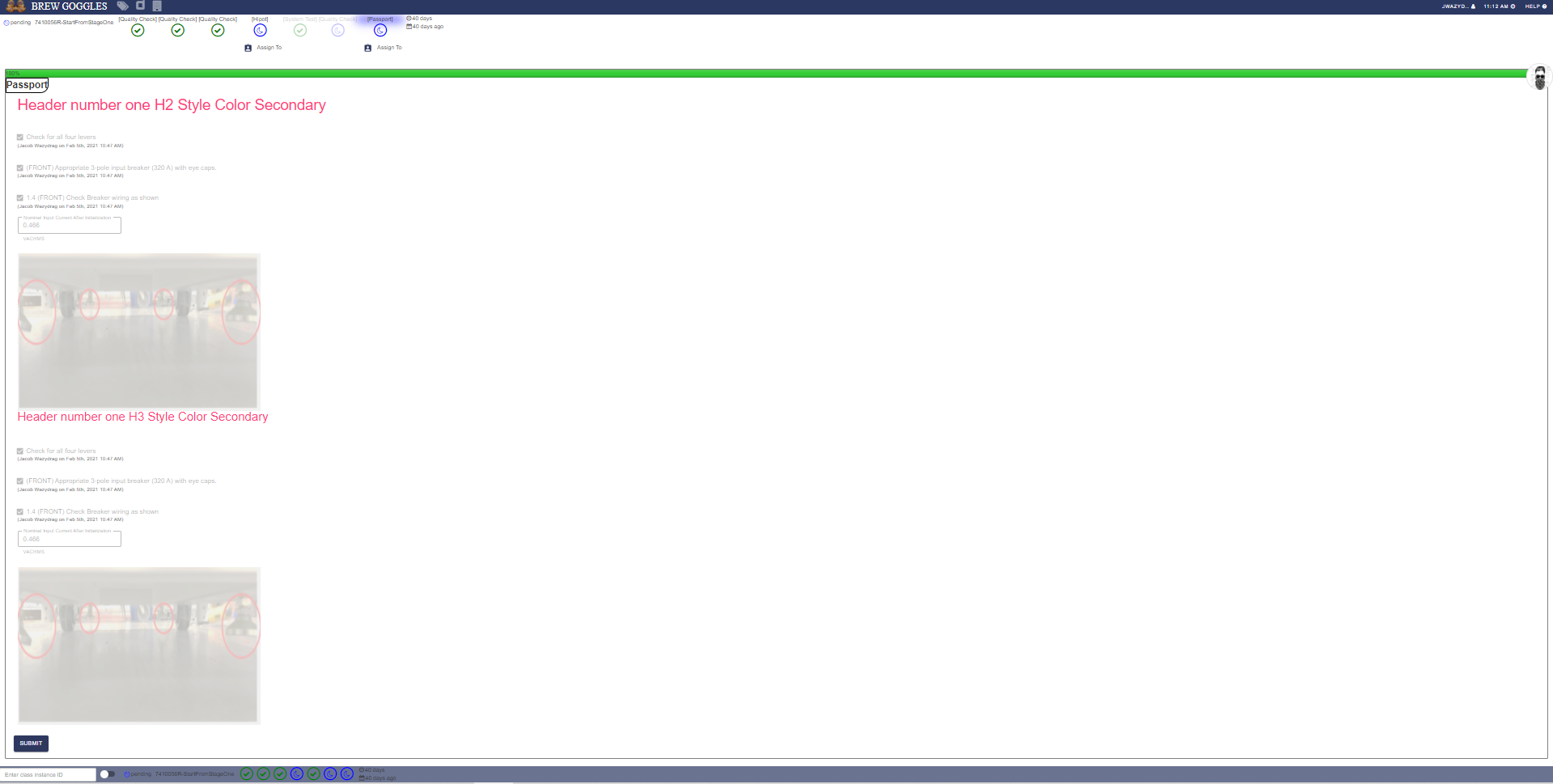
我将在浏览器上提供renderSimpleForm的外观。以及它的PDF格式。
代码与图像
import { jsPDF } from "jspdf";
import * as htmlToImage from 'html-to-image';

        const handleSubmit = () => {
            // //Before sending the action show in progress text and disable button
            setPdf({inProgress: true})

            //Creating the pdf blob
            htmlToImage.toPng(document.getElementById('simpleForm'))
            .then(function (dataUrl) {
              var link = document.createElement('a');
              link.download = 'my-image-name.jpeg';
              const pdf = new jsPDF('p', 'mm', 'a4');
              const imgProps= pdf.getImageProperties(dataUrl);
              pdf.addImage(dataUrl, 'PNG', 0, 0);
              //Send action to server
              ClassInstancesActions.StorePassportPDFToDisk(pdf.output('blob'), productID)
            });
        }

        return (
            <div id="simpleForm" style={{ height: '9999px !important', width: '9999px !important' }}>
                {renderSimpleForm()}
                {showError()}
                {renderSubmitCancel(disableSubmit)}
            </div>
        );
    };
这是我的SUMIT按钮的输出
这就是IT在浏览器上的表现
回答 1
Stack Overflow用户
发布于 2021-03-25 17:52:27
好的,过了一段时间,我有了一个解决方案,可以满足我的需要,这就是:
- 指向React组件中的div,而pdf
- 保存样式
。
和额外:
- 能够编程地自定义和控制DB
- 中的元数据。定制的目的是添加页眉、页脚、页码、头版,技术上我可以控制每一页
。
我用了https://www.npmjs.com/package/@progress/kendo-react-pdf
我使用了它的savePDF函数,该函数还允许我创建一个创建类型功能的模板,因为它是免费的,并在代码中看到的options参数中作为支柱传入。
还有一个css选择器,它的目标仅仅是PDF‘’ed div,已经通过了,不需要指定要显示什么和不显示什么,所以在PDF从这里完全出来之前,您可以实际操作它。
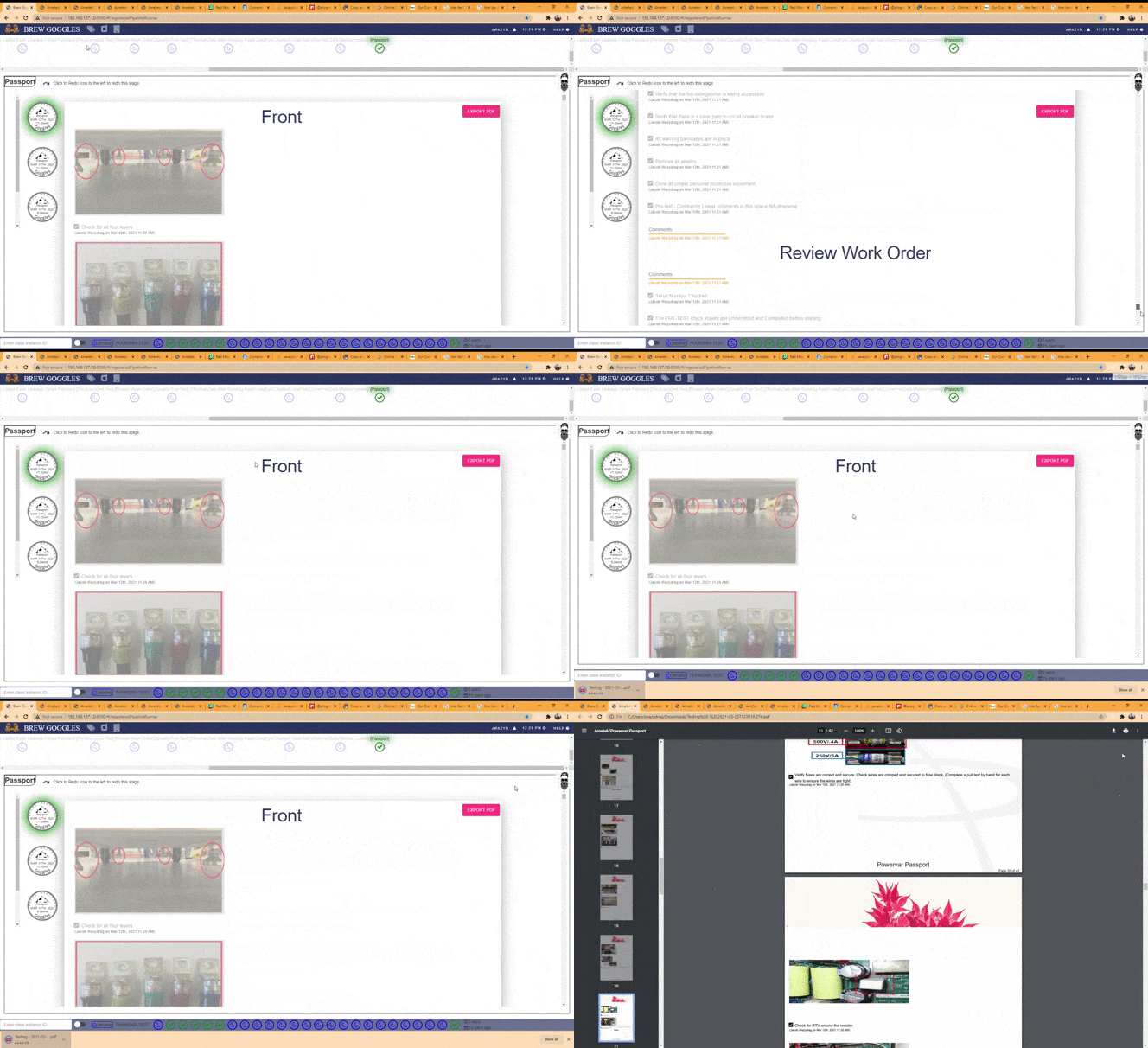
在视频演示,你会看到我有一个巨大的div出来超过40页!保存我的材料和css样式,我可以添加任何我想要的。我甚至加了一个水印!
希望这能帮到别人!
//component that has the div i need pdf'ed
//

var reactToPdfUtils = require('../../../../../reactToPdf.js');

    const handleSave = (sourceElement) => {
        console.log('handleSave in SFV!');
        reactToPdfUtils.useSavePDFNOW(pdfProps, cb, sourceElement)
        function cb(sendDataContent){
            console.log(sendDataContent)
        }
    };

//////////////////////////////////////////////////////////////////////////////////////////////


//reactToPdf.js      file that houses the library function I manipulate to get the result


import React, { useEffect } from 'react';
import { savePDF } from '@progress/kendo-react-pdf';
import { drawDOM, exportPDF } from '@progress/kendo-drawing';

export const useSavePDFNOW = (pdfProps, cb, sourceElement) => {
    //pdfprops i pass in from meta data in my mongoDB,
    //I made a cb to let me know when the funtion is done
    //I also do elaborate checking here myself for example
    //to make sure there is only one div that that id

        //create a template
        //this function is declared then passed in later to savePDF,
        //the magic in the library allows    you to manipulate each page if you wanted. You can do some         //cool stuff here.
 try {
        const onEveryPage = (props) => {
            if (hasAfirstPage) {
                if (props.pageNum === 1) {
                    document.querySelectorAll('#toPDF')[0].style.cssText = 'margin-top: -188.333px;height:100%;';
                    // document.querySelectorAll('kendo-pdf-page')[0].style.cssText = '';
                    return <Fragment></Fragment>;
                } else {
                    return (
                        <div style={{ zIndex: '-999999', justifyContent: 'center', display: 'flex' }}>
                            <div id='header' style={{ textAlign: 'center', fontSize: headerFontToUse + 'px', backgroundRepeat: 'no-repeat', backgroundSize: '100%', backgroundColor: 'transparent', height: headerHeightToUse, width: headerWidthToUse, backgroundImage: `url(${headerSrcToUse})`, position: 'absolute', top: 10 }}>
                                {headerTextToUse}
                            </div>
                            <div id='watermarkImage' style={{ backgroundRepeat: 'no-repeat', backgroundSize: '100%', backgroundColor: 'transparent', height: waterMarkHeightToUse, width: headerWidthToUse, opacity: 0.5 /* Firefox, Chrome, Safari, Opera, IE >= 9 (preview) */, backgroundImage: `url(${waterMarkSrcToUse})`, position: 'absolute', bottom: -90, left: 300 }}></div>
                            <div id='pageNums' style={{ position: 'absolute', bottom: 0, right: '10px' }}>
                                Page {props.pageNum} of {props.totalPages}
                            </div>
                            <h6 id='footer' style={{ fontSize: footerFontToUse + 'px', backgroundColor: 'transparent', position: 'absolute', bottom: 0, margin: '6 auto' }}>
                                {footerTextToUse}
                            </h6>
                        </div>
                    );
                }
            } else {
                return (
                    <div style={{ zIndex: '-999999', justifyContent: 'center', display: 'flex' }}>
                        <div id='header' style={{ textAlign: 'center', fontSize: headerFontToUse + 'px', backgroundRepeat: 'no-repeat', backgroundSize: '100%', backgroundColor: 'transparent', height: headerHeightToUse, width: headerWidthToUse, backgroundImage: `url(${headerSrcToUse})`, position: 'absolute', top: 10 }}>
                            {headerTextToUse}
                        </div>
                        <div id='watermarkImage' style={{ backgroundRepeat: 'no-repeat', backgroundSize: '100%', backgroundColor: 'transparent', height: waterMarkHeightToUse, width: headerWidthToUse, opacity: 0.5 /* Firefox, Chrome, Safari, Opera, IE >= 9 (preview) */, backgroundImage: `url(${waterMarkSrcToUse})`, position: 'absolute', bottom: -90, left: 300 }}></div>
                        <div id='pageNums' style={{ position: 'absolute', bottom: 0, right: '10px' }}>
                            Page {props.pageNum} of {props.totalPages}
                        </div>
                        <h6 id='footer' style={{ fontSize: footerFontToUse + 'px', backgroundColor: 'transparent', position: 'absolute', bottom: 0, margin: '6 auto' }}>
                            {footerTextToUse}
                        </h6>
                    </div>
                );
            }
        };
        //MaterialUI font fixing may have to do this elsewhere too specific
        parentWrapper.querySelectorAll('[class*=MuiTypography], [class*=Text], [class*=formControl]').forEach(function (el, i) {
            el.setAttribute('style', 'color: black; overflow: visible');
        });

        //save pdf on client side, send blob to dev to figure out what he or she wants to do with it
        let pdfBlob;
        savePDF(
            parentWrapper,
            {
                pageTemplate: onEveryPage,
                paperSize: 'a4',
                fileName: 'Testing',
                keepTogether: '.menu',
                scale: 0.6,
                title: 'Ametek/Powervar Passport',
                margin: { top: marginTopToUse, bottom: marginBottomToUse }
            },
            () => {
                // Server side rendering tested comes out exactly the same so long as the props match
                drawDOM(parentWrapper, { pageTemplate: onEveryPage, scale: 0.6, paperSize: 'A4', margin: { top: 180, bottom: 10 } })
                    .then((group) => {
                        return exportPDF(group);
                    })
                    .then((dataUri) => {
                        // Send action to database
                        pdfBlob = dataUri.split(';base64,')[1];
                        ClassInstancesActions.StorePassportPDFToDisk(pdfBlob, 'testing');
                        cb(pdfBlob);
                        parentWrapper.remove();
                    });
            }
        );
    } catch (error) {
        console.log(error);
    }
};//This is in a style sheet
//i have a div within the div I pdf with an id of #divToDisableInteraction
//As long as there in there you can do any css magic to your pdf document here
//I tested this to high heaven you can get most things done here
//including adding an image url
kendo-pdf-document #divToDisableInteraction {
visibility: hidden;
}
https://stackoverflow.com/questions/66067671
复制相似问题
腾讯云开发者

Copyright © 2013 - 2026 Tencent Cloud. All Rights Reserved. 腾讯云 版权所有
深圳市腾讯计算机系统有限公司 ICP备案/许可证号:粤B2-20090059  粤公网安备44030502008569号
腾讯云计算(北京)有限责任公司 京ICP证150476号 | 京ICP备11018762号