
如何在RowHeader中编辑DataGrid?
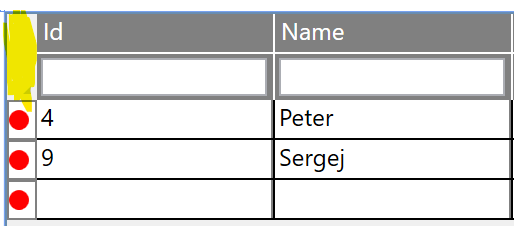
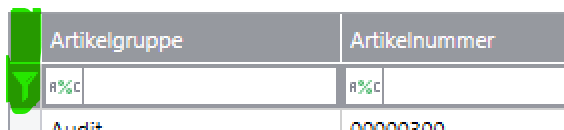
id下的文本框仍然属于标题,我希望从这个DataGrid中更改标题旁边的黄色标记字段,使其看起来像图2中的绿色标记字段。
Picture1:
Picture2:
我的Datagrid代码如下:
<DataGrid ItemsSource="{Binding Persons}" AutoGenerateColumns="False" Height="345"  Margin="52,76,5,0" x:Name="gridd" Width="619" >

        <DataGrid.Resources>
            <Style TargetType="{x:Type DataGridColumnHeader}">
                <Setter Property="Background" Value="Gray"/>
                <Setter Property="Foreground" Value="White"/>
                <Setter Property="BorderBrush" Value="White"/>
                <Setter Property="BorderThickness" Value="0,0,1,0" />
            </Style>

            <Style TargetType="{x:Type DataGridCell}">
                <Setter Property="BorderBrush" Value="Gray"/>
                <Setter Property="BorderThickness" Value="0,0,1,0" />
            </Style>

            <Style TargetType="{x:Type DataGridRowHeader}">
                <Setter Property="Width" Value="15"/>
                <Setter Property="Height" Value="20"/>
                <Setter Property="Background" Value="White"/>
                <Setter Property="BorderBrush" Value="Gray"/>
                <Setter Property="BorderThickness" Value="1,1,1,1"/>
            </Style>
        </DataGrid.Resources>

        <DataGrid.Columns>
            <DataGridTextColumn Width="*" SortMemberPath="Id" Binding="{Binding Id}" CanUserResize="False" IsReadOnly="True">
                <DataGridTextColumn.Header>
                    <StackPanel>
                        <TextBlock Text="Id" Margin="3 0 0 0" Width="148" Height="17"/>
                        <Separator Background="White" Width="125" />
                        <TextBox x:Name="IDSearcBox" Width="113" Height="19" Margin="0 0 0 2"  Text="{Binding QueryforID, UpdateSourceTrigger=PropertyChanged}" />
                    </StackPanel>
                </DataGridTextColumn.Header>
            </DataGridTextColumn>

            <DataGridTextColumn Width="*" SortMemberPath="Id" Binding="{Binding Name}" CanUserResize="False" IsReadOnly="True">
                <DataGridTextColumn.Header>
                    <StackPanel>
                        <TextBlock Text="Name" Margin="3 0 0 0" Width="148" Height="17"/>
                        <Separator  Background="White" Width="125" />
                        <TextBox x:Name="Name" Width="113" Height="19" Margin="0 0 0 2"  Text="{Binding Queryforname, UpdateSourceTrigger=PropertyChanged}"/>
                    </StackPanel>
                </DataGridTextColumn.Header>
            </DataGridTextColumn>

            <DataGridTextColumn Width="*" SortMemberPath="Id" Binding="{Binding Country}" CanUserResize="False" IsReadOnly="True">
                <DataGridTextColumn.Header>
                    <StackPanel>
                        <TextBlock Text="Land" Margin="3 0 0 0" Width="148" Height="17"/>
                        <Separator Background="White" Width="125"/>
                        <TextBox x:Name="Birthday" Width="113" Height="19" Margin="0 0 0 2"  Text="{Binding QueryforCountry, UpdateSourceTrigger=PropertyChanged}" />
                    </StackPanel>
                </DataGridTextColumn.Header>
            </DataGridTextColumn>


            <DataGridTextColumn Width="*" SortMemberPath="Id" Binding="{Binding Location}" CanUserResize="False" IsReadOnly="True">
                <DataGridTextColumn.Header>
                    <StackPanel>
                        <TextBlock Text="Ort" Margin="3 0 0 0" Width="148" Height="17"/>
                        <Separator Background="White" Width="125" />
                        <TextBox x:Name="Ort" Width="113" Height="19" Margin="0 0 0 2"   Text="{Binding QueryforLocation, UpdateSourceTrigger=PropertyChanged}"/>
                    </StackPanel>
                </DataGridTextColumn.Header>
            </DataGridTextColumn>


            <DataGridTextColumn SortMemberPath="Id" Binding="{Binding Age}" CanUserResize="False" IsReadOnly="True">
                <DataGridTextColumn.Header>
                    <StackPanel>
                        <TextBlock Text="Alter" Margin="0 0 0 0" Width="115" Height="17"/>
                        <Separator Background="White" Width="125"/>
                        <TextBox x:Name="alter" Width="119" Height="19" Margin="0 0 0 2" Text="{Binding QueryforAge, UpdateSourceTrigger=PropertyChanged}"/>
                    </StackPanel>
                </DataGridTextColumn.Header>
            </DataGridTextColumn>


        </DataGrid.Columns>

    </DataGrid>
我怎么需要改变DataGrid来获得这个外观呢?我想我需要更改DataGrid.Resources部分中的一些内容,但我不知道如何将图片1更改为Picture2
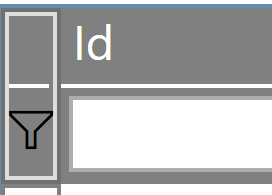
编辑:现在看起来像这样,但是我创建的堆栈面板没有填充整个文件
回答 2
Stack Overflow用户
发布于 2021-04-19 13:06:49
您可以在标头中重新设置该Button的样式,方法是定义一个带有特定ComponentResourceKey键的Style到,例如:
<Style x:Key="{ComponentResourceKey ResourceId=DataGridSelectAllButtonStyle, TypeInTargetAssembly={x:Type DataGrid}}"
TargetType="Button">
<Setter Property="Content">
<Setter.Value>
<TextBlock FontFamily="Segoe MDL2 Assets" Text="" />
</Setter.Value>
</Setter>
</Style>您可以将Content属性设置为任何您想要的。上面的TextBlock只是一个例子。
Stack Overflow用户
发布于 2021-04-19 12:50:48
一个最起码的例子来说明:
<DataGrid>
    <DataGrid.Columns>
        <DataGridTextColumn Binding="{Binding Mode=OneWay}"/>
    </DataGrid.Columns>
    <DataGrid.ItemsSource>
        <x:Array Type="{x:Type sys:String}">
            <sys:String>One</sys:String>
            <sys:String>Two</sys:String>
            <sys:String>Three</sys:String>
        </x:Array>
    </DataGrid.ItemsSource>
    <DataGrid.RowHeaderTemplate>
        <DataTemplate>
            <Ellipse Width="10" Height="10" Fill="Red"/>
        </DataTemplate>
    </DataGrid.RowHeaderTemplate>
</DataGrid>
而不是椭圆,使用图像或形状与你需要的几何。
在左上角(列标题的左边和行标题的上方),有一个带有RoutedCommand Command =" {x: Static DataGrid.SelectAllCommand} "的按钮。该按钮从动态键Style ="{DynamicResource {ComponentResourceKey ResourceId = DataGridSelectAllButtonStyle, TypeInTargetAssembly = {x: Type DataGrid}}}"获取样式。
以下是DataGrid默认模板中按钮的完整定义:
<Button Command = "{x: Static DataGrid.SelectAllCommand}"
        Focusable = "false"
        Style = "{DynamicResource {ComponentResourceKey ResourceId = DataGridSelectAllButtonStyle, TypeInTargetAssembly = {x: Type DataGrid}}}"
        Visibility = "{Binding HeadersVisibility, ConverterParameter = {x: Static DataGridHeadersVisibility.All}, Converter = {x: Static DataGrid.HeadersVisibilityConverter}, RelativeSource = {RelativeSource AncestorType = {x: Type DataGrid}}}"
        Width = "{Binding CellsPanelHorizontalOffset, RelativeSource = {RelativeSource AncestorType = {x: Type DataGrid}}}" />
可以使用此键覆盖DataGrid资源中的按钮样式:
<DataGrid>
    <DataGrid.Resources>
        <Style TargetType="Button" x:Key="{ComponentResourceKey ResourceId=DataGridSelectAllButtonStyle, TypeInTargetAssembly={x:Type DataGrid}}">
            <Setter Property="ContentTemplate">
                <Setter.Value>
                    <DataTemplate>
                        <Ellipse Width="10" Height="10" Fill="Green"/>
                    </DataTemplate>
                </Setter.Value>
            </Setter>
        </Style>
    </DataGrid.Resources>
    <DataGrid.Columns>
        <DataGridTextColumn Binding="{Binding Mode=OneWay}" ClipboardContentBinding="{x:Null}"/>
    </DataGrid.Columns>
    <DataGrid.ItemsSource>
        <x:Array Type="{x:Type sys:String}">
            <sys:String>One</sys:String>
            <sys:String>Two</sys:String>
            <sys:String>Three</sys:String>
        </x:Array>
    </DataGrid.ItemsSource>
    <DataGrid.RowHeaderTemplate>
        <DataTemplate>
            <Ellipse Width="10" Height="10" Fill="Red"/>
        </DataTemplate>
    </DataGrid.RowHeaderTemplate>
</DataGrid>
如果您需要另一个元素而不是按钮,那么您必须为DataGrid创建自己的模板。
将两个元素垂直放置在一个分界线上的选项:
<DataGrid>
    <DataGrid.Resources>
        <Style TargetType="Button" x:Key="{ComponentResourceKey ResourceId=DataGridSelectAllButtonStyle, TypeInTargetAssembly={x:Type DataGrid}}">
            <Setter Property="ContentTemplate">
                <Setter.Value>
                    <DataTemplate>
                        <Grid>
                            <Grid.RowDefinitions>
                                <RowDefinition/>
                                <RowDefinition Height="Auto"/>
                                <RowDefinition/>
                            </Grid.RowDefinitions>
                            <Ellipse Width="10" Height="10" Fill="Aqua"/>
                            <Rectangle Grid.Row="1" Fill="Yellow" Height="2" Margin="0 2"/>
                            <Ellipse Grid.Row="2" Width="10" Height="10" Fill="Green"/>
                        </Grid>
                    </DataTemplate>
                </Setter.Value>
            </Setter>
        </Style>
</DataGrid.Resources>https://stackoverflow.com/questions/67161474
复制相似问题
腾讯云开发者

Copyright © 2013 - 2026 Tencent Cloud. All Rights Reserved. 腾讯云 版权所有
深圳市腾讯计算机系统有限公司 ICP备案/许可证号:粤B2-20090059  粤公网安备44030502008569号
腾讯云计算(北京)有限责任公司 京ICP证150476号 | 京ICP备11018762号