
如何设置外壳上制表符以获取完全宽度的shell xamarin
如何设置外壳上制表符以获取完全宽度的shell xamarin
提问于 2022-11-25 10:53:03
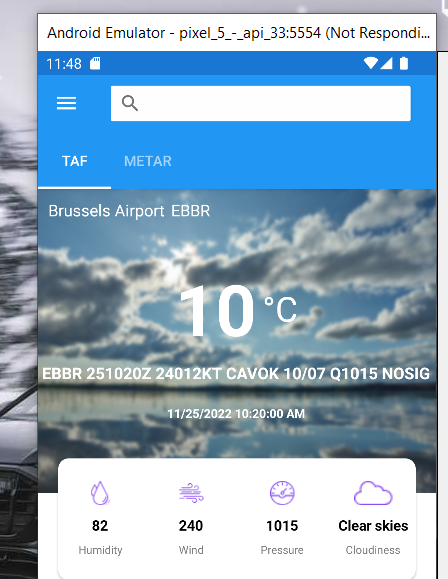
我只想问一个问题,有没有办法在xamarin的整个长度内平均分配标签?现在,它们是相互对立的,我想把它们分发到整个页面。我试图遵循堆栈溢出的不同解决方案,但我不能使用这种解决方案。How to set shell upper tabs to take full width。现在我在想,今天是否有一个更容易的解决方案来实现这一点?
<?xml version="1.0" encoding="UTF-8"?>
<Shell xmlns="http://xamarin.com/schemas/2014/forms"
       xmlns:x="http://schemas.microsoft.com/winfx/2009/xaml"
       xmlns:local="clr-namespace:Eindproject.Views"
       Title="Eindproject"
       x:Class="Eindproject.AppShell">

    <!--
        The overall app visual hierarchy is defined here, along with navigation.

        https://docs.microsoft.com/xamarin/xamarin-forms/app-fundamentals/shell/
    -->

    <Shell.Resources>
        <ResourceDictionary>
            <Style x:Key="BaseStyle" TargetType="Element">
                <Setter Property="Shell.BackgroundColor" Value="{StaticResource Primary}" />
                <Setter Property="Shell.ForegroundColor" Value="White" />
                <Setter Property="Shell.TitleColor" Value="White" />
                <Setter Property="Shell.DisabledColor" Value="#B4FFFFFF" />
                <Setter Property="Shell.UnselectedColor" Value="#95FFFFFF" />
                <Setter Property="Shell.TabBarBackgroundColor" Value="{StaticResource Primary}" />
                <Setter Property="Shell.TabBarForegroundColor" Value="White"/>
                <Setter Property="Shell.TabBarUnselectedColor" Value="#95FFFFFF"/>
                <Setter Property="Shell.TabBarTitleColor" Value="White"/>
            </Style>
            <Style TargetType="TabBar" BasedOn="{StaticResource BaseStyle}" />
            <Style TargetType="FlyoutItem" BasedOn="{StaticResource BaseStyle}" />

            <!--
            Default Styles for all Flyout Items
            https://docs.microsoft.com/xamarin/xamarin-forms/app-fundamentals/shell/flyout#flyoutitem-and-menuitem-style-classes
            -->
            <Style Class="FlyoutItemLabelStyle" TargetType="Label">
                <Setter Property="TextColor" Value="White"></Setter>
            </Style>
            <Style Class="FlyoutItemLayoutStyle" TargetType="Layout" ApplyToDerivedTypes="True">
                <Setter Property="VisualStateManager.VisualStateGroups">
                    <VisualStateGroupList>
                        <VisualStateGroup x:Name="CommonStates">
                            <VisualState x:Name="Normal">
                                <VisualState.Setters>
                                    <Setter Property="BackgroundColor" Value="{x:OnPlatform UWP=Transparent, iOS=White}" />
                                    <Setter TargetName="FlyoutItemLabel" Property="Label.TextColor" Value="{StaticResource Primary}" />
                                </VisualState.Setters>
                            </VisualState>
                            <VisualState x:Name="Selected">
                                <VisualState.Setters>
                                    <Setter Property="BackgroundColor" Value="{StaticResource Primary}" />
                                </VisualState.Setters>
                            </VisualState>
                        </VisualStateGroup>
                    </VisualStateGroupList>
                </Setter>
            </Style>
            <!--
            Custom Style you can apply to any Flyout Item
            -->
            <Style Class="MenuItemLayoutStyle" TargetType="Layout" ApplyToDerivedTypes="True">
                <Setter Property="VisualStateManager.VisualStateGroups">
                    <VisualStateGroupList>
                        <VisualStateGroup x:Name="CommonStates">
                            <VisualState x:Name="Normal">
                                <VisualState.Setters>
                                    <Setter TargetName="FlyoutItemLabel" Property="Label.TextColor" Value="{StaticResource Primary}" />
                                </VisualState.Setters>
                            </VisualState>
                        </VisualStateGroup>
                    </VisualStateGroupList>
                </Setter>
            </Style>
        </ResourceDictionary>
    </Shell.Resources>

    <Shell.FlyoutHeaderTemplate>
        <DataTemplate>
            <Grid BackgroundColor="Black"
                  HeightRequest="100">
                <Image Aspect="AspectFill"
                       Source="https://idsb.tmgrup.com.tr/ly/uploads/images/2022/07/12/217928.jpg"
                       Opacity="0.6" />
                <Label Text="HOTA"
                       TextColor="White"
                       FontAttributes="Bold"
                       HorizontalTextAlignment="Center"
                       VerticalTextAlignment="Center" />
            </Grid>
        </DataTemplate>
    </Shell.FlyoutHeaderTemplate>

    <!--
        When the Flyout is visible this defines the content to display in the flyout.
        FlyoutDisplayOptions="AsMultipleItems" will create a separate flyout item for each child element
        https://docs.microsoft.com/dotnet/api/xamarin.forms.shellgroupitem.flyoutdisplayoptions?view=xamarin-forms
    -->

    <FlyoutItem Title="Home" Icon="outline_home_black_24dp.png">
        <ShellContent Route="Home" ContentTemplate="{DataTemplate local:Home}" />
    </FlyoutItem>


    <FlyoutItem Title="Logs" Icon="outline_local_airport_black_24dp.png">
        <ShellContent Route="Logs" ContentTemplate="{DataTemplate local:Logs}" />
    </FlyoutItem>

    <FlyoutItem Title="Weather" Icon="outline_light_mode_black_24dp.png">
        <ShellContent Route="Weather" ContentTemplate="{DataTemplate local:Weather}" />
    </FlyoutItem>


    <FlyoutItem Title="Stations" Icon="outline_my_location_black_24dp.png">
        <ShellContent Route="Stations" ContentTemplate="{DataTemplate local:Stations}" />
    </FlyoutItem>

    <FlyoutItem Route="animals" Title="Test">
        <Tab Title="test" Route="test">
            <ShellContent Route="Taf" Title="Taf" ContentTemplate="{DataTemplate local:Weather}" />
            <ShellContent Route="Metar" Title="Metar" ContentTemplate="{DataTemplate local:Metar}" />
        </Tab>
    </FlyoutItem>


    <!--
        TabBar lets you define content that won't show up in a flyout menu. When this content is active
        the flyout menu won't be available. This is useful for creating areas of the application where
        you don't want users to be able to navigate away from. If you would like to navigate to this
        content you can do so by calling
        await Shell.Current.GoToAsync("//LoginPage");
    -->

    <!-- Optional Templates
    // These may be provided inline as below or as separate classes.

    // This header appears at the top of the Flyout.
    // https://docs.microsoft.com/xamarin/xamarin-forms/app-fundamentals/shell/flyout#flyout-header
    <Shell.FlyoutHeaderTemplate>
        <DataTemplate>
            <Grid>ContentHere</Grid>
        </DataTemplate>
    </Shell.FlyoutHeaderTemplate>

    // ItemTemplate is for ShellItems as displayed in a Flyout
    // https://docs.microsoft.com/xamarin/xamarin-forms/app-fundamentals/shell/flyout#define-flyoutitem-appearance
    <Shell.ItemTemplate>
        <DataTemplate>
            <ContentView>
                Bindable Properties: Title, Icon
            </ContentView>
        </DataTemplate>
    </Shell.ItemTemplate>

    // MenuItemTemplate is for MenuItems as displayed in a Flyout
    // https://docs.microsoft.com/xamarin/xamarin-forms/app-fundamentals/shell/flyout#define-menuitem-appearance
    <Shell.MenuItemTemplate>
        <DataTemplate>
            <ContentView>
                Bindable Properties: Text, Icon
            </ContentView>
        </DataTemplate>
    </Shell.MenuItemTemplate>

    -->

</Shell>回答 1
Stack Overflow用户
发布于 2022-11-30 07:08:48
您可以使用下面的Shell自定义呈现程序来实现这一点。
创建一个名为MyShellRenderer的类,它是Android项目下ShellRenderer类的子类:
[assembly: ExportRenderer(typeof(App1_xamarin_forms.AppShell),typeof(App1_xamarin_forms.Droid.MyShellRenderer))]
namespace App1_xamarin_forms.Droid
{
    public class MyShellRenderer : ShellRenderer
    {
        public MyShellRenderer(Context context) : base(context)
        {
        }

       protected override IShellTabLayoutAppearanceTracker CreateTabLayoutAppearanceTracker(ShellSection shellSection)
        {
            return new MyTabLayoutAppearanceTracker(this);
        }
    }
}然后创建MyTabLayoutAppearanceTracker类,该类派生自Android项目下的ShellTabLayoutAppearanceTracker类:
namespace App1_xamarin_forms.Droid
{
    public class MyTabLayoutAppearanceTracker : ShellTabLayoutAppearanceTracker
    {
        public MyTabLayoutAppearanceTracker(IShellContext shellContext) : base(shellContext)
        {
        }

       public override void SetAppearance(TabLayout tabLayout, ShellAppearance appearance)
        {
            base.SetAppearance(tabLayout, appearance);
            var displayWidth = (int)Xamarin.Essentials.DeviceDisplay.MainDisplayInfo.Width;
            for (int i = 0; i < tabLayout.TabCount; i++)
            {
                TabLayout.Tab tab = tabLayout.GetTabAt(i);
                if (tab.CustomView==null)
                {
                    TextView textview = new TextView(Android.App.Application.Context)
                    {
                        Text = tabLayout.GetTabAt(i).Text,
                        TextSize = 20,
                        Typeface = Typeface.DefaultBold,
                        Gravity = GravityFlags.Center
                    };
                    textview.SetWidth(displayWidth/2);
                    tab.SetCustomView(textview);
                }
            }
        }
   }
}页面原文内容由Stack Overflow提供。腾讯云小微IT领域专用引擎提供翻译支持
原文链接:
https://stackoverflow.com/questions/74571704
复制相关文章
相似问题
腾讯云开发者

Copyright © 2013 - 2026 Tencent Cloud. All Rights Reserved. 腾讯云 版权所有
深圳市腾讯计算机系统有限公司 ICP备案/许可证号:粤B2-20090059  粤公网安备44030502008569号
腾讯云计算(北京)有限责任公司 京ICP证150476号 | 京ICP备11018762号