
帆布上的Tkinter中心项目曾经移动过
帆布上的Tkinter中心项目曾经移动过
提问于 2022-05-25 23:33:22
我正在开发一个应用程序,它将平面图加载到图像查看器中,这样就可以将其放大,供电工进行评估。我对以图像为中心有点小问题。
我有两个问题我很乐意帮忙。
- ,我已经做了一个重置按钮,当加载和点击图像中心。这是我想做的事。但是,一旦图像被移动到画布上,然后按下重置按钮,图像就会立即滑到一边,不再中心。那么,首先,我将如何克服这一问题?我试过玩弄canvas.move、canvas.moveto和canvas.coords,但没有成功。--
- 第二个问题是,当应用程序第一次加载时,我将如何对图像进行居中。我尝试将self.canvas.scan_mark和self.canvas.scan_dragto添加到init类中,但是这似乎不起作用。我猜是因为GUI是如何加载的。
参考图像如下:
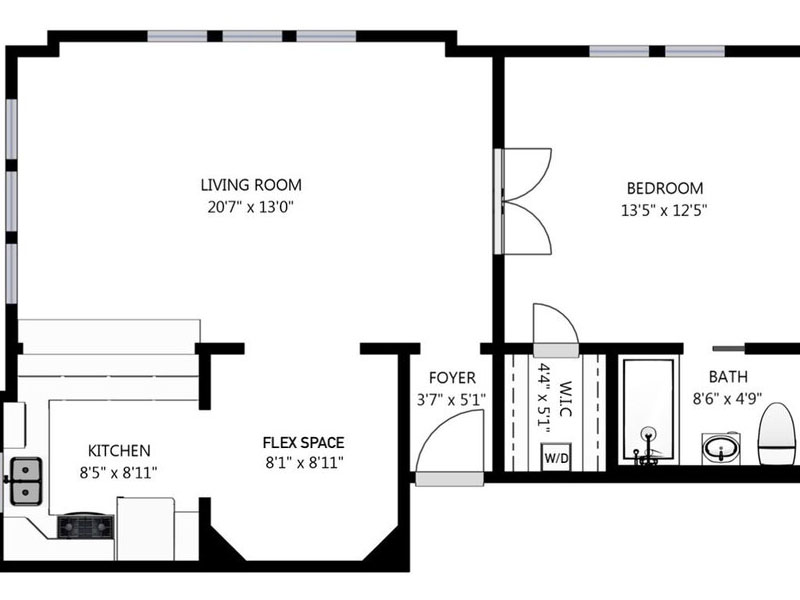
若要复制打开的应用程序,请按重置按钮。图像将中心,然后移动画布与您的鼠标随机,并按重置按钮再次,现在图像移动左手边,不再中心。
下面的代码示例。谢谢
import random
import tkinter as tk
from tkinter import ttk
from PIL import Image, ImageTk

class AutoScrollbar(ttk.Scrollbar):
    ''' A scrollbar that hides itself if it's not needed.
        Works only if you use the grid geometry manager '''
    def set(self, lo, hi):
        if float(lo) <= 0.0 and float(hi) >= 1.0:
            self.grid_remove()
        else:
            self.grid()
        ttk.Scrollbar.set(self, lo, hi)

    def pack(self, **kw):
        raise tk.TclError('Cannot use pack with this widget')

    def place(self, **kw):
        raise tk.TclError('Cannot use place with this widget')

class Zoom(ttk.Frame):
    ''' Simple zoom with mouse wheel '''
    def __init__(self, mainframe, path):
        ''' Initialize the main Frame '''
        ttk.Frame.__init__(self, master=mainframe)
        self.master.title('zoom')
        self.master.geometry("1200x800")

        # Vertical and horizontal scrollbars for canvas
        vbar = AutoScrollbar(self.master, orient='vertical')
        hbar = AutoScrollbar(self.master, orient='horizontal')
        vbar.grid(row=0, column=1, sticky='ns')
        hbar.grid(row=1, column=0, sticky='we')
        # Open image
        self.image = Image.open(path)
        # Create canvas and put image on it
        self.canvas = tk.Canvas(self.master, highlightthickness=0,
                                xscrollcommand=hbar.set, yscrollcommand=vbar.set)
        self.button = tk.Button(self.master,text="Reset Canvas to center",command=self.reset_canvas)
        self.button.grid()
        self.canvas.grid(row=0, column=0, sticky='nswe')
        #self.canvas.scan_mark(0, 0)
        #self.canvas.scan_dragto(200, 0, gain=1)

        vbar.configure(command=self.canvas.yview)  # bind scrollbars to the canvas
        hbar.configure(command=self.canvas.xview)
        # Make the canvas expandable
        self.master.rowconfigure(0, weight=1)
        self.master.columnconfigure(0, weight=1)
        # Bind events to the Canvas
        self.canvas.bind('<ButtonPress-1>', self.move_from)
        self.canvas.bind('<B1-Motion>',     self.move_to)
        self.canvas.bind('<MouseWheel>', self.wheel)  # with Windows and MacOS, but not Linux
        self.canvas.bind('<Button-5>',   self.wheel)  # only with Linux, wheel scroll down
        self.canvas.bind('<Button-4>',   self.wheel)  # only with Linux, wheel scroll up
        # Show image and plot some random test rectangles on the canvas
        self.imscale = 1.0
        self.imageid = None
        self.delta = 0.75
        width, height = self.image.size
        minsize, maxsize = 5, 20
        for n in range(10):
            x0 = random.randint(0, width - maxsize)
            y0 = random.randint(0, height - maxsize)
            x1 = x0 + random.randint(minsize, maxsize)
            y1 = y0 + random.randint(minsize, maxsize)
            color = ('red', 'orange', 'yellow', 'green', 'blue')[random.randint(0, 4)]
            self.canvas.create_rectangle(x0, y0, x1, y1, outline='black', fill=color,
                                         activefill='black', tags=n)
        # Text is used to set proper coordinates to the image. You can make it invisible.
        self.text = self.canvas.create_text(0, 0, anchor='nw', text='Scroll to zoom')
        self.show_image()
        self.canvas.configure(scrollregion=self.canvas.bbox('all'))

    def reset_canvas(self):
        print("reset pressed")
        self.canvas.scan_dragto(200, 0,gain=1)

    def move_from(self, event):
        ''' Remember previous coordinates for scrolling with the mouse '''
        self.canvas.scan_mark(event.x, event.y)

    def move_to(self, event):
        ''' Drag (move) canvas to the new position '''
        self.canvas.scan_dragto(event.x, event.y, gain=1)

    def wheel(self, event):
        ''' Zoom with mouse wheel '''
        scale = 1.0
        # Respond to Linux (event.num) or Windows (event.delta) wheel event
        if event.num == 5 or event.delta == -120:
            scale        *= self.delta
            self.imscale *= self.delta
        if event.num == 4 or event.delta == 120:
            scale        /= self.delta
            self.imscale /= self.delta
        # Rescale all canvas objects
        x = self.canvas.canvasx(event.x)
        y = self.canvas.canvasy(event.y)
        self.canvas.scale('all', x, y, scale, scale)
        self.show_image()
        self.canvas.configure(scrollregion=self.canvas.bbox('all'))

    def show_image(self):
        ''' Show image on the Canvas '''
        if self.imageid:
            self.canvas.delete(self.imageid)
            self.imageid = None
            self.canvas.imagetk = None  # delete previous image from the canvas
        width, height = self.image.size
        new_size = int(self.imscale * width), int(self.imscale * height)
        imagetk = ImageTk.PhotoImage(self.image.resize(new_size))
        # Use self.text object to set proper coordinates
        self.imageid = self.canvas.create_image(self.canvas.coords(self.text),
                                                anchor='nw', image=imagetk)
        self.canvas.lower(self.imageid)  # set it into background
        self.canvas.imagetk = imagetk  # keep an extra reference to prevent garbage-collection

path = 'floor_plan.jpg'  # place path to your image here
root = tk.Tk()
app = Zoom(root, path=path)
root.mainloop()回答 1
Stack Overflow用户
发布于 2022-05-26 00:09:39
在show_image(self)中,将width和height更改为
self.imagewidth, self.imageheight = self.image.size
new_size = int(self.imscale * self.imagewidth), int(self.imscale * self.imageheight)然后将reset_canvas(self)更改为
    def reset_canvas(self):
        print("reset pressed")
        w, h = self.canvas.winfo_width()//2, self.canvas.winfo_height()//2
        ww, hh = self.imagewidth//2, self.imageheight//2

        self.canvas.scan_dragto(w-ww, h-hh,gain=1)
这将基于画布大小和图像大小对图像进行居中。
页面原文内容由Stack Overflow提供。腾讯云小微IT领域专用引擎提供翻译支持
原文链接:
https://stackoverflow.com/questions/72385152
复制相关文章
相似问题
腾讯云开发者

Copyright © 2013 - 2026 Tencent Cloud. All Rights Reserved. 腾讯云 版权所有
深圳市腾讯计算机系统有限公司 ICP备案/许可证号:粤B2-20090059  粤公网安备44030502008569号
腾讯云计算(北京)有限责任公司 京ICP证150476号 | 京ICP备11018762号