
使用USS样式在Unity中循环转换
使用USS样式在Unity中循环转换
提问于 2022-03-04 22:26:40
最近,联合发布了他们的新UI工具包,到目前为止,这是很棒的。我在我的文档中有一个倒计时元素,我计划在数字达到一个阈值后,将其动画化为脉冲。
以下是当前的过渡:
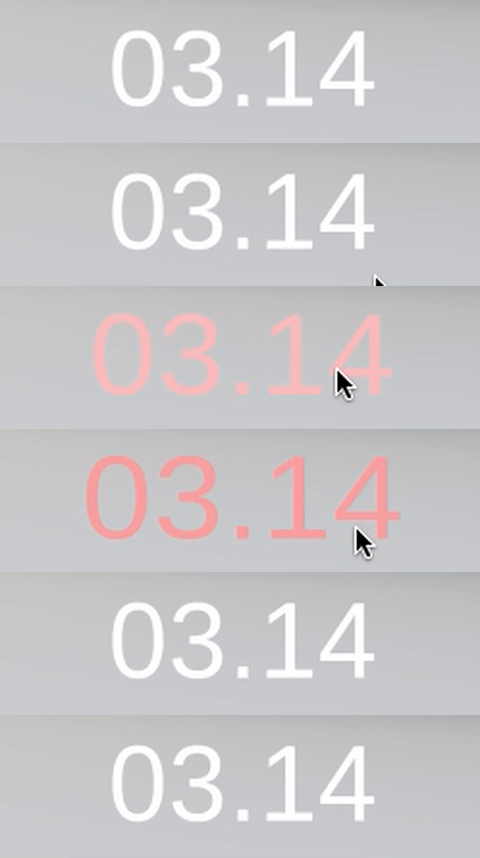
如何使无休止地循环动画
当前的USS代码在下面。我尝试过类似的css属性,比如animation-iteration-count: infinite;,但是到目前为止还没有成功,而且文档看起来还没有完成。
#timer-countdown:hover {
    scale: 1.2 1.1;
    color: rgba(255, 170, 170, 255);
    transition-duration: 1s;
    transition-timing-function: ease-in-out-cubic;
}回答 1
Stack Overflow用户
发布于 2022-03-14 21:11:14
我在论坛和其他地方看到的团结建议是控制C#中的动画和其他行为,在那里uss还没有得到足够的开发。显示一个旋转圆圈的小礼物。无止尽的扩张、收缩和循环

简单溶剂
每次转换结束时都要注册回调,并切换活动的类。注意:每个类只应该有一个转换。
    //Put this in the constructor, call once.
    RegisterCallback<TransitionEndEvent>((e) => PlayNext());
    ToggleInClassList("$"{previousClass}");

    public void PlayNext()
    {
        // These should be "offset": One is off while the other is on.
        ToggleInClassList("$"{previousClass}");
        ToggleInClassList($"{nextClass}");
    }
自定义元素溶剂
一个稍微完整的解决方案是创建一个自定义的视觉元素。
using UnityEngine;
using UnityEngine.UIElements;
public class LoopingAnimation : VisualElement
    {
        #region boilerplate
        //Required for the UI Builder
        public new class UxmlFactory : UxmlFactory<LoopingAnimation, UxmlTraits>     {}
        public new class UxmlTraits : VisualElement.UxmlTraits
        {
            UxmlStringAttributeDescription m_className = new UxmlStringAttributeDescription { name = "class-name", defaultValue = "animation-class" };
            UxmlIntAttributeDescription m_classCount = new UxmlIntAttributeDescription { name = "classCount", defaultValue = 1 };
            public override void Init(VisualElement ve, IUxmlAttributes bag, CreationContext cc)
            {
                base.Init(ve, bag, cc);
                var ate = ve as LoopingAnimation;
                ate.className = m_className.GetValueFromBag(bag, cc);
                ate.classCount = m_classCount.GetValueFromBag(bag, cc);
            }
        }
        #endregion
        int index = 0;
        public bool isPlaying = true;
        public string className { get; set; }
        public int classCount { get; set; }
        public VisualElement child = new VisualElement() { name = "animation-target" };

        public LoopingAnimation() : base()
        {
            RegisterCallback<GeometryChangedEvent>(OnGeometryChangedEvent);
        }
        void OnGeometryChangedEvent(GeometryChangedEvent e)
        {
            Add(child);
            RegisterCallback<TransitionEndEvent>((e) => PlayNext());
            RegisterCallback<PointerEnterEvent>((e) => Play()); //Only here to get the ball rolling in Preview Mode
            UnregisterCallback<GeometryChangedEvent>(OnGeometryChangedEvent);
        }
        public void PlayNext()
        {
            if(!isPlaying ) return;
            Debug.Log($"Looping {index} {className}{index %classCount}");
            child.RemoveFromClassList($"{className}{index %classCount}");
            index++;
            child.AddToClassList($"{className}{index %classCount}");
        }
        public void Play()
        {
            isPlaying = true;
            style.display = DisplayStyle.Flex;
            PlayNext();
        }
        public void Stop()
        {
            isPlaying = false;
            child.ClearClassList();
            style.display = DisplayStyle.None;
        }
    }
如何使用
在UI Builder中,将此元素拖放到场景中。在右边的检查专员中,插入以下值:
- 要用于动画的类名(只支持1个类名)
- 类计数:这是要使用的具有转换的类的数量。类名按如下方式递增:
classname0
classname1
classname2
- 您可以在预览模式下编辑和测试动画(!)
实例USS
#animation-target {
    width: 100%;
    height: 100%;
    background-color: rgba(255, 32, 32, 0.25);
    border-top-left-radius: 50%;
    border-bottom-left-radius: 50%;
    border-top-right-radius: 50%;
    border-bottom-right-radius: 50%;
}

.animation-0 {
    background-color: rgb(229, 107, 107);
    transition-duration: 800ms;
    transition-property: scale;
    border-left-width: 21px;
    border-right-width: 21px;
    border-top-width: 21px;
    border-bottom-width: 21px;
    scale: 2 2;
    transition-timing-function: ease-out-sine;
    border-right-color: rgb(0, 26, 255);
}

.animation-1 {
    background-color: rgb(229, 107, 107);
    transition-duration: 800ms;
    border-left-color: rgb(255, 0, 0);
    transition-property: scale;
    border-left-width: 21px;
    border-right-width: 21px;
    border-top-width: 21px;
    border-bottom-width: 21px;
    scale: 1 1;
    transition-timing-function: ease-in-sine;
    transition-delay: 0s;
}

.animation-2 {
    rotate: 180deg;
    transition-property: rotate;
    transition-duration: 600ms;
    border-left-width: 21px;
    border-right-width: 21px;
    border-top-width: 21px;
    border-bottom-width: 21px;
    border-left-color: rgba(0, 22, 255, 255);
}
已知的限制:
- 每个班只有一个过渡!如果你添加更多,他们会混乱的秩序,或永远不播放。
- 如果两个后续动画影响相同的属性,且值不变,则循环结束。如果前面的属性值与目标转换值匹配,则不执行转换。
页面原文内容由Stack Overflow提供。腾讯云小微IT领域专用引擎提供翻译支持
原文链接:
https://stackoverflow.com/questions/71357836
复制相关文章
相似问题
腾讯云开发者

Copyright © 2013 - 2026 Tencent Cloud. All Rights Reserved. 腾讯云 版权所有
深圳市腾讯计算机系统有限公司 ICP备案/许可证号:粤B2-20090059  粤公网安备44030502008569号
腾讯云计算(北京)有限责任公司 京ICP证150476号 | 京ICP备11018762号