Selenium IDE命令行运行器

Selenium IDE命令行运行器

wangmcn
发布于 2023-01-05 17:52:01
发布于 2023-01-05 17:52:01
Selenium IDE命令行运行器
目录
1、前言
2、安装
3、运行
4、运行时配置
5、应用于框架
6、高级选项
1、前言
Selenium IDE 通常是从 Chrome 或 Firefox 的 Web 应用商店进行安装的,安装后通过在浏览器的菜单栏中单击其图标来启动它,并进行脚本的录制与编写,之后回放执行该脚本。
本篇将介绍安装 Selenium IDE 命令行运行程序、并获取必要的浏览器驱动程序(如果在本地运行测试)以及使用所需选项从命令提示符启动运行程序等操作。
2、安装
1、首先需要安装 Node.js(版本8或10)。
2、之后打开命令行安装 selenium-side-runner(Selenium IDE 命令行运行程序)即可。
npm install -g selenium-side-runner3、安装浏览器驱动程序
Selenium 通过称为浏览器驱动程序的小型二进制应用程序与每个浏览器通信。每个浏览器都有自己的驱动程序,可以手动下载并添加到系统路径,或者使用包管理器安装最新版本的浏览器驱动程序(推荐)。
(1)对于 Chrome,需要 ChromeDriver 驱动。
下载地址:
https://chromedriver.chromium.org/
命令行安装驱动:
npm install -g chromedriver(2)对于 Edge,需要 EdgeDriver 驱动。
下载地址:
https://developer.microsoft.com/en-us/microsoft-edge/tools/webdriver/
命令行安装驱动:
npm install -g edgedriver(3)对于 Firefox,需要 geckodriver 驱动。
下载地址:
https://github.com/mozilla/geckodriver
命令行安装驱动:
npm install -g geckodriver(4)对于 IE,需要 IEDriver 驱动。
下载地址:
https://github.com/SeleniumHQ/selenium/wiki/InternetExplorerDriver
命令行安装驱动:
npm install -g iedriver(5)对于 Safari,需要 SafariDriver 驱动。
下载地址:
https://developer.apple.com/documentation/webkit/testing_with_webdriver_in_safari
3、运行
使用 selenium-side-runner 命令,然后再调用已保存的项目文件路径即可。
例如使用 Selenium IDE 进行录制脚本,并运行成功,将脚本保存到 D 盘根目录下,如D:\ test_demo.side。
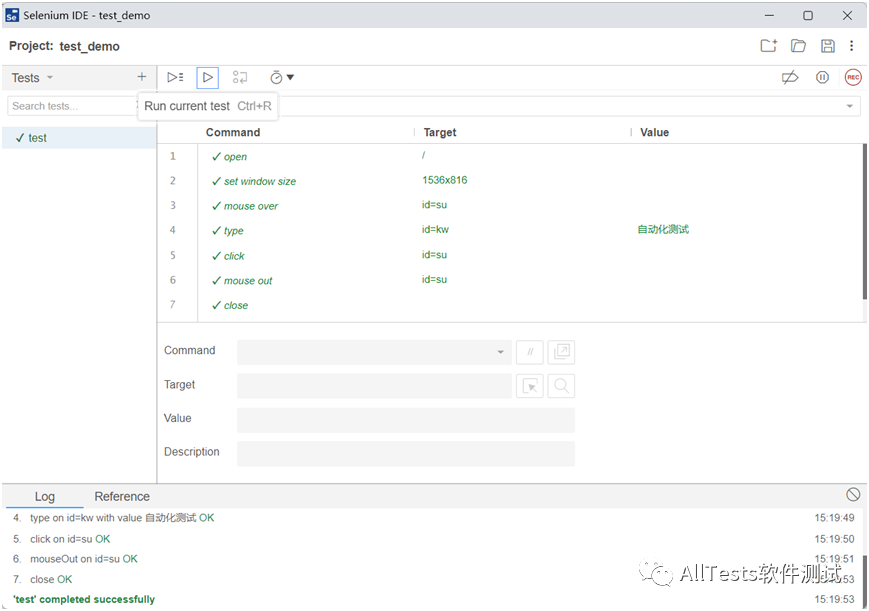
打开命令行工具,执行如下命令运行脚本。
selenium-side-runner D:\test_demo.side执行成功。

如果有多个 .side 文件,可以使用通配符(例如 D:\*.side)。
运行多个 .side 文件时,它将在多个浏览器窗口中并行启动测试,分布在 n 个进程中(其中 n 是计算机上可用 CPU 内核的数量)。
注:提示如下报错信息,则进行手动下载驱动,并配置环境变量即可。
The ChromeDriver could not be found on the current PATH. Please download the latest version of the ChromeDriver fro
m http://chromedriver.storage.googleapis.com/index.html and ensure it can be found on your PATH.
(1)首先查看浏览器版本,并下载对应版本的驱动。
如浏览器版本106.0.5249.119。

则驱动下载106.0.5249.61。

(2)将驱动放在本地 chrome.exe 同级目录里。

(3)在环境变量的 PATH 里添加 chromedriver.exe 同级目录路径,之后保存就可以了。

4、运行时配置
1、在本地指定不同的浏览器上运行。
selenium-side-runner -c "browserName=chrome"
selenium-side-runner -c "browserName='internet explorer'"
selenium-side-runner -c "browserName=edge"
selenium-side-runner -c "browserName=firefox"
selenium-side-runner -c "browserName=safari"
2、在 Selenium Grid 上运行。
selenium-side-runner --server http://localhost:4444/wd/hub -c "browserName='chrome' version='106.0' platform='Windows 10'"3、指定并行进程的数量
在 Selenium Grid 上运行时,你可能希望控制正在运行的并行会话数,可以使用 -w n 命令标志(其中 n 是想要的进程数)。
selenium-side-runner -w 10 --server http://localhost:4444/wd/hub4、Chrome 特定功能
如果你在计算机上的非标准位置安装了 Chrome,则可以指定路径,以便 ChromeDriver 知道要查找的位置。
selenium-side-runner -c "goog:chromeOptions.binary='/path/to/non-standard/Chrome/install'"无头运行测试。
selenium-side-runner -c "goog:chromeOptions.args=[disable-infobars, headless]"5、应用于框架
1、更改基本 URL。
通过指定不同的基本 URL,可以轻松地将测试指向不同的环境(例如开发环境、测试环境、生产环境)。
selenium-side-runner --base-url https://localhost2、过滤器测试
可以选择使用 --filter target 命令标志(其中 target 是正则表达式值)运行测试的目标子集。仅运行包含给定搜索条件的测试名称。
selenium-side-runner --filter smoke3、将测试结果输出到文件
如果需要将测试结果导出到文件中(例如,当作为 CI 进程的一部分运行时),可以使用 --output-directory 和 --output-format。
--output-directory 定义了测试结果文件的放置位置,可以采用绝对路径或相对路径。
--output-format 定义用于测试结果文件的格式,可以是 jest(例如 JSON)或 junit(例如 XML),默认格式为 jest(未指定类型)。
selenium-side-runner --output-directory=results
selenium-side-runner --output-directory=results --output-format=jest
selenium-side-runner --output-directory=results --output-format=junit
4、指定默认配置
可以将运行时参数存储在配置文件中,而不是记住所有需要的命令行参数。
两种配置方式。
方式一:
运行测试的目录里创建 .side.yml 文件,selenium-side-runner 会自动识别它。下面是文件内容的示例。
capabilities:
  browserName: "firefox"
baseUrl: "https://www.seleniumhq.org"
server: "http://localhost:4444/wd/hub"
如果要忽略该文件并使用命令行参数,请在运行时与其他命令一起使用 --no-sideyml。
方式二:
替代 .side.yml 文件,可以在 YAML 文件中指定运行时参数,并使用选择的名称和位置,然后在运行测试时指定其位置。
selenium-side-runner --config-file "/path/to/your/config.yaml"6、高级选项
1、参数
指定自己独特的运行时参数,可以通过 --params 标志使用它们。
(1)基本用法
指定参数的名称和值,最基本的方法是指定一个字符串值。
selenium-side-runner --params "a='example-value'"(2)嵌套参数
参数可以使用点表示嵌套。
selenium-side-runner --params "a.b='another example-value'"(3)数组值
可以指定字母数字数组。
selenium-side-runner --params "a.b.c=[1,2,3]"(4)多个参数
--params 只能调用一次,但可以通过空格分隔指定多个参数。
selenium-side-runner --params "a='example-value' a.b='another example-value' a.b.c=[1,2,3]"2、使用代理服务器
可以在运行程序中使用以下选项将代理功能传递给浏览器。
(1)直接代理
此选项将 WebDriver 配置为绕过所有浏览器代理。
从命令行:
selenium-side-runner --proxy-type=direct在 .side.yaml 文件中:
proxyType: direct(2)手动代理
手动配置浏览器代理。
从命令行:
selenium-side-runner --proxy-type=manual --proxy-options="http=localhost:434 bypass=[http://localhost:434, http://localhost:8080]"在 .side.yaml 文件中:
proxyType: manual
proxyOptions:
  http: http://localhost:434
  https: http://localhost:434
  ftp: http://localhost:434
  bypass:
    - http://localhost:8080
    - http://host:434
    - http://somethingelse:32
(3)PAC 代理
配置 WebDriver 以使用给定 URL 的 PAC 文件设置浏览器代理。
从命令行:
selenium-side-runner --proxy-type=pac --proxy-options="http://localhost/pac"在 .side.yaml 文件中:
proxyType: pac
proxyOptions: http://localhost/pac
(4)SOCKS 代理
为 SOCKS 代理创建代理配置。
从命令行:
selenium-side-runner --proxy-type=socks --proxy-options="socksProxy=localhost:434 socksVersion=5"在 .side.yaml 文件中:
proxyType: socks
proxyOptions:
  socksProxy: localhost:434
  socksVersion: 5
(5)系统代理
配置 WebDriver 以使用当前系统的代理。
从命令行:
selenium-side-runner --proxy-type=system在 .side.yaml 文件中:
proxyType: system本文参与 腾讯云自媒体同步曝光计划,分享自微信公众号。
原始发表:2022-10-24,如有侵权请联系 cloudcommunity@tencent.com 删除
目录
腾讯云开发者

Copyright © 2013 - 2026 Tencent Cloud. All Rights Reserved. 腾讯云 版权所有
深圳市腾讯计算机系统有限公司 ICP备案/许可证号:粤B2-20090059  粤公网安备44030502008569号
腾讯云计算(北京)有限责任公司 京ICP证150476号 | 京ICP备11018762号